How to Test Whether Your DNS Ad Blocker Is Working
Check your active resolver, run a controlled DNS lookup, and compare dashboard counters to verify filtering on each device without relying on a web score.

Written by
DNSAdBlocker Team
The DNSAdBlocker team explains home DNS filtering, setup, and maintenance using product documentation and referenced platform guidance.
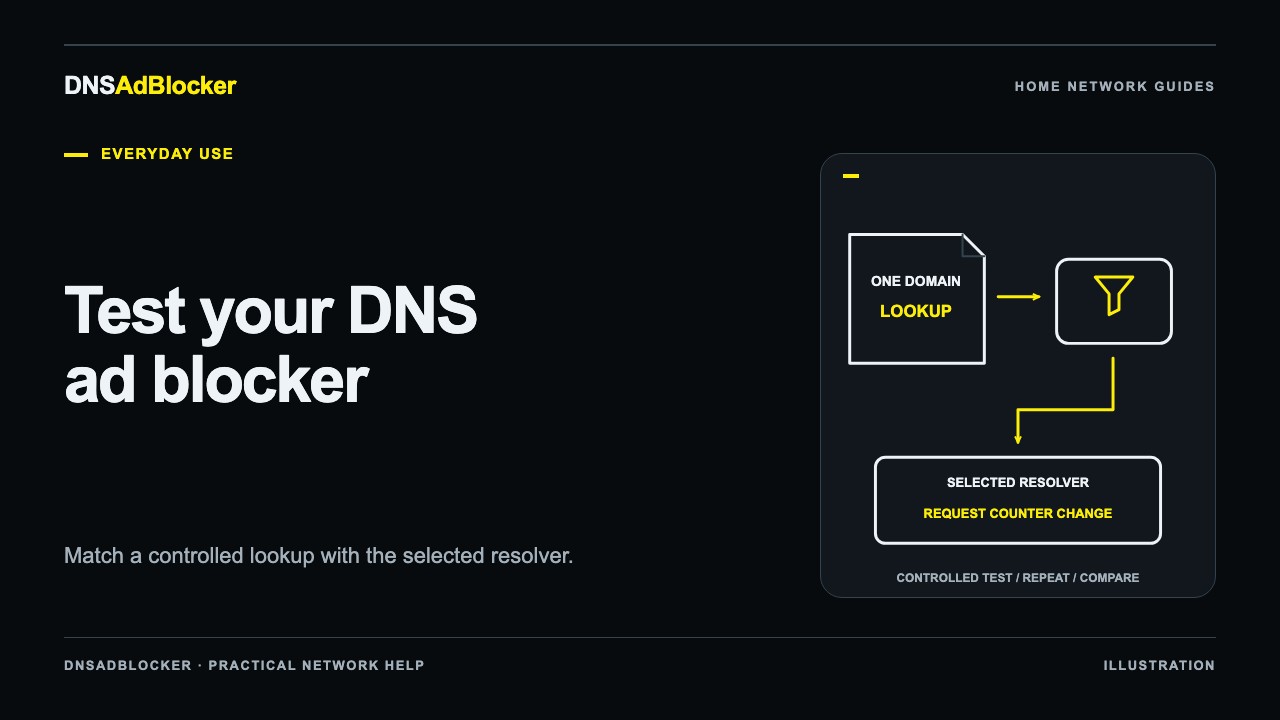
To test a DNS ad blocker, check which resolver a device uses, send a controlled lookup, and compare the result with the local dashboard's request counters. Then repeat the check on another configured device. These checks answer different questions; a high score on a browser test page cannot establish coverage for your whole home.
You need the filtering device's current local IP address and a computer connected to the network you want to test. Keep a note of your existing DNS, VPN, and browser security settings before changing anything. The product guide explains the distinction between connecting the hardware to Wi-Fi and configuring clients to use its DNS service.
Check the resolver your computer received
On Windows, open Command Prompt and run:
ipconfig /all
Find the active Wi-Fi or Ethernet adapter and read its DNS Servers entries. Ignore disconnected adapters. Microsoft documents ipconfig /all as the full TCP/IP configuration view.
On a Mac, open System Settings, choose Network, select your active connection, and inspect its DNS settings. Menu names can vary with macOS releases. Record every resolver address you see, including IPv6 addresses.
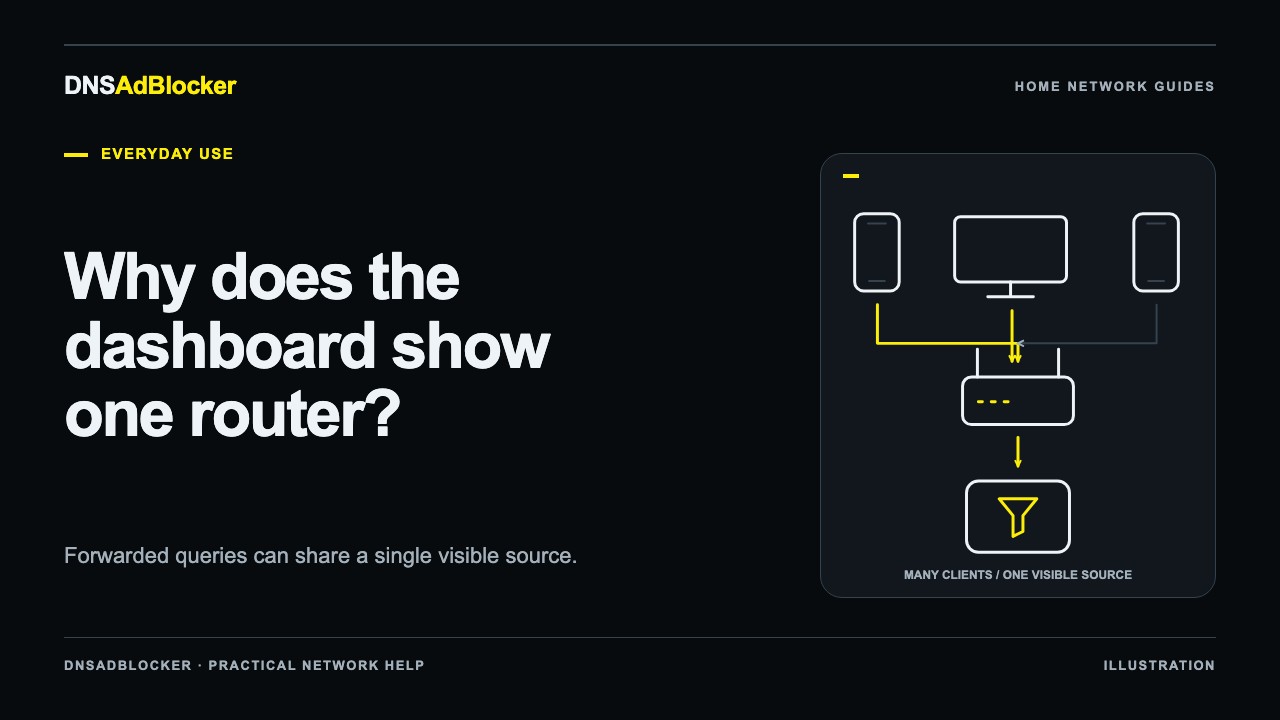
The address may be the blocker itself or your router. A router address can be correct when the router forwards DNS to the blocker. It can also mean the router uses an unrelated upstream resolver. Check its configuration rather than judging by the address alone. Our router DNS versus device DNS guide explains the two paths.
If a public resolver appears alongside the blocker, do not assume it waits quietly as an emergency backup. Clients can use another configured resolver, so mixed settings can produce inconsistent filtering.
Send a lookup directly to the filtering device
Use nslookup to address the blocker explicitly. Replace 192.168.1.50 below with its actual local IP:
nslookup example.com 192.168.1.50
In Microsoft's nslookup syntax, the first argument is the name to look up and the second identifies the DNS server. A lookup without the second argument uses the tool's default server:
nslookup example.com
Comparing these commands helps separate "the blocker can answer" from "this computer normally sends queries there." An explicit lookup is a diagnostic request. It does not prove that a browser, a VPN, or every application follows the same route.
Open the blocker's local dashboard before testing. Note the allowed and blocked totals, run the lookup, and wait for the next statistics refresh. Other devices can produce requests during that interval, so an increase is supporting evidence rather than an exact receipt for your single command.
Use a temporary rule for a controlled blocking check
An ordinary domain resolving successfully confirms that the server answers, but it does not test a blocking rule. For that, use a domain you can temporarily block without interrupting a service you need.
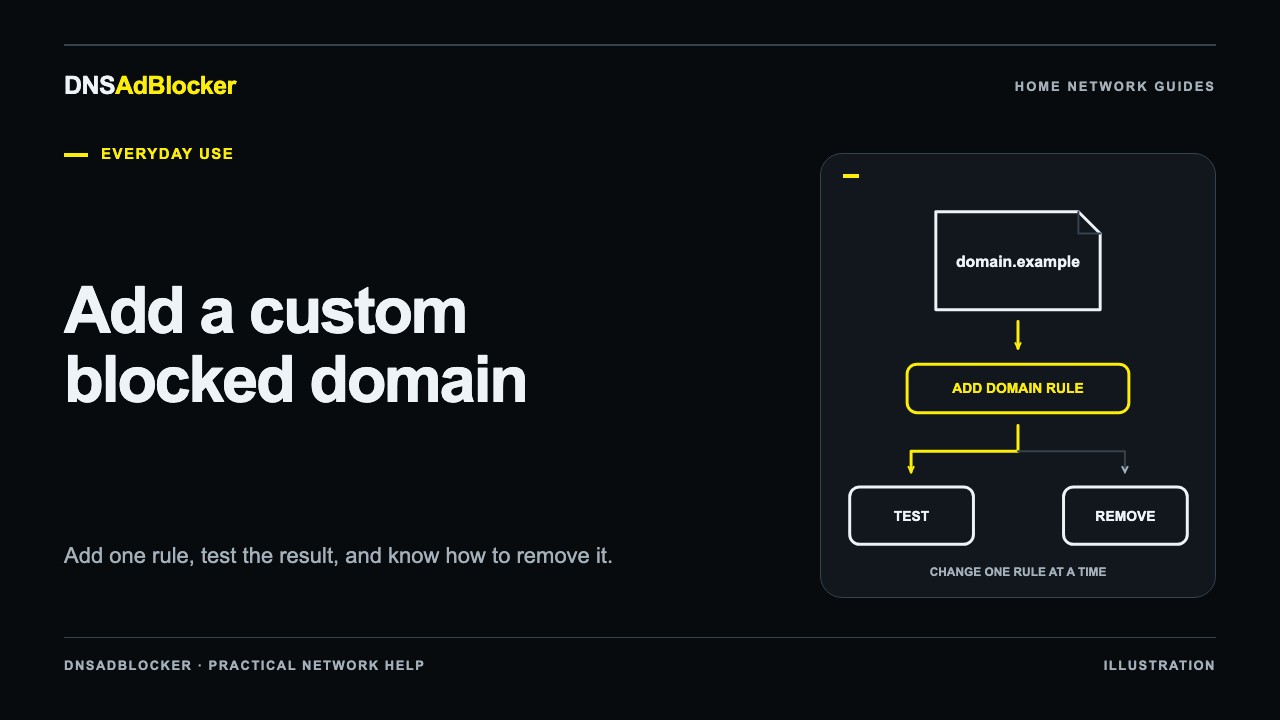
example.com is a suitable demonstration name. First check its result, add it as one custom blocked domain, then query the blocker directly again. Follow the custom-domain instructions for the local dashboard controls. Do not use a bank, work login, or software-update domain for an experiment.
Compare the DNS response and blocked counter before and after the rule. A blocked response should stop returning the normal usable destination; the wording shown by diagnostic tools can vary. A timeout alone is inconclusive because an unreachable server also times out.
Remove the temporary custom rule afterward and repeat the lookup. Removal undoes that custom entry. If the domain also appears in the main blocklist, it can remain blocked; the dashboard does not provide a general allowlist override. If a browser still shows an old result, use the relevant steps to clear a DNS cache before retesting.
Understand what each result proves
| Check | What you learn | What it does not prove |
|---|---|---|
| Active DNS settings | Which resolver addresses the connection received | Every application uses those addresses |
| Explicit lookup to the blocker | The client can reach that resolver and obtain a response | The client's ordinary traffic follows the same route |
| Temporary custom-rule test | The resolver applies that rule to the tested name | Every advertisement uses a separate blockable domain |
| Counter change during the test | DNS activity reached the dashboard during that interval | The exact number of advertisements removed |
| Second-device test | That second client's tested path works too | All remaining household devices are configured |
The dashboard counts allowed and blocked DNS requests, including background requests and retries. Reading request counters explains why a large blocked total is not a count of missing ads.
Keep browser tests separate from resolver tests
A browser extension may stop a request before it reaches DNS. A browser test page might then report success even when the computer uses another resolver. A page can also report a low score because its chosen domains differ from your blocklist, or because the browser already cached answers.
If you compare results with an extension enabled and disabled, record its original state and change only that setting. Use an ordinary test page without signing into a sensitive service, then restore the extension. A DNS filter cannot selectively separate an advertisement from wanted content when both use the same domain, so some visible ads can remain while DNS filtering works.
Repeat on a second device and after route changes
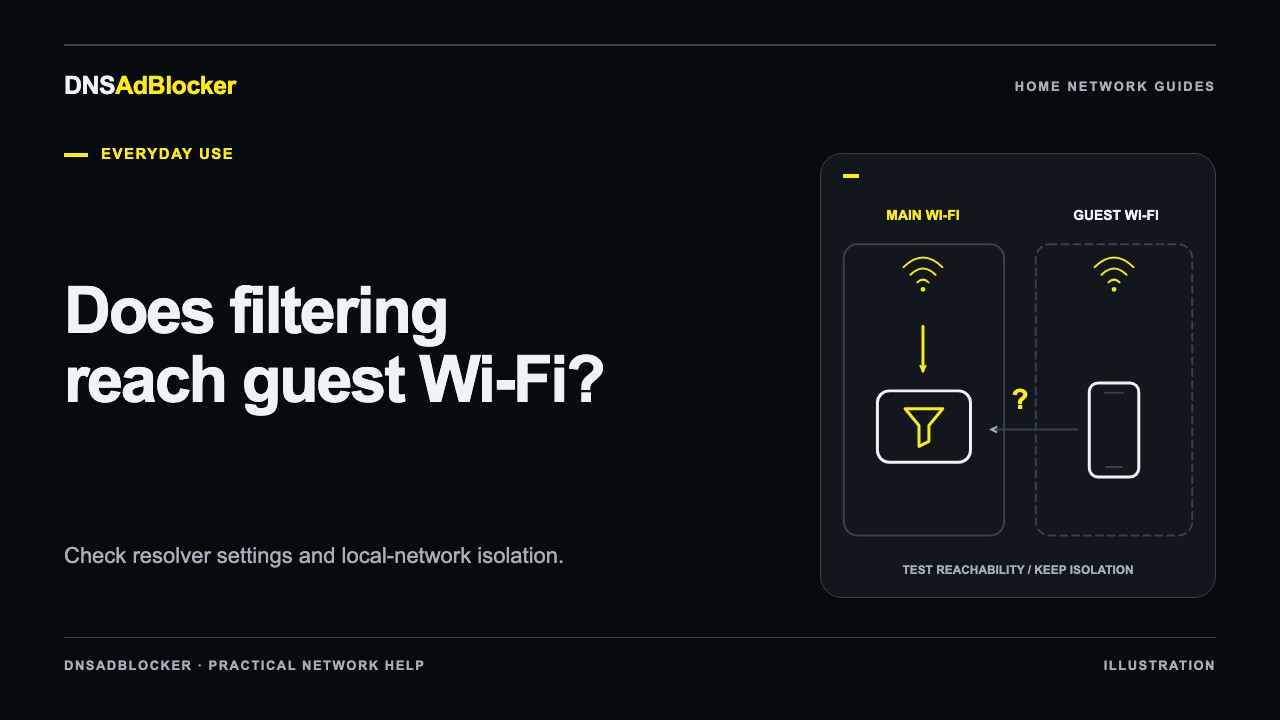
Choose another device configured for the blocker and repeat the resolver and activity checks. A phone on cellular data, a guest network, or a separate Wi-Fi system may follow a different route.
VPNs and encrypted DNS can also change the route. If you are permitted to change those settings, record the original value, change one setting, repeat the same test, and restore it. Keep required work security settings in place and ask the administrator when they control the connection.
When the direct lookup works but ordinary browsing bypasses it, follow the request-path troubleshooting guide. Keep your notes specific: device, connection, resolver address, test domain, response, and counter changes. That is enough to repeat the test after a router change without relying on how many ads happened to appear.
Questions or corrections about this content can be sent to support@dnsadblocker.com.
All postsRelated posts
DNS filtering guides, home network setup notes, and product updates.