How to Read Blocked DNS Request Counts in Your Dashboard
Understand allowed and blocked DNS counts, background requests, retries, and router forwarding so you can compare activity without mistaking it for ads removed.

Written by
DNSAdBlocker Team
The DNSAdBlocker team explains home DNS filtering, setup, and maintenance using product documentation and referenced platform guidance.
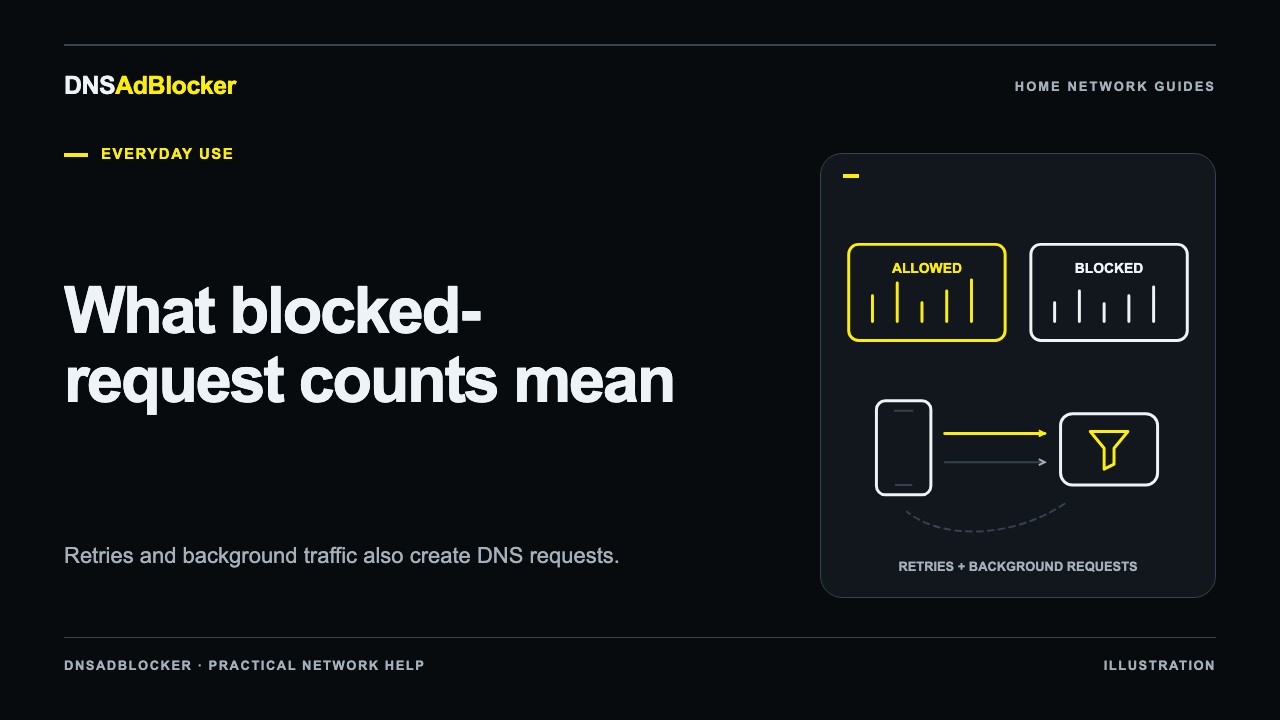
A blocked DNS request means the resolver blocked a domain lookup. It does not mean one advertisement disappeared. The same app can retry a blocked name repeatedly, while a cached DNS answer can let a page load without sending a new request to the blocker at all.
Use the dashboard to see whether requests reach the device and whether filtering is active during a repeatable test. Treat the totals as activity counters, rather than a browsing history or an advertising report. The product guide explains how to open the local dashboard from your home network.
What allowed and blocked counts mean
DNS turns a name into information a device can use to make a connection. A page can involve many names: the site itself, image delivery, analytics, sign-in services, and advertising systems. Some lookups support features you want. Others match a blocked domain.
The dashboard's allowed count records requests the resolver permits through its filtering decision. It does not certify that the destination is safe, that a website loaded correctly, or that the upstream resolver returned a successful answer. A blocked count records requests the resolver rejected under its active rules or client-ban controls.
Several ordinary behaviors change the totals:
| Behavior | Effect on the counters |
|---|---|
| An app retries the same blocked name | More blocked requests can represent the same attempted connection |
| A browser reuses a cached answer | A page can load without a new DNS request reaching the device |
| A phone checks for messages in the background | Requests can increase while nobody is browsing |
| A router answers from its own cache | The blocker can see fewer requests than the clients generated |
| A client uses another resolver | Its requests may never appear in this dashboard |
Do not read a sudden spike as proof that someone opened a particular site. Software updates, background services, and retries can all produce bursts. The dashboard has no per-domain request log that could settle that question.
Compare one repeatable action
If you want to understand what happens when you open an app, choose an action you can repeat: start the app from a closed state, refresh a particular page, or run a controlled lookup. Avoid changing a blocklist, DNS setting, and application setting at the same time.
- Note the device's uptime and current allowed and blocked totals.
- Wait for a short idle interval and observe how much the totals move without your test action.
- Record a new starting point, perform the action once, and wait for the dashboard to refresh.
- Record the ending totals and the approximate interval.
- Repeat once under the same settings if you need to check whether the pattern recurs.
The idle interval helps you notice background activity; it does not give a precise amount to subtract from the next interval. Background jobs do not run at a constant rate. If other household devices are busy, the aggregate total is a particularly noisy measurement.
For a stronger check, combine the counters with the active DNS address and an explicit lookup as described in testing whether the blocker works. A visible counter increase supports that test, but a matching DNS response gives you more information than a number alone.
Use per-client counts with care
The client list shows source clients the resolver observes and their allowed and blocked request counts. Where clients query the blocker directly, their local IP addresses can appear separately. That makes a controlled test easier to compare with one client's activity.
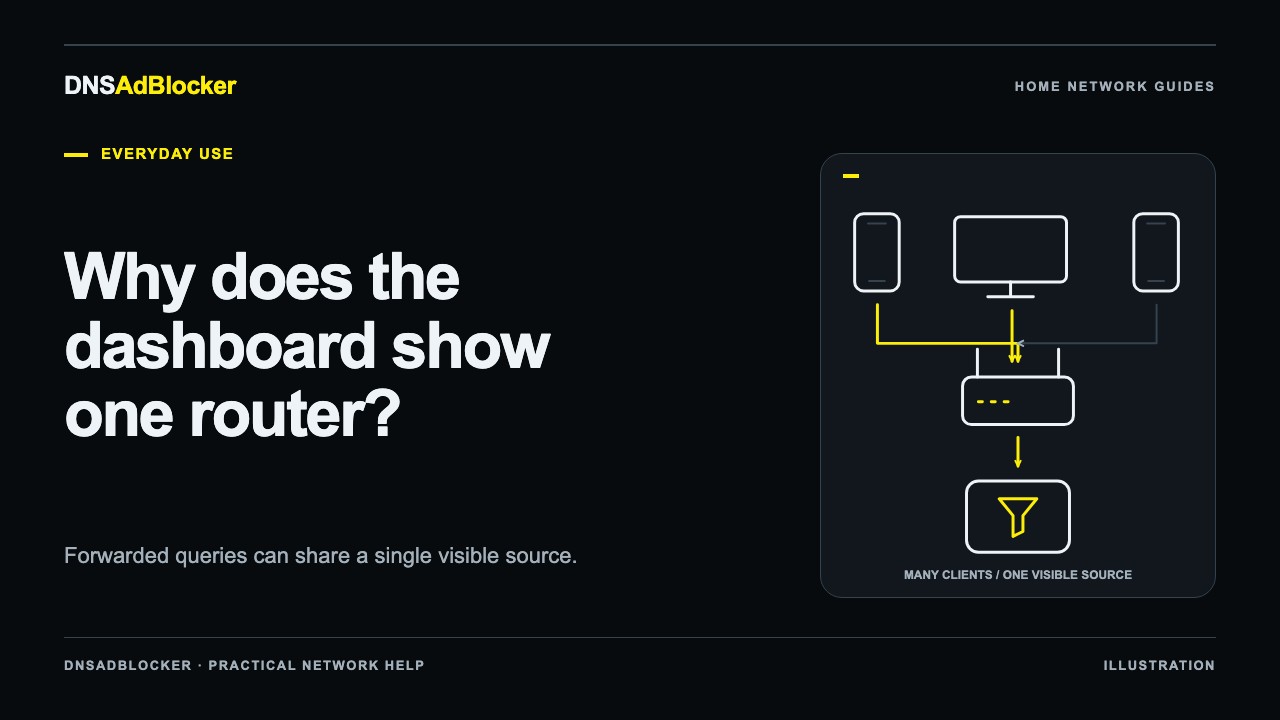
A router may forward requests on behalf of every phone, television, and computer. In that arrangement the blocker sees the router as the sender. The router's row can therefore represent several devices. This is a normal consequence of the request path, described in why the dashboard shows only the router.
An IP address also needs context. If the router later gives that address to another device, the number alone does not establish a person's identity. Use your router's current device list to understand the network, and avoid treating a client counter as evidence of who used a service.
Account for restarts and rule changes
The totals and per-client counters start again when DNSAdBlocker reboots. Check uptime before comparing two notes taken hours or days apart. A smaller total after a restart does not show that filtering became weaker; it means the counting period changed.
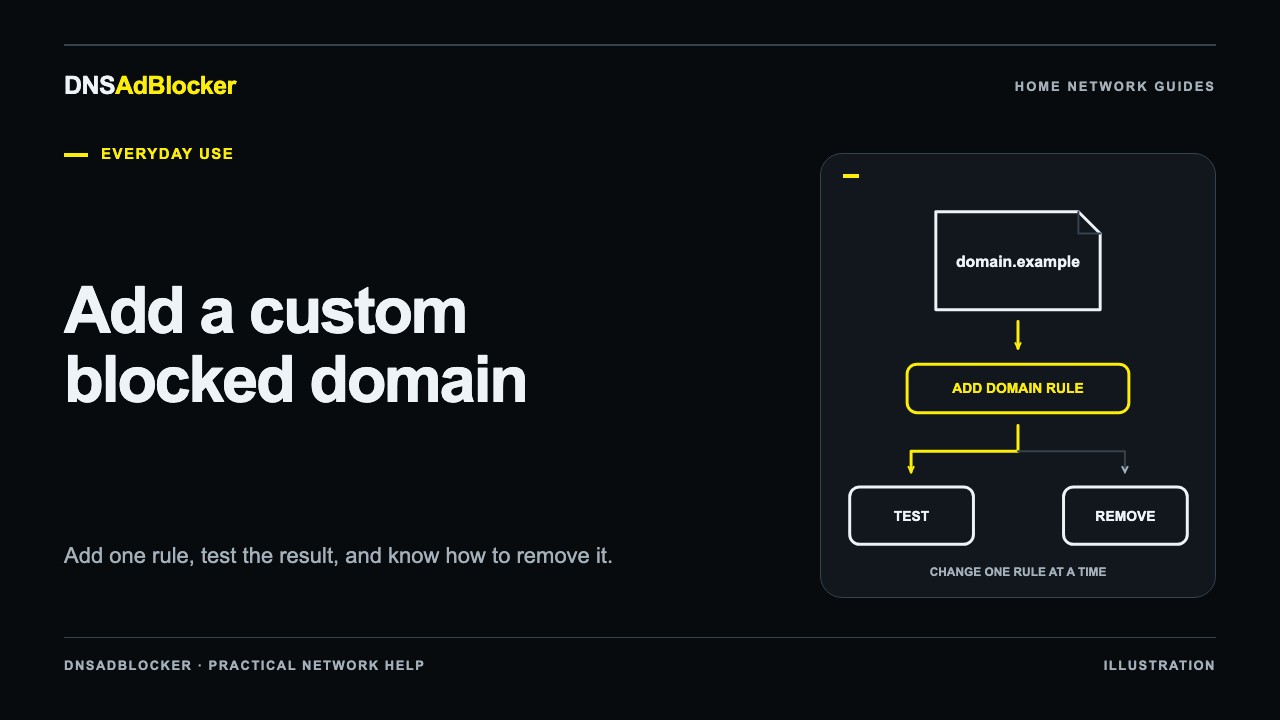
Keep a short note when you change a rule: the time, the domain or list version involved, and what you tested. Follow the custom blocked-domain guide when adding a single entry. A larger blocked total after that change can include retries, so check the affected service and unrelated services as well.
Rule-file changes and firmware updates are separate operations. The blocklist versus firmware explanation helps you record what changed without assuming that every update has the same effect. Use before-and-after tests under comparable conditions; comparing today's busy evening with yesterday's quiet morning tells you little about list quality.
What the dashboard cannot tell you
DNSAdBlocker's local dashboard provides totals, observed clients, and device status such as uptime. It does not provide a list of domains each person visited, a website-by-website history, or an exportable history of every query. The counters cannot identify which exact request caused a blocked connection.
For a website problem, inspect that browser's Network panel or use an external DNS diagnostic on a known name. Chrome's Network documentation explains how to show the Domain column for page requests. Those tools help identify candidate names; they do not turn the dashboard into a browsing log.
An allowed-to-blocked percentage is still only a proportion of observed DNS requests. A household where one app retries frequently can have a higher blocked percentage than another household with less retry traffic. Neither percentage is a reliable measurement of privacy, time saved, or ads removed.
Common questions
Why do blocked requests keep increasing when I am doing nothing?
Connected devices keep working in the background. Apps can also retry names that were blocked. Compare an idle interval and check the client rows, while remembering that a router can combine several clients into one row.
Does zero blocked traffic mean filtering failed?
It can mean the observed requests did not match the active rules, cached answers reduced new requests, or clients used another resolver. Test a known temporary custom rule and check the request path before concluding that filtering has failed.
Can I use these numbers to count the ads I avoided?
No. Requests and advertisements have no fixed one-to-one relationship. Keep the measurement concrete: how many DNS requests this resolver allowed or blocked during the recorded uptime.
Questions or corrections about this content can be sent to support@dnsadblocker.com.
All postsRelated posts
DNS filtering guides, home network setup notes, and product updates.