How to Flush DNS Cache After Changing Your Filtering Rules
Clear Windows DNS cache or restart a Mac, then repeat a controlled lookup to separate cached answers from resolver settings and filtering problems.

Written by
DNSAdBlocker Team
The DNSAdBlocker team explains home DNS filtering, setup, and maintenance using product documentation and referenced platform guidance.
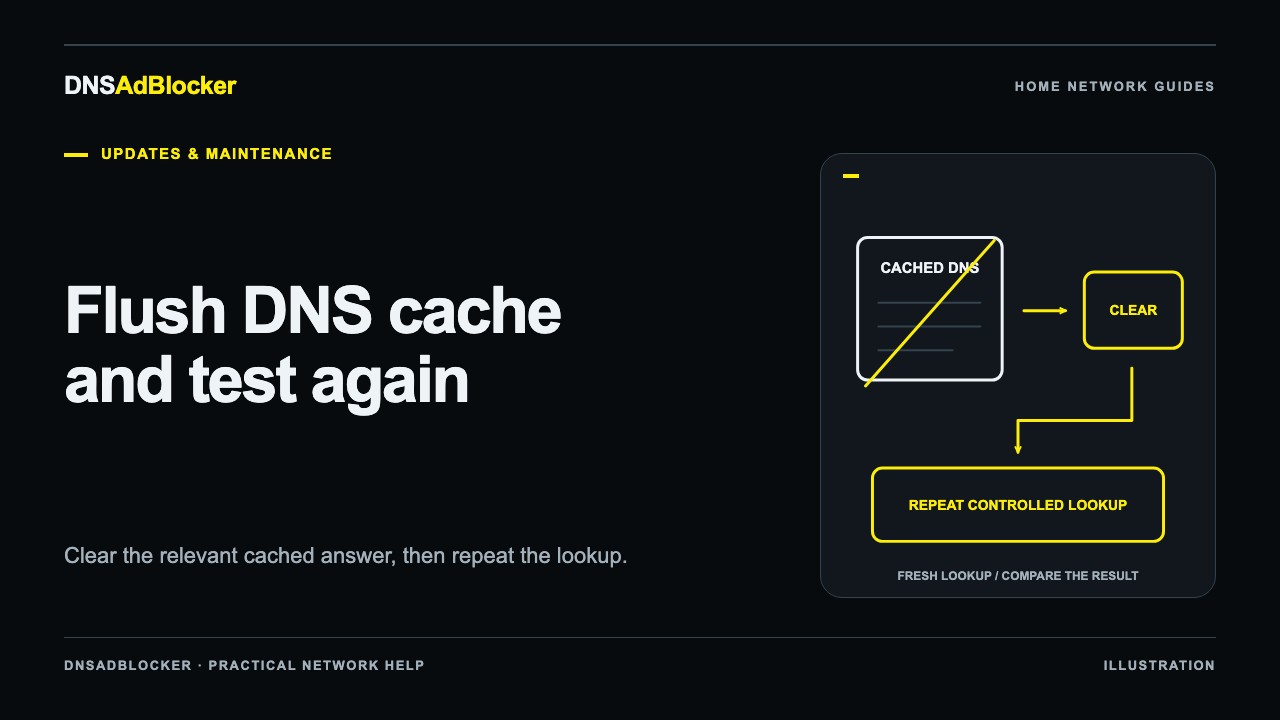
On Windows, ipconfig /flushdns clears the DNS client resolver cache. On a Mac, saving your work and choosing Apple menu > Restart is a practical way to refresh local cached DNS information without relying on a command intended for a different macOS version. Neither step clears every browser or upstream resolver cache, and neither changes which DNS server your device is configured to use.
A flush is useful when you changed a DNS setting or blocking rule but still see an earlier answer. It is less useful when the real problem is a device using a different resolver, an offline blocker, or an advertisement that DNS cannot separate from wanted content.
Why an old answer can survive a rule change
DNS answers can be reused for a period set by their time to live, usually called TTL. Reusing an answer saves another lookup, but it also means a recent rule change may not be visible immediately on a device that already knows the destination.
There can be more than one layer involved:
| Layer | What may remain | What a computer's DNS flush changes |
|---|---|---|
| Operating system | Local cached DNS answers, including some failed lookups | Clears the relevant system cache |
| Browser or app | Its own cached resolution, open connection, or loaded content | May need a separate restart or fresh action |
| Router or upstream resolver | Answers reused outside the computer | Not cleared by a client command |
| Web page storage | Downloaded resources, cookies, and account state | Not a DNS cache and not cleared by a DNS flush |
A page already loaded in a tab does not disappear when its domain is blocked. An app may keep an existing connection open without asking DNS again. These observations do not, by themselves, show that the new rule failed.
Start by confirming the active network and resolver. If you recently changed a Windows setting, use the Windows 11 DNS setup guide to check the adapter you actually use. Flushing the wrong computer or changing a disconnected adapter will not fix the request path.
Flush the Windows DNS client cache
Microsoft's current ipconfig reference applies to Windows 11 and Windows 10 as well as supported Windows Server versions. It documents /flushdns as the command that flushes and resets the DNS client resolver cache.
- Save any network-dependent work you are testing.
- Open Start, search for Command Prompt, and choose Run as administrator. Approve the Windows prompt if asked.
- Enter the following command and press Enter:
ipconfig /flushdns
- Read the result. Confirm that Windows reports a successful flush rather than assuming the command ran.
- Fully quit and reopen the affected browser or app if it is still holding an existing session, then repeat the same controlled action.
For inspection, ipconfig /displaydns displays the Windows resolver cache. A newly used domain can reappear shortly after a flush because a background app or the next test resolved it again. A repopulated cache does not necessarily mean the flush failed.
Do not substitute ipconfig /release for /flushdns. Microsoft documents /release as releasing DHCP configuration, which can disconnect an adapter. Releasing your network address is a different task and is unnecessary for clearing DNS answers.
Refresh cached DNS information on a Mac
Use a normal restart for the version-independent procedure here:
- Save open documents and finish any transfer that should not be interrupted.
- Choose Apple menu > Restart.
- Confirm Restart. You can deselect Reopen windows when logging back in if you want to reopen only the apps used for the test.
- After signing in, reconnect to the intended home network and repeat the test.
Apple's current Mac restart guide documents these controls. Its DNS-cache explanation says restarting updates cached DNS information, but that older article is archived and its Terminal examples are version-specific. We do not present those old commands as a universal instruction for current macOS releases.
A full restart interrupts your own apps and network sessions. It does not reset the router, change the DNSAdBlocker rule file, or guarantee that an external resolver will return a newly changed answer. If you cannot restart a managed work computer, ask its administrator for the procedure approved for its macOS version.
Repeat a controlled lookup and browser action
Keep the domain, network, and action the same so the before-and-after comparison means something. Start with a domain that should resolve normally, followed by a domain specifically expected to be blocked by your current rules.
An explicit query can check the blocker directly. On Windows Command Prompt or macOS Terminal, this example asks a resolver at an illustrative local address:
nslookup example.com 192.168.1.50
Replace 192.168.1.50 with your filter's actual local address. example.com is an example domain, not a promised blocked test target. This explicit query tests the named resolver; it does not prove your browser uses that same resolver or require the operating system's cache to be empty.
Then repeat the real browser or app action through its normal configuration. Watch for relevant changes in the local dashboard's blocked and allowed request counters. Other household traffic can move those counters, so they are supporting evidence rather than a per-domain event log. The filtering test guide combines resolver checks, queries, and counters into a repeatable method.
If you just replaced the main list, return to the blocklist update checks and confirm the device reports loaded rules. A client cache flush cannot restore a missing or failed rule upload.
What a DNS flush will not fix
Cookies, saved passwords, and downloaded page resources have separate storage. You do not need to erase your browsing history or sign out of every website merely to clear the system DNS cache. Browser controls named Clear browsing data may offer much broader deletion than the task needs.
If the same domain still resolves unexpectedly, investigate which resolver received the request and whether the rule actually includes that domain. A VPN or browser encrypted DNS setting can bypass the local filter after a perfectly successful flush. Follow the request-path troubleshooting guide when the evidence points beyond cached answers.
Sources reviewed
Reviewed October 19, 2026: Microsoft's ipconfig command reference; Apple's current restart instructions and archived DNS-cache explanation. The macOS procedure uses the current restart interface, with the archived article cited only for its explanation of refreshing cached DNS information.
Questions or corrections about this content can be sent to support@dnsadblocker.com.
All postsRelated posts
DNS filtering guides, home network setup notes, and product updates.