How to Add and Test a Custom Blocked Domain
Find a domain with browser tools, add one custom DNS block, and test the result. Learn how subdomains match and why removing a rule may not unblock a name.

Written by
DNSAdBlocker Team
The DNSAdBlocker team explains home DNS filtering, setup, and maintenance using product documentation and referenced platform guidance.
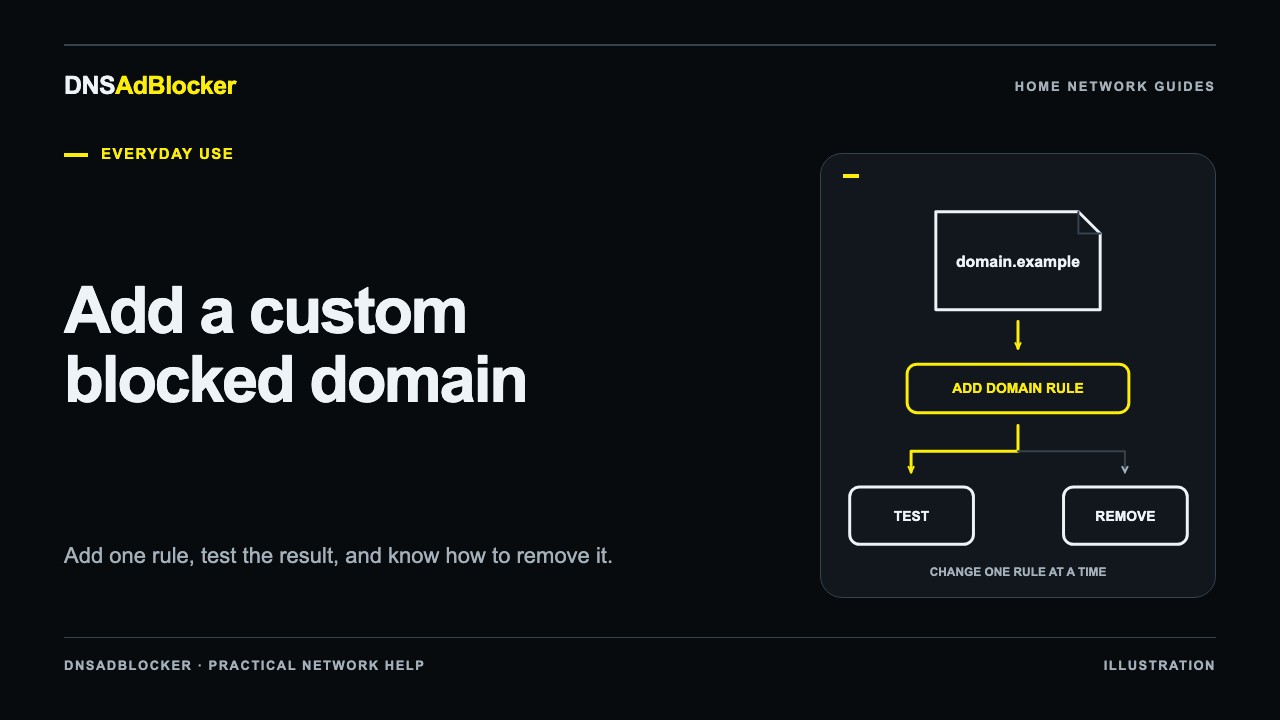
Add a custom blocked domain when you know the name you want to stop resolving and can test the effect. Add one entry at a time, record why you added it, and check the affected app before moving on. Blocking a domain can interrupt useful features that share it.
Removing a custom entry undoes that entry. It does not create an allowlist exception: a domain that also matches the main blocklist can remain blocked. Keep that distinction in mind before using a custom rule as a troubleshooting experiment.
Find a candidate domain outside the dashboard
DNSAdBlocker's local dashboard has total and per-client request counters. It does not show a per-domain query log or browsing history. You cannot click a blocked-count total to discover every name behind it.
For a website, open your browser's developer tools and select the Network panel. Reload the page with that panel open, perform the action you are investigating, and inspect the request hostnames. Chrome's official Network tutorial explains how to show the Domain column by right-clicking the request-table headings and selecting Domain.
A name appearing in the panel is a clue, not proof that it serves advertising or tracking. It could deliver images, handle a payment, or complete a login. Check the request's purpose and the service's documentation before blocking it. Prefer a specific, understood hostname over a broad domain that supports many services.
For an app without browser developer tools, use the app's documentation, a relevant diagnostic tool, or a support-provided hostname. An external DNS lookup can check how a known name resolves; it cannot tell you every name a closed app contacts. Do not invent a candidate by guessing from the app's brand name.
Understand how a domain rule matches
DNS filtering works with names, so enter a domain such as metrics.example.com. Do not enter a full URL, a path, an email address, or an advertising keyword.
| Entry | Scope to consider |
|---|---|
example.com | Matches the parent domain and names below it, such as shop.example.com |
metrics.example.com | Matches that name and its subdomains, while leaving sibling names outside this custom rule |
www.example.com | Does not expand upward to block example.com or the sibling mail.example.com |
https://example.com/ads | A URL and path, rather than a DNS-domain rule |
These are demonstration names, not recommendations to block a real service. A parent-domain block can catch far more than the request that first attracted your attention. If the wanted page and its advertisement use the same domain, a domain block cannot selectively remove only the advertisement.
Add one entry in the local dashboard
Open the device's dashboard from a phone or computer on your home network. Use the address supplied with the device or its current local IP. Your DNSAdBlocker.com account manages purchases; changes in the local dashboard use the device's own administration credentials. The product guide explains those separate roles.
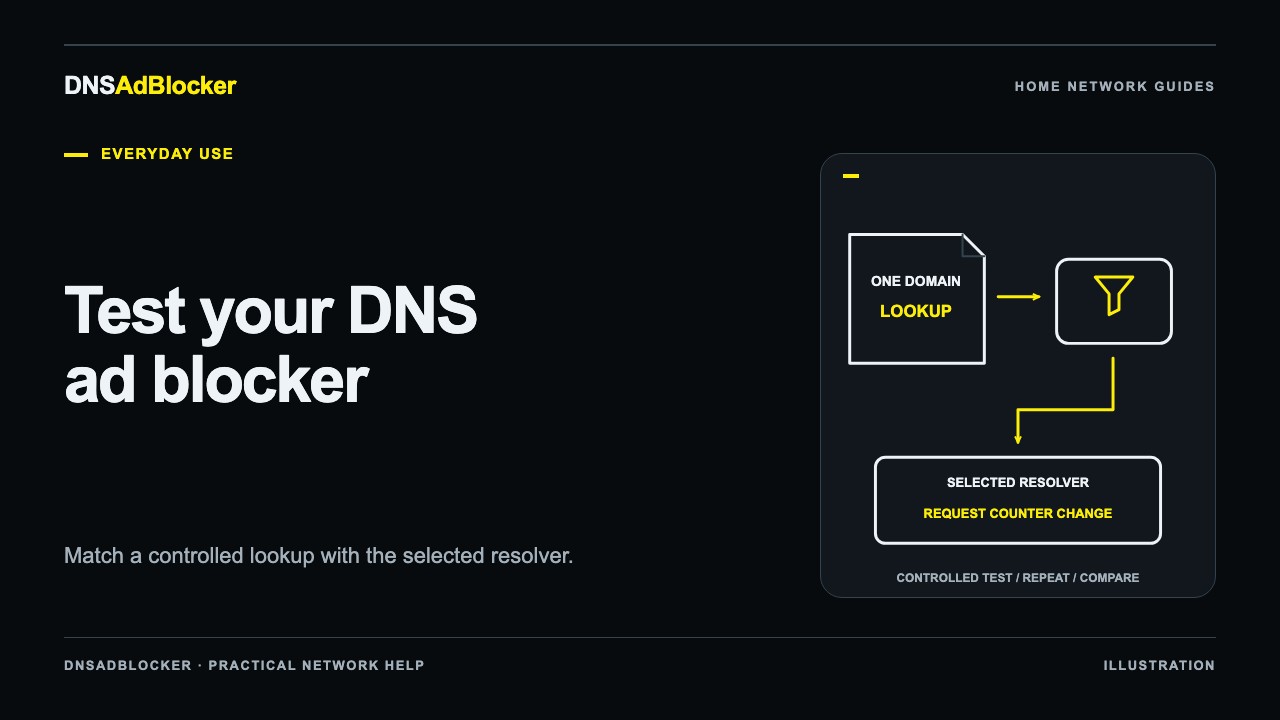
Before adding a rule, confirm that the test client uses the blocker. A rule cannot affect a browser that sends DNS somewhere else. Follow the DNS filtering test if you have not verified the request path yet.
In the custom blocked-domain section, enter the candidate name and use the add control. Confirm that the entry appears in the custom list. Record its exact spelling and why you added it, along with the date and a short description of the test action.
If you are learning the controls, use example.com as a temporary demonstration rather than blocking a domain required for work, banking, or a device update. Remove the demonstration entry after the test.
Check the DNS response and the application
On Windows, an explicit lookup lets you test the resolver directly:
nslookup metrics.example.com 192.168.1.50
Replace both the demonstration hostname and the sample IP with your test name and the blocker's actual address. Microsoft documents the second nslookup argument as the DNS server to query. Compare the response with your result from before the rule.
Watch the local dashboard during the test. A blocked-counter increase is supporting evidence, but other devices and background requests can also move that number. The request-count explanation describes these limits.
Then test the app itself. Repeat the action that prompted the rule, such as opening a page or starting a video. Check useful features on the same service, including images, sign-in, and playback. Also try unrelated browsing so you notice a broader connection problem instead of blaming every failure on the new entry.
Cached answers and existing connections can delay the visible effect. A direct lookup and a browser refresh test different parts of the path. If the result looks inconsistent, close and reopen the affected app and use the relevant cache troubleshooting steps before adding more rules.
Undo the custom entry when the result is wrong
Remove the exact entry from the custom list and repeat your controlled test. If the site recovers, keep the removed name in your notes with the reason you rejected it. That prevents another household administrator from repeating the same experiment later.
If the domain stays blocked, check whether a broader custom entry remains. Removing metrics.example.com will not help if example.com is still in your custom list. A main-blocklist match can also keep the name blocked after you remove your custom entry.
The device does not offer a general allowlist that overrides the main list. For a site that remains broken, follow the website recovery guide, which separates DNS-related failures from unrelated site problems. A brief filtering pause can help compare behavior, but it is a diagnostic step, not a domain-specific exception.
Keep custom rules small enough to maintain
A useful custom list is one you can explain and reverse. Store a simple note for each entry: domain, reason, date, and test result. Review entries when an app changes or a once-working service breaks.
Avoid copying a large text list into the custom-domain control. Published rule files use a separate format and upload flow; updating the home blocklist explains that operation. Use the custom list for deliberate local choices, then verify each choice against the services your household needs.
Questions or corrections about this content can be sent to support@dnsadblocker.com.
All postsRelated posts
DNS filtering guides, home network setup notes, and product updates.