Why Does Your DNS Dashboard Show Only the Router?
Learn why DNS forwarding can combine your devices into one router entry, check that filtering works, and review supported options for seeing separate clients.

Written by
DNSAdBlocker Team
The DNSAdBlocker team explains home DNS filtering, setup, and maintenance using product documentation and referenced platform guidance.
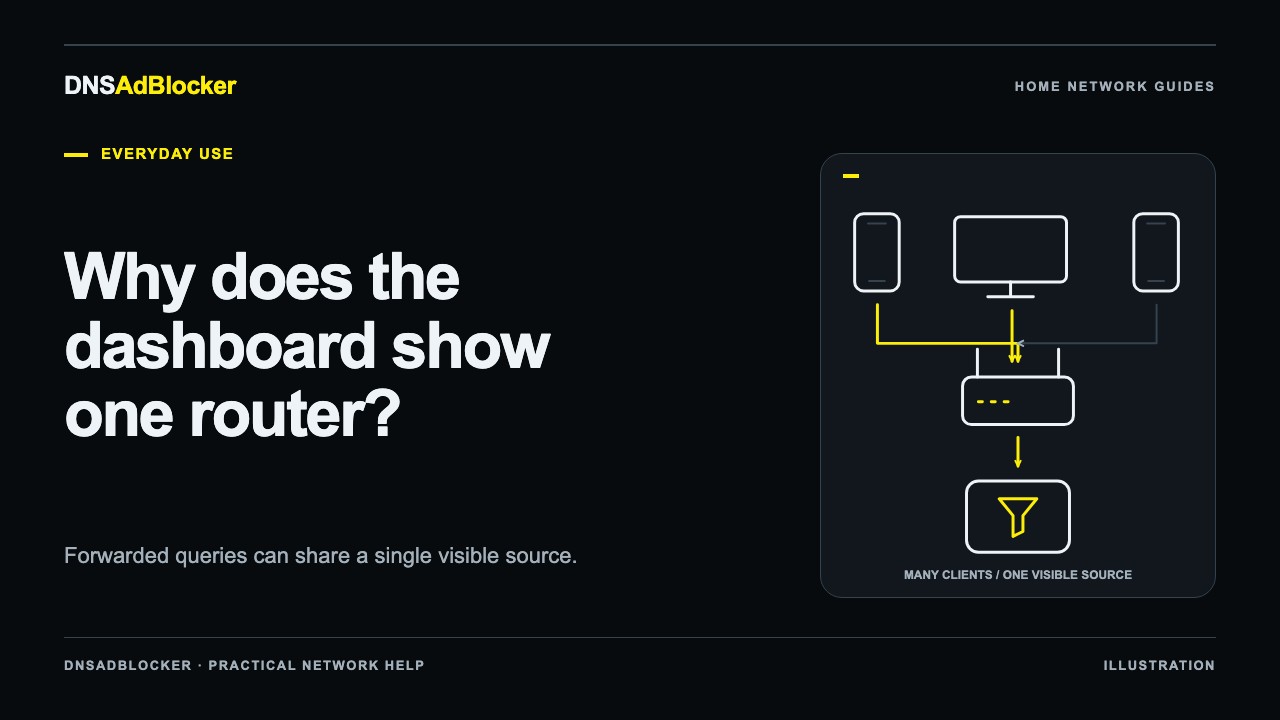
Your DNS dashboard may show only the router because the router forwards DNS requests for the rest of the household. The blocker sees the router as the sender, even when the original request came from a phone or television. That can be a working setup with limited per-device visibility.
Check whether filtering works before changing the network to obtain a longer client list. Separate client rows are useful for troubleshooting, but their absence alone does not establish a filtering failure.
Compare the two request paths
A home router can handle DNS in two common ways:
Forwarded DNS:
phone or computer -> router DNS service -> local blocker -> upstream resolver

Direct client DNS:
phone or computer -> local blocker -> upstream resolver
In the first path, the router creates the request the blocker receives. Several household devices can therefore contribute to one router row. Router caching can also answer a repeated lookup before the blocker sees it.
In the second path, each client sends requests to the blocker itself. The blocker can then observe those clients' source addresses separately, subject to the rest of the network's routing behavior.
The distinction is documented in Pi-hole's Fritz!Box router guide, which compares distributing a local resolver through DHCP with using it as the router's upstream DNS. That guide illustrates the network principle; its software-specific menus and features are not DNSAdBlocker controls. Use your router manufacturer's instructions for the actual setting.
Our router DNS versus device DNS guide covers how to choose the setup location. A router's Internet or WAN DNS field often controls its own upstream resolver, while a LAN or DHCP DNS option can control what it gives clients. Names differ across routers, so read the field's description rather than relying on its label.
Establish whether the router forwards to the blocker
Start with one connected computer. On Windows, run:
ipconfig /all
Read the DNS Servers values for the active adapter. Microsoft's ipconfig documentation explains the full configuration view. If the router's local address appears, inspect its DNS configuration to find its upstream destination.
Then compare a default lookup with one addressed directly to the blocker:
nslookup example.com
nslookup example.com 192.168.1.50
Replace the sample IP with the blocker's actual address. The default command uses the tool's configured resolver; the explicit command tests the blocker directly. Microsoft documents these nslookup arguments.
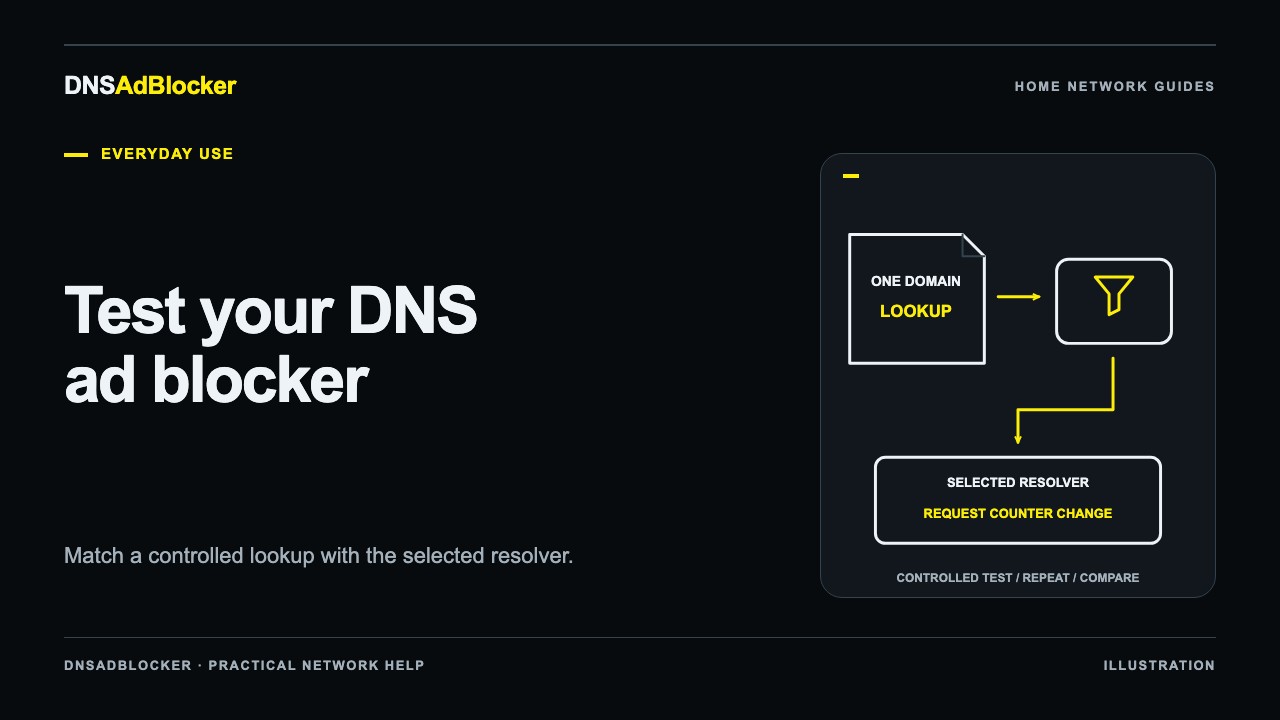
Watch the dashboard counters during the test. A new request in the router row is consistent with forwarding, but background activity can move that counter too. Use a controlled temporary rule and inspect the DNS response rather than treating a counter increase as proof by itself.
If lookups through the normal path apply the rule and normal browsing works, a router-only client list may simply reflect your chosen configuration. The request-counter guide explains how aggregate traffic, retries, and cached answers affect what you see.
Consider whether separate client rows would help
Direct client DNS can make it easier to compare a laptop's test action with that laptop's counter. It can also let you apply the local dashboard's supported client controls to an observed source rather than to the router that represents everyone.
There are tradeoffs. You need a stable blocker address, a router that can advertise the intended DNS setting, and a route from each client network to that address. Some ISP routers expose only upstream DNS. Some mesh systems keep their own forwarding behavior even when a custom DNS address is configured.
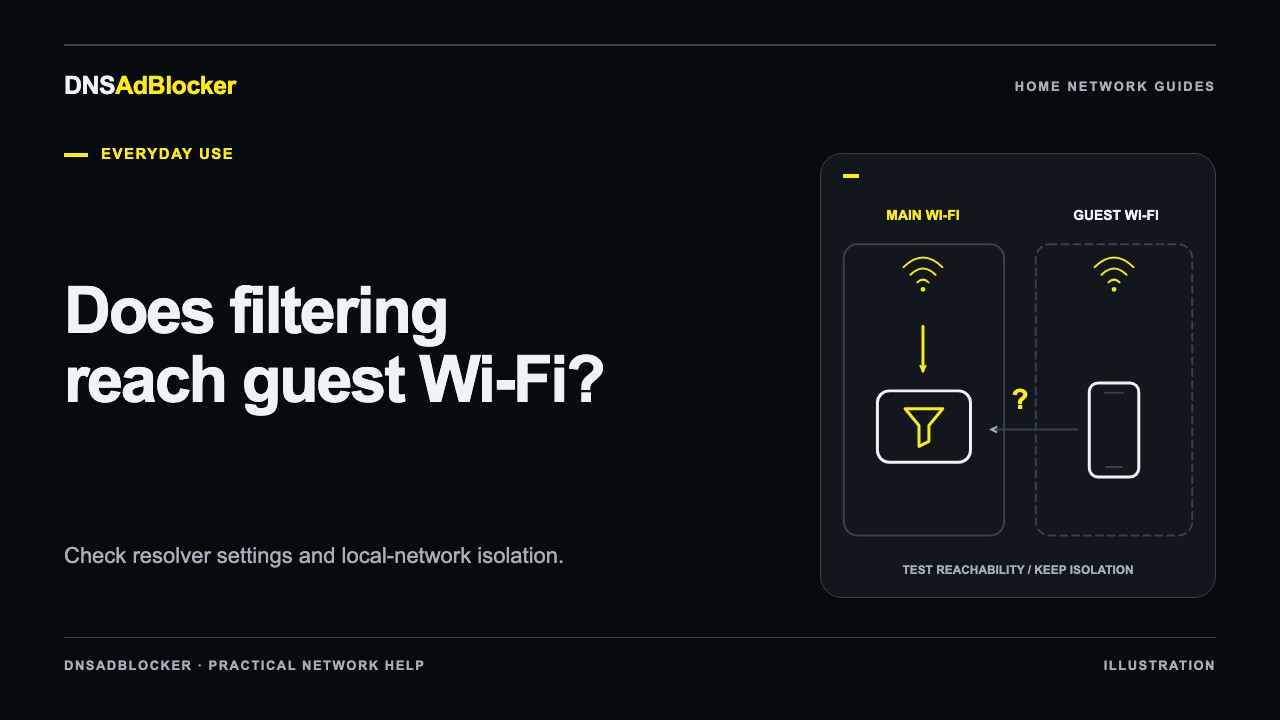
Guest networks need separate attention. A client on guest Wi-Fi may be unable to reach a local resolver because isolation blocks access to the main network. Use the guest Wi-Fi DNS checks instead of removing isolation to obtain a separate dashboard row.
If the existing forwarded setup works and the router does not expose a supported direct-client option, keeping it can be reasonable. A clearer client list does not justify an unstable DNS path.
Test a supported DHCP DNS change on one client
If your router's documentation confirms that it can distribute a custom LAN DNS address through DHCP, record the current setting first. Keep its previous value and the blocker's stable local address available. Do not enable a second DHCP server or replace unrelated network settings to chase a display issue.
Set the documented field, then reconnect one test client so it can obtain the new configuration. The Pi-hole router guide also notes that DHCP DNS changes take effect after clients obtain a new lease. Other devices can retain their earlier values until they renew or reconnect.
Check the test client's active DNS addresses again. Test both a permitted name and your temporary blocked name, then inspect whether the dashboard now observes that client's address. Check the browser or app as well: a VPN, encrypted DNS, or another available resolver can produce a different path from your explicit lookup.
Review IPv6 DNS separately when it is present. An IPv4 DHCP change alone does not establish which resolver every application will use. Avoid promising that every home router can provide individual attribution just because one computer now appears separately.
Keep attribution separate from browsing history
DNSAdBlocker's client rows show observed source addresses and allowed and blocked request totals. They do not show a domain-by-domain request log or a history of websites each person visited. Per-client counters reset when the blocker reboots, so uptime matters when comparing observations.
If a router forwards the traffic, those counters cannot reconstruct the original household sender. A display name or a change to a DNS setting cannot recover information the resolver never received.
When a controlled rule works directly but fails through the client's normal path, use the ad-blocking troubleshooting sequence. Record the current path, change one supported setting, and test again. If the change interrupts access, restore the saved DNS setting and reconnect the test client before trying anything else.
Questions or corrections about this content can be sent to support@dnsadblocker.com.
All postsRelated posts
DNS filtering guides, home network setup notes, and product updates.