Router DNS vs Device DNS: Where Should You Configure Ad Blocking?
Choose between device DNS and router DNS, test one client before changing the household, avoid public secondary DNS bypasses, and keep a clear recovery path.

Written by
DNSAdBlocker Team
The DNSAdBlocker team explains home DNS filtering, setup, and maintenance using product documentation and referenced platform guidance.
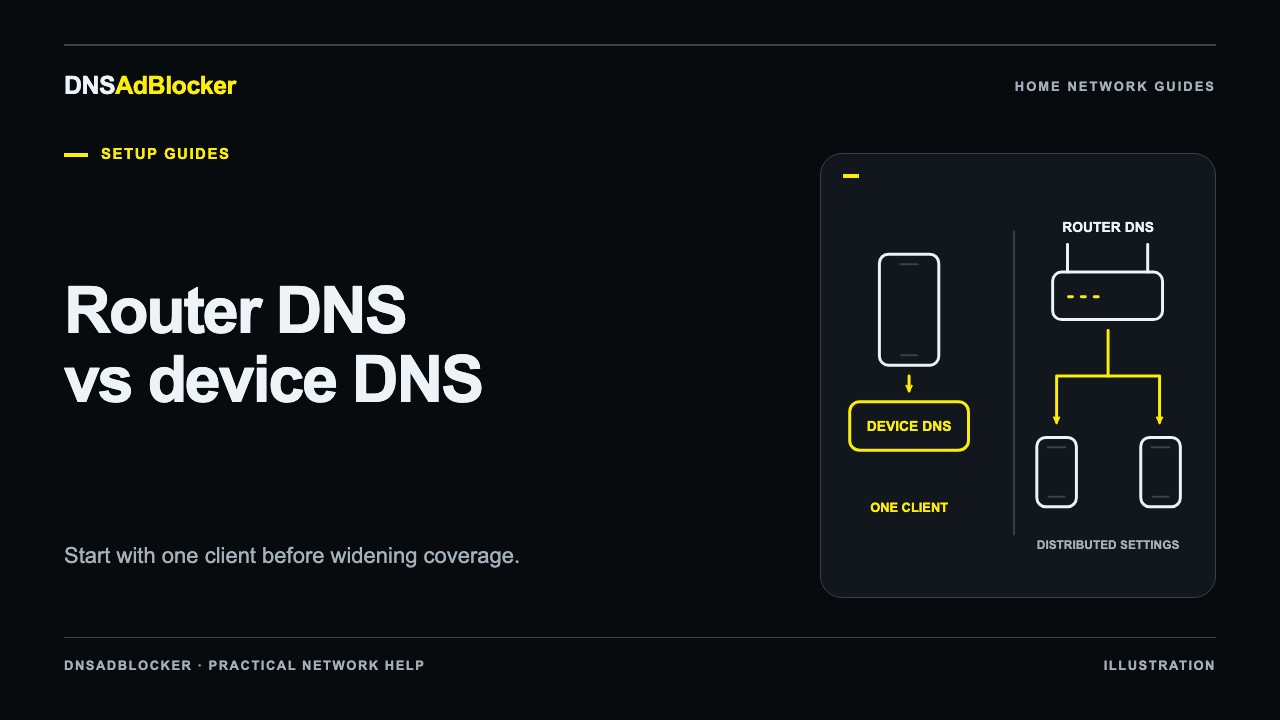
Configure DNS on one device first. Once that device can reach your local DNS filter and you have checked its requests, use the router's LAN or DHCP DNS controls to offer the same resolver to more devices. A router change can reduce repeated setup, but its coverage depends on what the router advertises and what each client actually uses.
Connecting DNSAdBlocker to Wi-Fi does not change the DNS settings of other devices. Those devices must send their domain lookups to it, directly or through a router that forwards to it. This guide helps you choose where to make that change without turning the whole household into the first test.
What changes at each location?
| Setting | What it usually affects | What to check |
|---|---|---|
| DNS on a computer or phone | That device on the relevant connection | Other adapters, VPNs, and application DNS may use another path |
| Router LAN/DHCP DNS | Clients that accept DNS information from that router | Existing leases and manually configured clients may keep other settings |
| Router WAN DNS | The router's own upstream resolver or DNS proxy | It may not change the DNS addresses advertised to clients |
Router labels vary. A field called "Internet DNS" may describe the router's WAN connection, while a DHCP server page may control the address sent to household clients. Some routers advertise their own LAN address and proxy requests. Others distribute the configured DNS server directly.
Check your model's manual instead of assuming these controls are interchangeable. Our router compatibility checklist explains what to look for before you change anything. Never create a loop in which the router forwards to the filter and the filter's upstream points back to that same forwarding router.
Record a working configuration first
Use a device you can manage comfortably, such as a personal laptop on your home Wi-Fi. Avoid starting with a work computer controlled by an employer. Save the current network name, whether DNS is automatic or manual, and every existing DNS address. A screenshot is useful if you store it privately and keep passwords out of it.
Open the filter's local dashboard from that client. Use the local address supplied with the product or the address shown in the router's connected-device list. The website account and the local dashboard have different jobs: your account handles orders and update access, while the dashboard manages the box on your home network.
Give the box a predictable address before distributing it. A DHCP reservation for the home DNS server lets the router give it the same local IP after a restart. Write down the confirmed address; do not copy an example address from a guide.
Run a one-device trial
Leave the router's shared DNS settings alone during the trial. In the test client's active connection settings, change DNS to the filter's actual local IP. Keep IP address assignment on automatic if the operating system lets you edit DNS separately. Changing DNS does not require inventing a new address, gateway, or subnet for the laptop.
After saving, check the active adapter's DNS information and make a normal lookup for example.com. On Windows, ipconfig /all shows adapter details and nslookup example.com identifies the resolver used by that tool. The example domain is for a normal lookup; it is not a domain that we claim the preloaded list blocks.
Watch the dashboard's allowed and blocked request counters before and after a small test. Counters are supporting evidence, since background devices can change them too. They do not provide a per-domain query log or tell you that a particular advertisement disappeared. Follow the DNS filter testing procedure for a controlled blocked-domain test and for the difference between a direct lookup and browser traffic.
If the dashboard is reachable but requests do not appear, inspect the client's VPN, browser Secure DNS, and IPv6 resolver information. These can choose a different path. Investigate one setting at a time and retain the original privacy settings for restoration.
Expand through the router when the trial works
Find the router's instructions for LAN DHCP DNS, DNS server assignment, or its DNS proxy. Enter the confirmed local filtering address in the relevant field. Keep the router's existing IP range and DHCP service unless its manufacturer explicitly requires another arrangement.
After applying the change, reconnect one additional client or renew its lease using that client's supported process. Check the DNS addresses it actually received. Merely seeing the new value on the router's administration page does not prove the phone or television has adopted it.
Test the networks you intend to cover separately. Guest Wi-Fi can isolate clients from a local DNS device, and a mesh system or second router may run another DHCP server. A laptop with manual DNS can keep using its own choice. Router configuration is a distribution method, not a guarantee that every application will use the filter.
Keep the original test device's manual setting until the shared configuration works. Then return that client to automatic DNS and repeat the test. This confirms the router is distributing a usable configuration rather than hiding a problem behind the laptop's override.
Why a public secondary DNS can bypass filtering
Do not assume a client uses the first DNS entry until it fails. Resolver selection varies, and a device can send requests to another listed server. Adding an unrelated public DNS address next to a local filter therefore creates a route around the filtering rules.
A second DNS server can provide resilience when it is a separately available resolver with equivalent filtering. That requires an actual second service and testing. Repeating the same local IP in both fields does not provide redundancy, and a public unfiltered resolver changes the filtering policy even if the router calls it "secondary."
Return to the previous setup
For a device-only trial, restore the saved manual DNS list or return DNS assignment to automatic if that was the original mode. Reconnect and test an ordinary website. Automatic DNS means "use what this network supplies"; if you also changed the router, automatic clients will still receive the router's new values.
For a router rollout, restore the router's original DNS settings, then reconnect affected clients so they receive the previous configuration. If browsing has already stopped, use restore access after a DNS change before attempting further filtering changes. Keep the recorded working settings until the household has completed normal browsing, streaming, and work tasks successfully.
Sources
- Microsoft: Get-DnsClientServerAddress documents checking DNS addresses by interface.
- Microsoft: Set-DnsClientServerAddress explains how explicit DNS addresses override DHCP and how a client can return to DHCP-provided DNS.
- Google: Manage advanced network settings on Android describes Private DNS and manufacturer-specific network settings.
Questions or corrections about this content can be sent to support@dnsadblocker.com.
All postsRelated posts
DNS filtering guides, home network setup notes, and product updates.