Check your network first.
The ad blocker connects to 2.4 GHz Wi-Fi and uses USB power. You need access to DNS settings on your router or individual devices. Check your router model before setting up.
Router access
Check whether your router can advertise a local DNS server to your devices.
Device settings
Individual devices may let you change DNS even if the router does not.
Alternate DNS
Encrypted DNS, VPNs, and fallback resolvers can bypass the blocker.
A stable address
Plan a reserved local IP address so your DNS settings keep pointing to your ad blocker.
Save your original DNS settings. Test one device before changing the whole network, and account for both IPv4 and IPv6 DNS paths.
What your DNS ad blocker does.
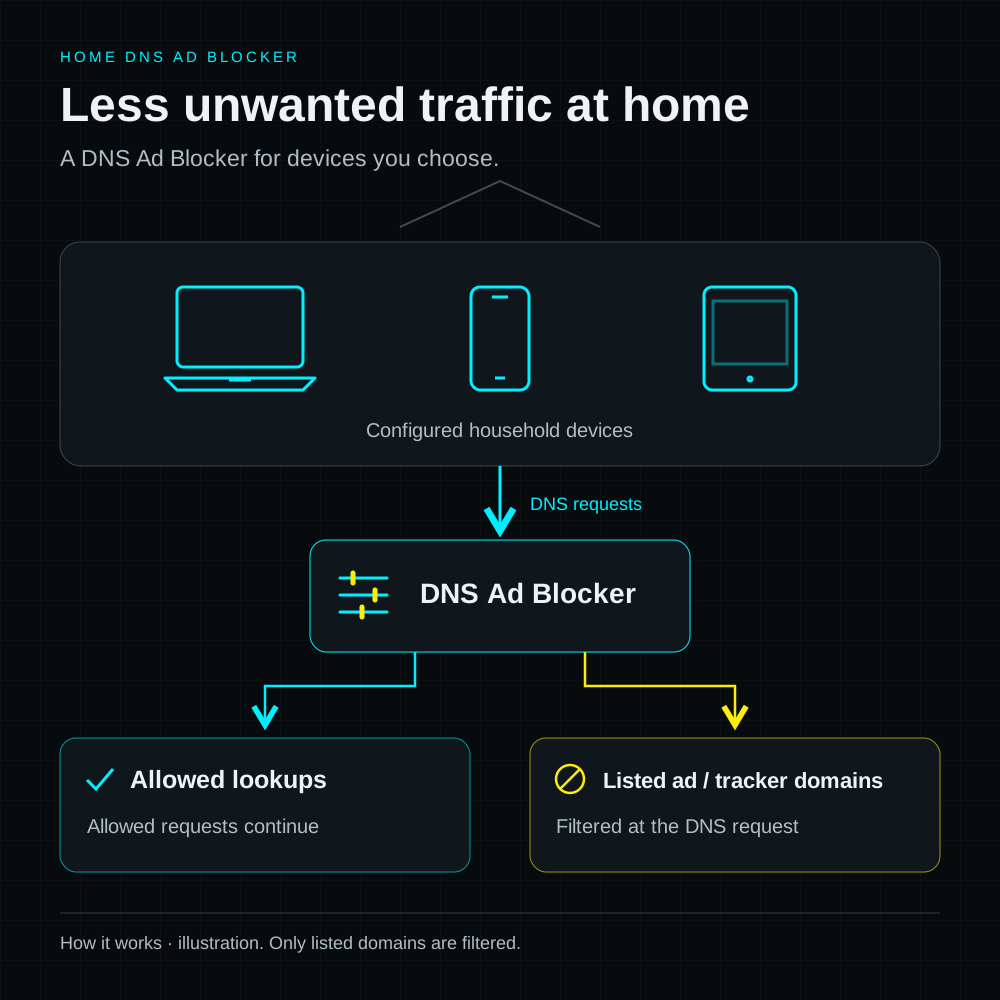
Your DNS ad blocker comes preloaded with approximately 100,000 filtering rules. Requests to listed advertising and tracking domains are blocked; allowed requests continue. One year of rule updates is included.
Ads served from the same domain as the content, including many video and in-app ads, cannot reliably be separated this way. Results depend on the filtering lists and whether each device uses your ad blocker for DNS.
Connect your DNS ad blocker.
Connect the compact ad blocker to USB power and follow its 2.4 GHz Wi-Fi setup instructions. No rooting or device flashing is required. Keep it powered and connected while you want filtering to run.
Find the ad blocker's local address and reserve it in your router settings. A reserved address helps your devices keep finding it after a restart. Open the local English dashboard from a phone or computer on your home Wi-Fi. Use the device credentials when a control asks for them; these are separate from your website account.
- Connection
- 2.4 GHz Wi-Fi
- Keep handy
- The ad blocker's local address
Choose which devices use it.
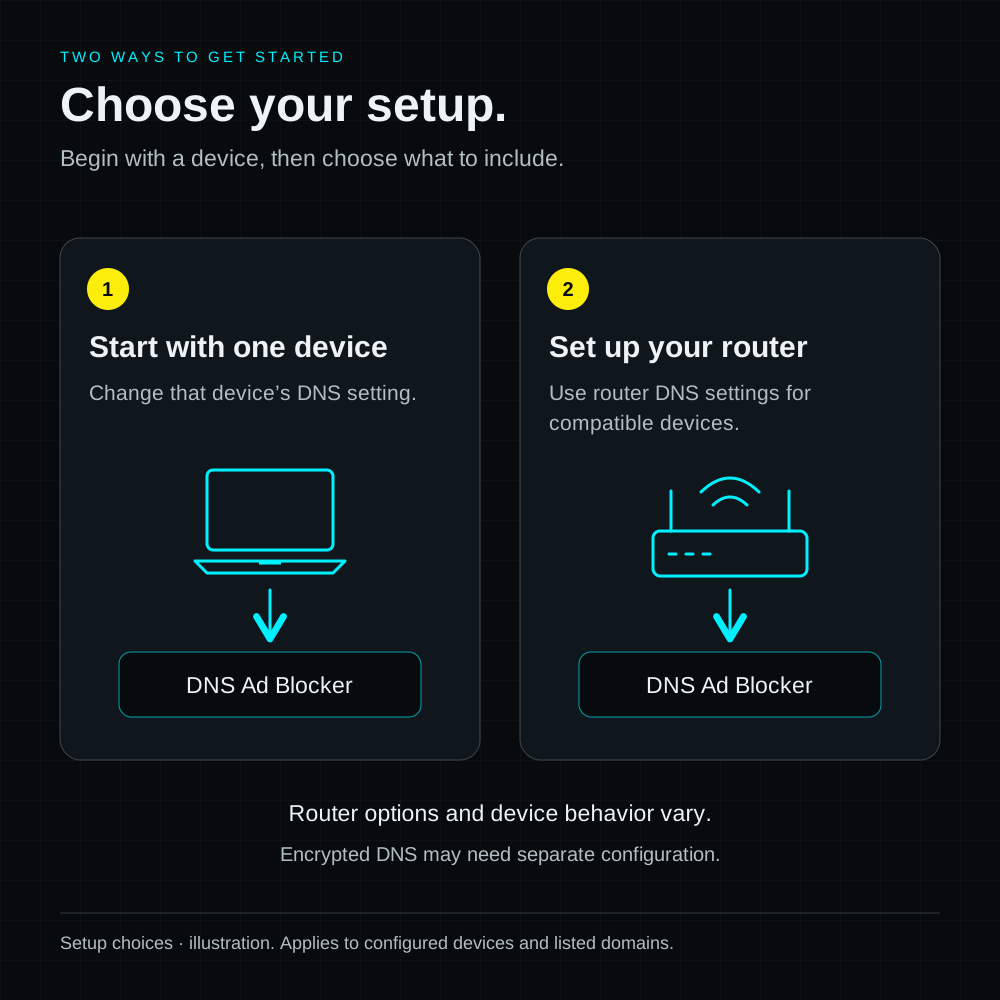
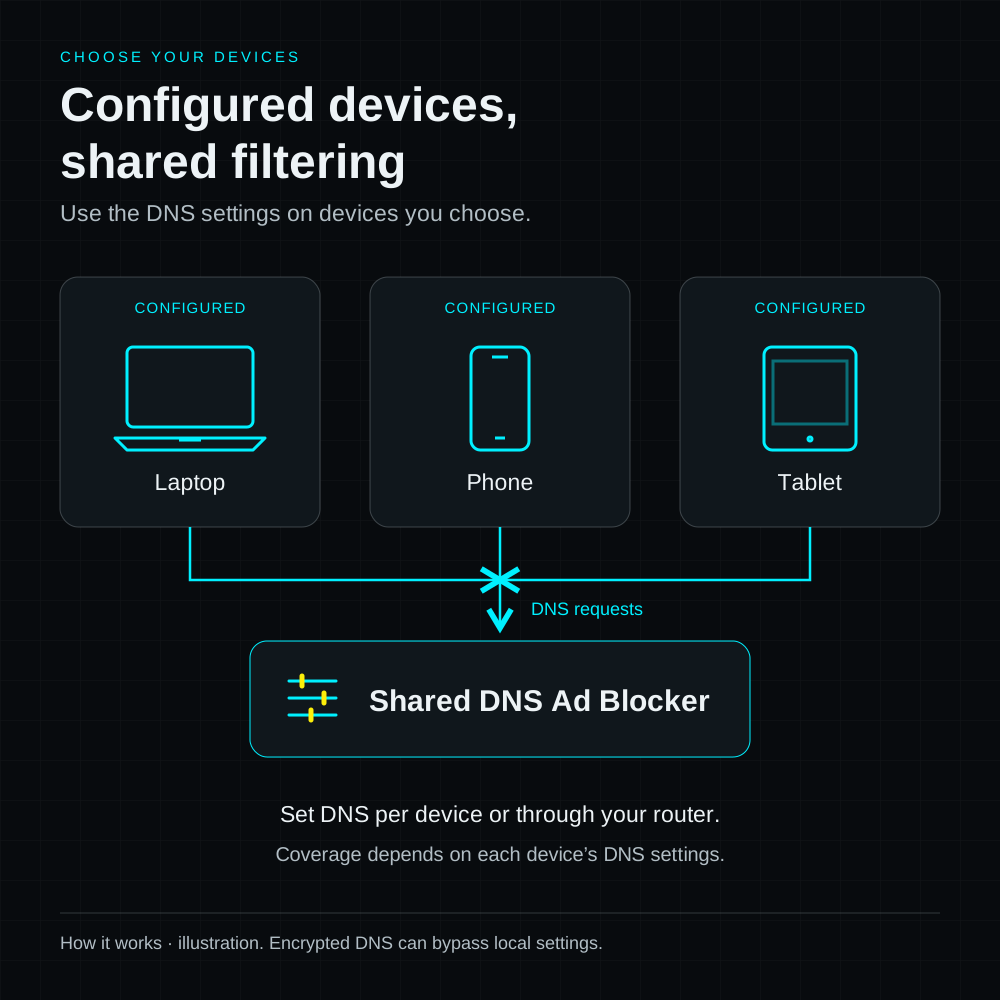
One ad blocker can serve multiple devices using its configured DNS. Start with one compatible phone or computer and set its DNS to the ad blocker's local address. Test everyday websites and apps, then include more devices.
To share the setup, set your compatible router to provide the ad blocker's address as DNS. Reconnect devices if needed so they pick up the change. Router menus differ; use the instructions for your model.
A second unfiltered DNS service, encrypted DNS, or a VPN can bypass the ad blocker. Check those settings if filtering does not appear to work. Keep the local dashboard on your trusted home network.
Use the DNS setup assistant for steps matched to your device and the ad blocker's actual local IP address, including how to verify the change and restore your previous settings.
Choose your pack.
1 device: $19; 2 devices: $34.90; 3 devices: $49.90, all in USD. Every unit has a black case and no screen. One unit serves multiple configured devices; larger packs suit separate homes, gifts, or spares.
- Choose the number of ad blockers you need. You do not need a separate unit for every phone, tablet, or computer.
- Every pack contains identical units with a black case and no screen. There is no style or color selection.
- Select Buy now after choosing your pack. Check the listed accessories, delivery details, and final order total before paying with PayPal. Hardware includes free worldwide shipping.
- Review return and warranty terms and shipping information before placing your order.
Your local dashboard and everyday controls.
- Use the local English dashboard to see blocked and allowed DNS requests. Per-device counts show the clients the blocker can observe; a router that forwards every request itself can appear as one client. Counts start over when the device restarts.
- Add custom blocked domains when you want to block extra domains. Removing a custom entry does not override a block still present in the main rule file. If a site stops working, pause filtering and try again to check the cause.
- If ads still appear, check that the device is using your home network and the ad blocker for DNS. Some video and app ads will remain.
- Your DNSAdBlocker website account is for orders and rule-update access. Signing in on the website does not control your home device. Use its local dashboard for pause and blocking controls.
- If the ad blocker is offline, check its power and Wi-Fi. You can restore your original DNS settings to get devices online while you resolve the connection.
Try the browser adblock test to check whether selected advertising and analytics requests can connect. Browser extensions and connection errors also affect its results, so it cannot confirm DNS filtering by itself.
For a connection problem, remaining ads, or a broken website, the DNS troubleshooter helps you choose the next check.
Install updated rules.
Your hardware pack includes its first year of rule updates. You do not need to buy that year again. The separate annual rule-update product is a one-time US$4.99 payment. Download access requires a completed hardware or rule-update order within one year of its payment date. It covers filtering-rule files, not hardware or firmware upgrades.
- Open your eligible completed order to download the compatible blocklist.bin file. Open the device's local dashboard and use Blocklist Upload to select that file. Ordinary text lists are not accepted by this upload control.
- The dashboard also supports a provided rule-file URL under Remote auto-update for periodic checks. Choose a check interval or use Fetch now. A check interval is not a promise that fresh rules are published at that frequency.
- Keep the device powered during an update and check that the dashboard reports loaded rules afterwards. Rule updates can interrupt filtering while they run.
- Firmware Upload is a different control for device software. Do not use it to install a rule file. Your annual rule-update purchase does not include firmware upgrades.
There is no automatic renewal or device binding. Buying again creates a separate order with one year starting on its own payment date; it does not extend or stack onto an earlier order's period. Each order must be completed for downloads to be available.
View annual rule updatesDNS ad blocker questions.
What changes for the devices in my home?
One ad blocker serves multiple devices using its configured DNS. It blocks requests to listed advertising and tracking domains. Connect it to USB power and 2.4 GHz Wi-Fi, then use compatible router settings or configure devices individually. DNS configuration is required.
Will this remove every ad, including YouTube ads?
No. DNS filtering cannot reliably separate ads from content served by the same domain, including many video and app ads. It also does not stop every form of tracking. Results depend on the filtering lists and how your devices connect.
Will it work with my router and devices?
Your router or individual devices must let you change DNS settings. Devices using encrypted DNS, custom DNS, some VPNs, or another network may bypass filtering. Check your router model and intended devices in the setup guide before ordering.
How much are the packs, and what hardware do they include?
1 device: $19; 2 devices: $34.90; 3 devices: $49.90, all in USD. Every unit has a black case and no screen; only the pack size is selectable. One unit can serve multiple configured devices; multi-device packs are for separate homes, gifts, or spares. Hardware ships worldwide for free. Check the product page for the included accessories.
Can I see and control the filtering?
Open the local English dashboard from your home Wi-Fi to see blocked and allowed DNS requests, add custom blocked domains, or pause filtering. Per-device counts depend on how your router forwards DNS. Your website account is for orders and rule-update access, not remote device control.
Are filtering rules and updates included?
The device comes preloaded with approximately 100,000 filtering rules. One year of rule updates is included with hardware, so you do not need to add it again. Download from a completed hardware or annual rule-update order within one year of its payment date. The separate annual product is a one-time US$4.99 payment. It does not include hardware or firmware upgrades.
Does rule-update access renew automatically?
No. Buy another annual product when you need a new period. Each qualifying order has one year from its own payment date and must be completed to allow downloads. A later order does not stack time onto an earlier one. Access is based on eligible orders, not a device binding.
How do I install updated rules?
Download a compatible blocklist.bin rule file from your eligible completed order and upload it in the local dashboard. The dashboard also supports periodic checks and Fetch now when a rule-file URL is provided. A scheduled check does not mean new content is published every time. Firmware upload is a separate control; the annual product covers filtering rules.
How do I choose and order a setup?
Choose a 1-, 2-, or 3-device pack from the homepage pricing cards. Every unit has a black case and no screen. On the product page, select your pack, then select Buy now. Pay with PayPal and review the selected devices, delivery details, taxes, and final total at checkout. Hardware includes free worldwide shipping and its first year of rule updates.