DNS Ad Blocker Not Blocking Ads? Follow the Request Path
Find why ads still appear by checking one device, its active DNS resolver, dashboard counters, cached answers, and the limits of domain-based filtering.

Written by
DNSAdBlocker Team
The DNSAdBlocker team explains home DNS filtering, setup, and maintenance using product documentation and referenced platform guidance.
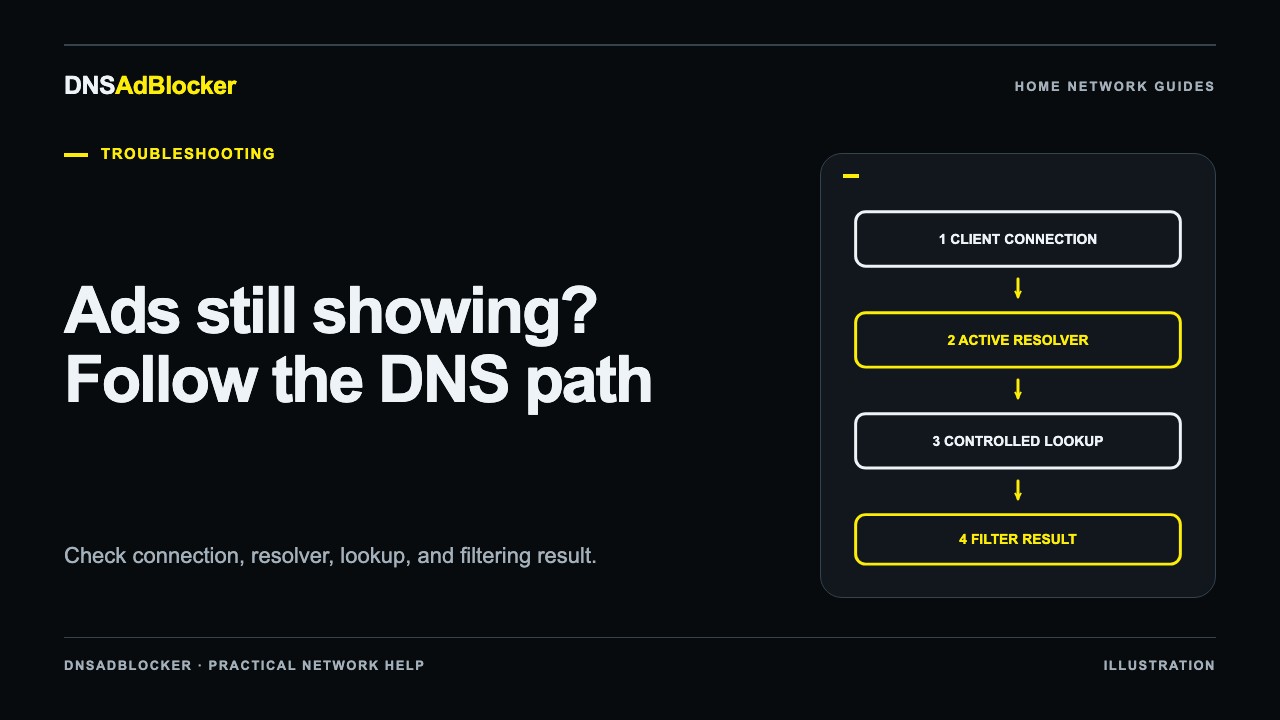
If a DNS ad blocker is not blocking ads, first find out whether the affected device sends its DNS requests through it. An ad on a page does not, by itself, show that the filter failed. The request may bypass the filter, reuse a cached answer, or use a domain that also serves wanted content.
Start with one computer or phone on your home Wi-Fi. Keep the rest of the household's settings unchanged while you trace its requests. The result you want is a repeatable test: a lookup reaches the local resolver, its counter changes, and a known blocked domain behaves differently from an allowed one.
Check the device and the connection first
Make sure the filtering device has stable USB power and is connected to your home network. Open its local dashboard using the address supplied with your unit or its current local IP. Your DNSAdBlocker website account manages orders and update access; signing into that account does not route your phone's DNS traffic through the device.
If the local dashboard will not open, confirm the address in your router's connected-device list. A previous address can become wrong after a router restart or network change. An unreachable dashboard is a reason to check connectivity before adding rules.
On the affected client, check these details:
- It is using the intended home Wi-Fi rather than cellular data or another network.
- Its current DNS settings point to the local filter, either directly or through a router configured to forward DNS there.
- A public resolver has not been left as an alternative DNS server.
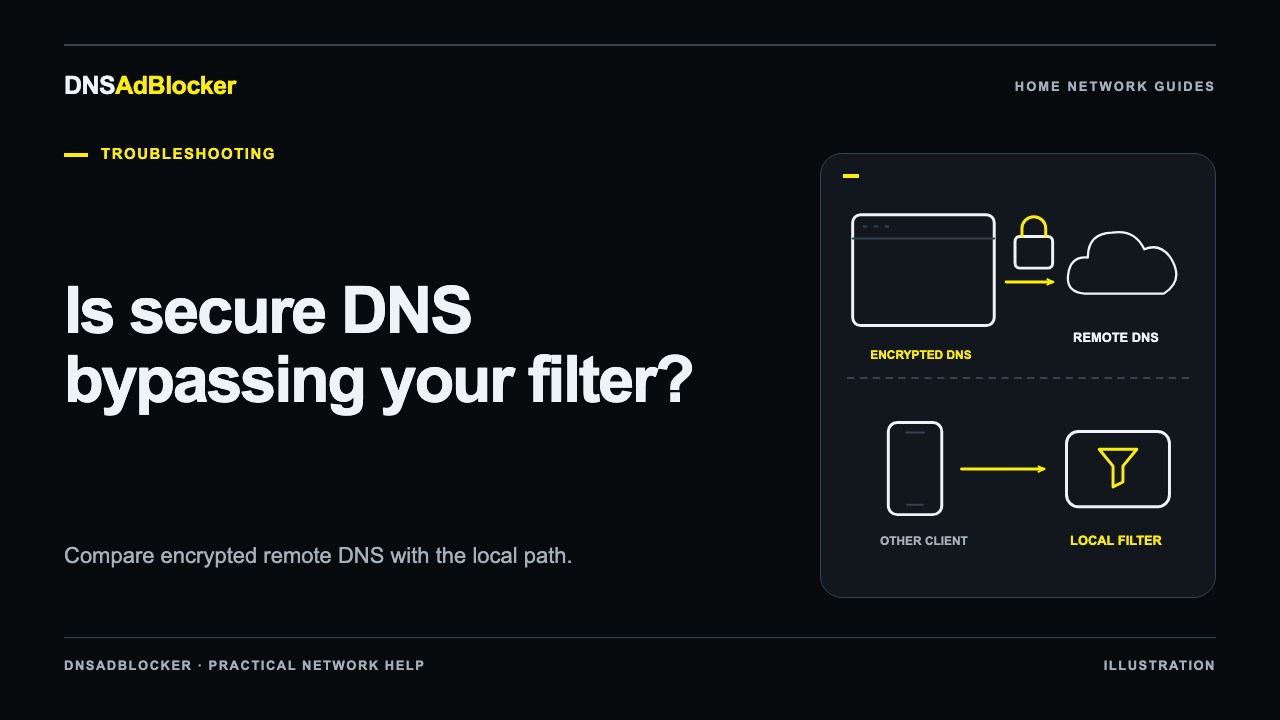
- The browser, operating system, or VPN has not selected a separate resolver.
“Secondary DNS” does not mean “used only when the first server fails” on every client. An unfiltered alternative can produce inconsistent results. Record the current configuration before changing it.
Run a lookup you can identify
Note the dashboard's allowed and blocked request totals. From a computer, use a command-line lookup to address the filter explicitly. For example:
nslookup example.com 192.168.1.50
Replace 192.168.1.50 with your filter's actual LAN address. The example address is not a product default. This tests the explicit resolver path, not the browser's chosen path. Microsoft's nslookup documentation explains the optional DNS-server argument.
Then repeat with a domain you know is blocked in your configuration. Use a harmless test domain from a rule you deliberately added, following the controlled DNS filter test. Avoid using a random advertising page as the only test: the ad source, cache, and page behavior may change between visits.
Look for a counter change at the same time as the lookup. Other household traffic can also move the total, so one increment is supporting evidence rather than a per-domain log. The dashboard shows blocked and allowed counts; it does not provide a searchable list of recently blocked hostnames. Those counts also measure DNS requests, not a number of ads removed.
Use the result to choose the next branch
| What you observe | Most useful next check |
|---|---|
| Explicit lookup times out and counters do not change | Current LAN address, power, Wi-Fi membership, and reachability |
| Explicit lookup reaches the filter, but normal browsing does not appear to | Browser DNS, operating-system overrides, VPN, or another advertised resolver |
| Known blocked test works, but one ad remains | Ad's source domain, missing rule, cached content, or a DNS filtering limit |
| Results change after waiting or clearing the relevant cache | Repeat the same lookup and document which cache affected it |
| An ordinary website fails along with its ads | Stop adding rules and investigate a possible false positive |
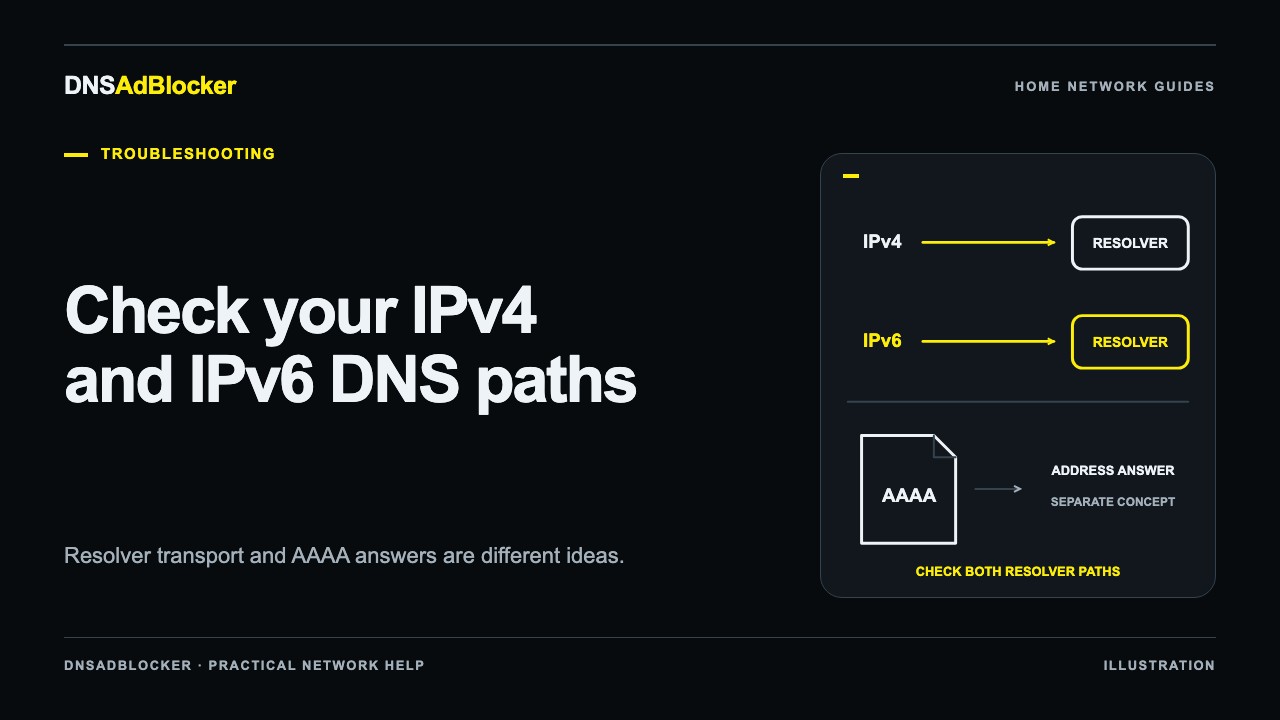
For the browser branch, use Secure DNS bypass checks. If your network advertises both IPv4 and IPv6 resolvers, follow the IPv6 request-path guide. An IPv6 address in a website's DNS answer is not itself proof of a bypass.
Separate cached results from new requests
A page already open in a browser may keep using an existing connection or previously downloaded content. A device can also keep a DNS answer until its cache expires. Changing a rule does not instantly erase those layers.
Close the affected page, repeat a targeted lookup, and then load the same page again. If you need to clear cached DNS answers, use the DNS cache guide for the relevant platform. Clearing cookies or saved passwords is unnecessary for this diagnosis. Do not repeatedly flush every cache while also changing DNS, rules, and browser settings; that makes the useful change hard to identify.
If the explicit lookup is blocked but the browser still loads the resource, investigate the browser's resolver or an existing connection. If the explicit lookup is allowed, the domain may not match a rule, filtering may be paused, or the name you tested may differ from the resource the page uses.
Recognize ads that domain filtering cannot reliably remove
DNS filtering decides whether to resolve a hostname. It does not inspect a page's layout or selectively remove a video segment, path, or individual request from a shared hostname. Blocking a domain that serves both the main video and its advertising can interrupt the video too.
That is why a successful controlled test can coexist with visible in-feed or video advertising. Read whether DNS can block YouTube ads before treating those ads as a configuration fault. Adding increasingly broad domains can break services without solving the original problem.
For a suspected missing rule, capture the affected site, the exact action, the hostname involved, the test time, and what changed when filtering was paused. Browser developer tools can help identify resource hostnames. Share only the details needed for support; a full browser network export may contain private URLs or tokens.
FAQ
The dashboard count rises. Does that prove every app is filtered?
No. It proves the resolver receives some requests. A browser or VPN can use another DNS path while other apps continue using local DNS. Test the affected application separately.
Why does only one phone show ads?
Compare its connection, per-device DNS, Private DNS, browser settings, and VPN with a working client. Test those differences individually rather than resetting the router for everyone.
Should I upload a larger blocklist first?
Only after proving the affected requests reach the filter and identifying a missing domain rule. A larger list cannot fix a bypass or separate ads from wanted content on the same domain. Keep your original settings available until the test is repeatable.
Sources
- Microsoft: nslookup command and resolver selection
- Google: Chrome security settings and Secure DNS
- Google: Android network settings and Private DNS
Platform documentation reviewed October 19, 2026. These steps describe a diagnostic method; they do not report a measured ad-blocking rate or a test of your particular network.
Questions or corrections about this content can be sent to support@dnsadblocker.com.
All postsRelated posts
DNS filtering guides, home network setup notes, and product updates.