Does Your Guest Wi-Fi Use the Same DNS Ad Blocker?
Check whether guest Wi-Fi uses your local DNS filter by testing its resolver and reachability, while keeping the guest network isolation your router provides.

Written by
DNSAdBlocker Team
The DNSAdBlocker team explains home DNS filtering, setup, and maintenance using product documentation and referenced platform guidance.
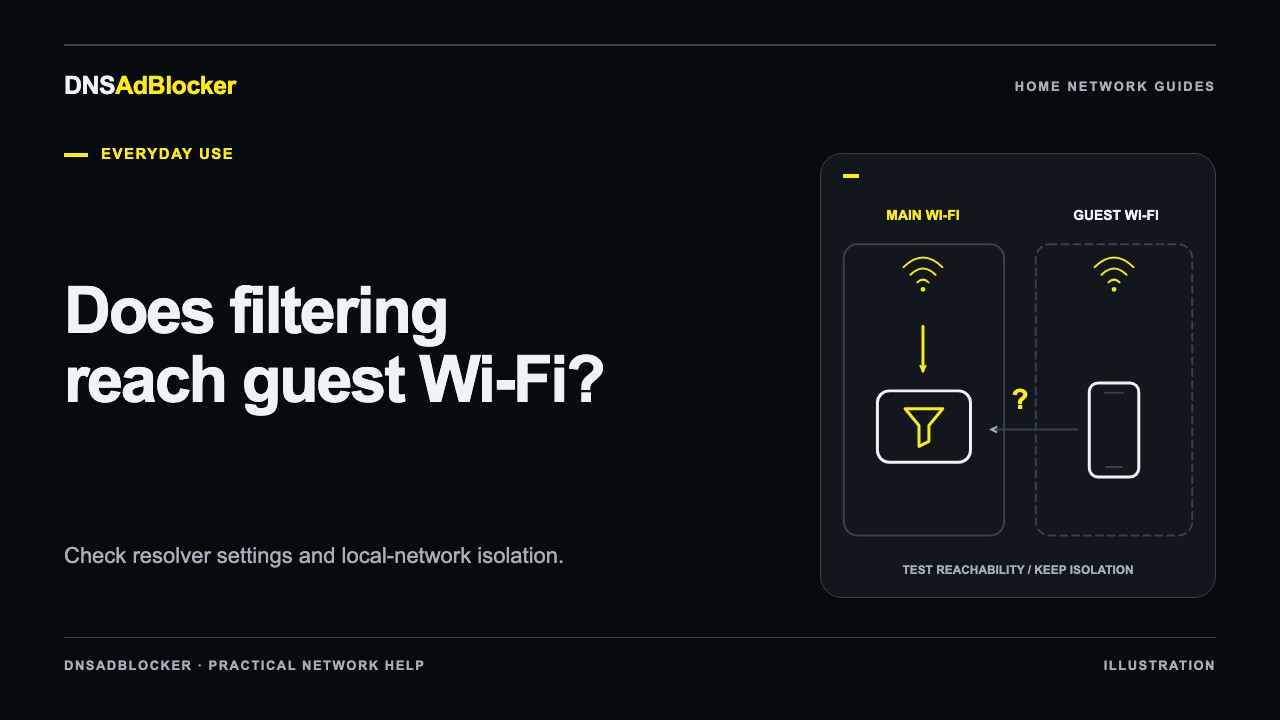
Guest Wi-Fi does not automatically use the same DNS ad blocker as your main network. A router can give guest devices different DNS settings, forward their requests differently, and prevent them from reaching devices on the main LAN. Check one guest device before assuming either that filtering works or that it has failed.
Keep guest isolation in place while you investigate. Its purpose is to separate visitors from household devices. If the router cannot provide a supported DNS path across that boundary, keep the guest network on its working configuration while you evaluate another filtering option.
Treat guest Wi-Fi as a separate connection
The main and guest network names can come from the same router while using different internal settings. A main-network computer might contact the blocker directly, while a guest phone receives only the router as its DNS server. Another router might assign an ISP resolver to guests.
Guest isolation can also stop a visitor from contacting the blocker's private IP. Entering that IP in the phone's DNS settings does not create a route through the isolation boundary. The result may be failed name resolution rather than filtered browsing.
Router behavior and controls vary by model. TP-Link's guest-network documentation describes separate guest access settings and notes that available options depend on the router. Use the guide for your exact model and firmware instead of applying a menu path from another brand. Our router compatibility checklist covers the controls to look for before making a household-wide change.
Record the current guest settings
Use your own laptop or phone for the first test. Record the guest network name, whether the device currently uses automatic or manual DNS, and any VPN or encrypted-DNS setting. Keep the main network available on another device so you can reach the router if a test setting interrupts guest access.
On a Windows laptop connected to guest Wi-Fi, run:
ipconfig /all
Read the active Wi-Fi adapter's address, gateway, and DNS servers. Microsoft's ipconfig reference explains that /all displays the full adapter configuration. Check the active connection rather than a disconnected Ethernet adapter or VPN interface.
A router address in the DNS field means you need one more piece of information: where does that router send guest DNS requests? The router DNS versus device DNS guide explains why a router can be an intermediary rather than the final resolver.
Test the default path and direct reachability
Run a default lookup from the guest laptop:
nslookup example.com
Then explicitly query the blocker, replacing the sample IP with its actual local address:
nslookup example.com 192.168.1.50
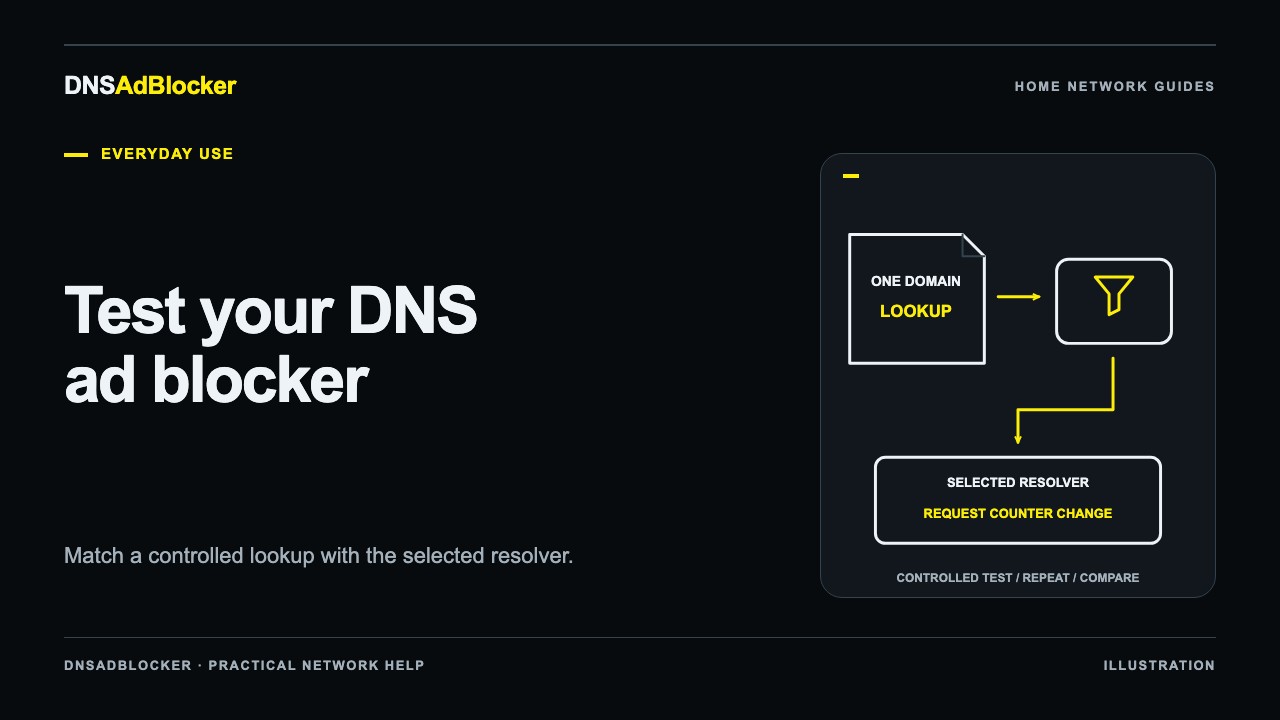
Microsoft documents the explicit DNS-server argument. That second command tests whether the guest client can obtain a DNS response from the blocker. It does not change the client's ordinary resolver settings.
While you test, watch the blocker's dashboard from the main-network device. Compare its request counters before and after, allowing for background activity. Combine the response, configured resolver, and counter changes using the DNS filtering test.
| Result | What to check next |
|---|---|
| Default and direct lookups both reach the blocker | Test a known custom rule and check the guest app's actual path |
| Direct lookup works but the default path uses another resolver | Look for a supported guest DNS or guest DHCP DNS option |
| Guest direct lookup times out while main-network testing works | Check guest isolation and the router's documented DNS forwarding options |
| Both guest and main-network tests fail | Check the blocker and its local address before changing guest settings |
Opening the dashboard in a browser tests HTTP access, not DNS service. A router can allow one and deny the other. Likewise, a failed ping alone does not establish that DNS is unreachable. Use the DNS lookup for the DNS question.
Choose a path your router supports
Some routers can forward guest DNS through the router itself to a configured filtering resolver while preserving guest isolation. Others provide a separate guest DHCP DNS field. Check whether that field applies to the guest network and whether the resulting resolver is reachable from it.
On equipment that supports separate networks and access rules, the manufacturer may document a narrow rule allowing guest clients to use a specific DNS service. Follow that documented design if you understand it. A broad "allow guests to access the local network" switch gives visitors more access than DNS requires and should not be the default fix.
If your router has no supported way to combine guest isolation and your local resolver, leave the guest network on its previous working DNS settings. You can still filter configured clients on the main network. Another router-supported filtering service may suit the guest network, but do not assume it shares the local device's rules, controls, or service terms.
Know why guests may appear as one client
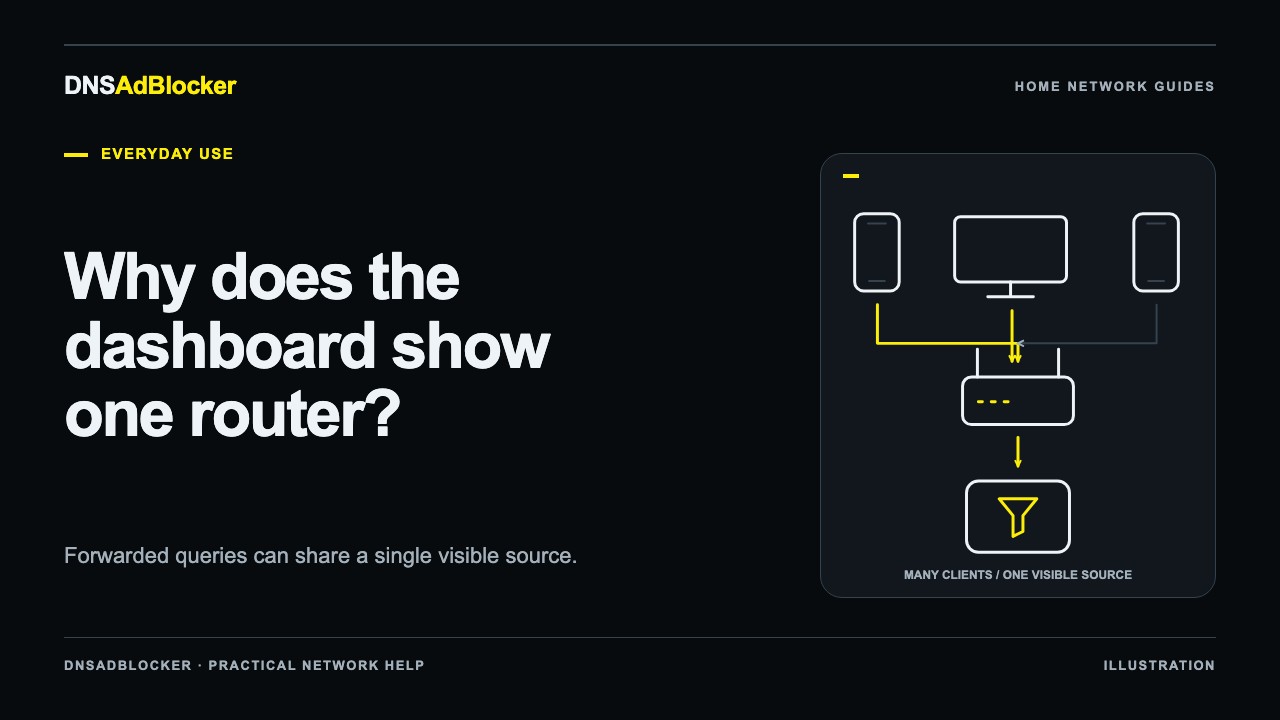
A router that forwards guest queries may appear as the source of every guest request. The blocker's client list can show the router while guest filtering still works. Conversely, seeing the router in that list does not prove that all guests are covered. Test the guest connection itself.
The single-router dashboard explanation describes this attribution limit. DNSAdBlocker's counters do not provide per-domain guest browsing history, and forwarded traffic cannot reliably be assigned to individual visitors from that dashboard alone.
After any configuration change, reconnect the test device so it can obtain fresh network settings. Repeat the same lookup and a normal browsing check before inviting other guests to rely on it. If access breaks, restore the exact previous DNS setting; for a device that originally used automatic DNS, return it to automatic and reconnect. Keep your notes separate for main and guest Wi-Fi so a working result on one never becomes an assumption about the other.
Questions or corrections about this content can be sent to support@dnsadblocker.com.
All postsRelated posts
DNS filtering guides, home network setup notes, and product updates.