How to Change Wi-Fi DNS on an iPhone or iPad
Change DNS for one iPhone or iPad Wi-Fi network, test the local filtering path, understand mobile data and privacy limits, and restore automatic DNS safely.
Written by
DNSAdBlocker Team
The DNSAdBlocker team explains home DNS filtering, setup, and maintenance using product documentation and referenced platform guidance.
On an iPhone or iPad, open Settings > Wi-Fi, tap the information button beside your home network, then use Configure DNS to enter the local filter's IP address. This setting belongs to that Wi-Fi network. It does not send mobile-data traffic through the box at home, and privacy services or VPN profiles can choose a different DNS path.
Make this a one-device trial before changing the router. Keep the original DNS mode and addresses, check a controlled request, and return to the previous setting if the phone loses access. You can leave the rest of the household's connection unchanged while you test.
Prepare on the home network
Connect the iPhone or iPad to the same home network as DNSAdBlocker. The phone may use a different Wi-Fi band from the box if the router bridges those bands onto the same reachable LAN. A guest network with client isolation can prevent access even when both devices use the same router.
Find the filter's real local IP in the router's client list or the supplied setup instructions, and open its local dashboard. This confirms local reachability; it does not yet prove that the phone sends DNS lookups there. If you are unsure where DNS belongs, compare router DNS and device DNS before proceeding.
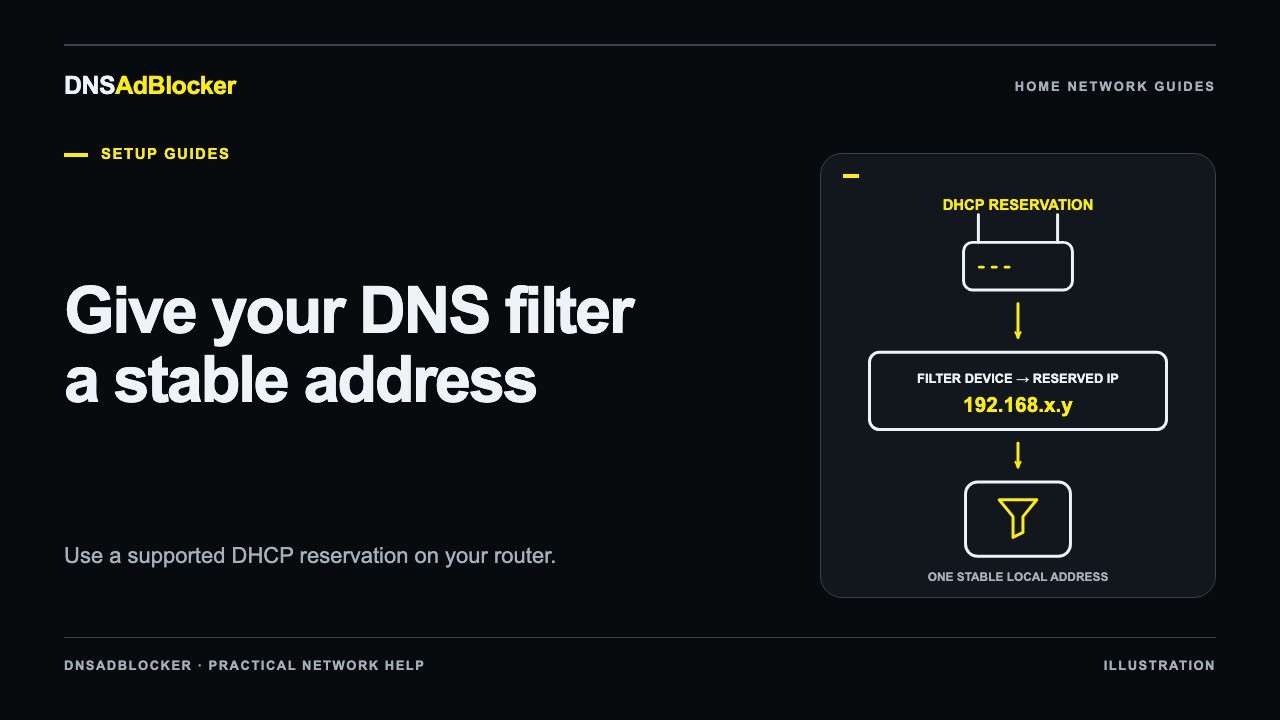
Keep the box powered and connected. A phone configured to use an unavailable resolver can struggle with new website connections. If your router supports a DHCP reservation, use it to keep the filter's address predictable before relying on the setting long term.
Save the current DNS settings
In Settings, tap Wi-Fi and find the network with the connected checkmark. Tap its information button, scroll to Configure DNS, and note whether the mode is Automatic or Manual. If it is Manual, save every existing DNS server and any search domains before changing anything.
Do not confuse Configure DNS with Configure IP. You can change the resolver while keeping the phone's IP configuration automatic. Leave the Wi-Fi password, proxy, IP address, and subnet settings alone unless your network administrator requires something different.
If the device belongs to a workplace or school, its management profile can control networking. Do not delete that profile to make a home tutorial work. Use an unmanaged personal device for the trial or ask the administrator which configuration is allowed.
Enter the local resolver for this Wi-Fi network
Choose Manual in Configure DNS. Remove the existing DNS server entries for this trial after recording them, then use Add Server to enter the filter's confirmed local IP. Tap Save. Labels and layout can vary with the iOS or iPadOS version; Apple documents DNS configuration within the settings for the selected Wi-Fi network.
Use the address actually shown for your filter. Do not enter the DNSAdBlocker website address, a product-account password, a guessed encrypted DNS URL, or an IP copied from an illustration.
Avoid leaving an unrelated public resolver alongside the box as a "backup." Clients do not universally use a DNS list as a strict first-then-second sequence. A second resolver with different rules can allow requests that the local filter would block.
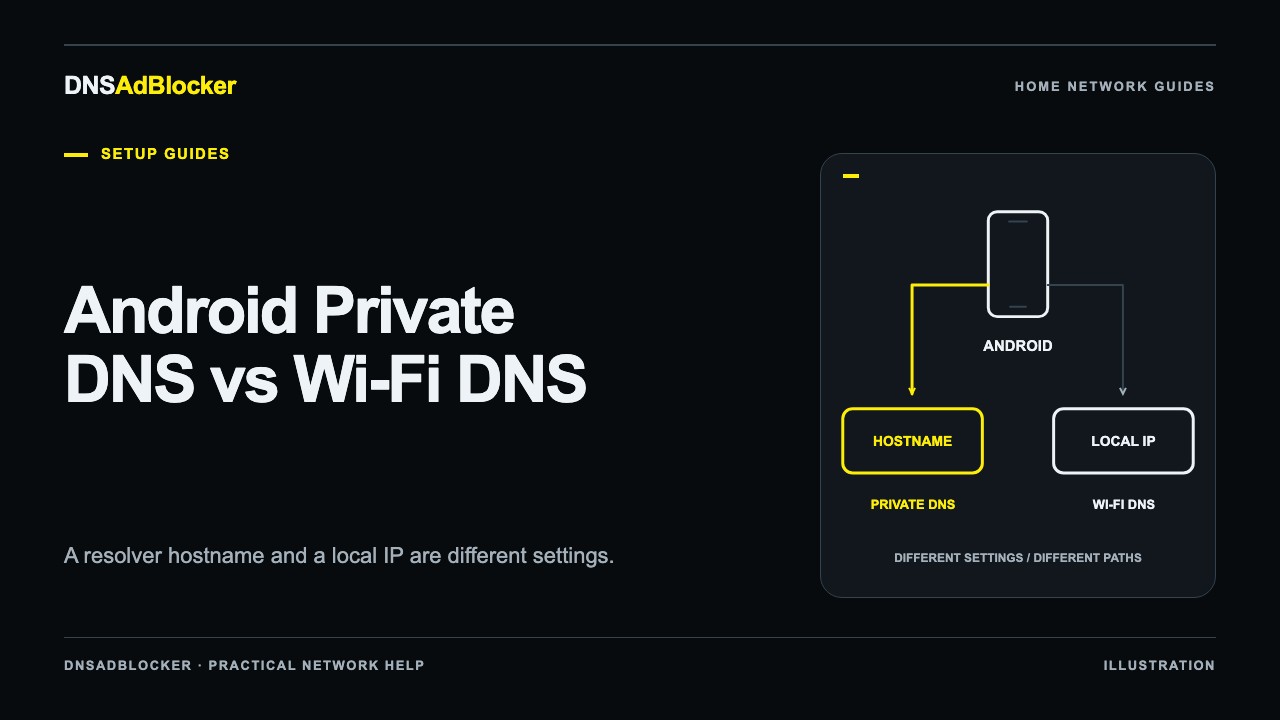
This saves DNS for the selected network. It does not configure another saved Wi-Fi network, a Personal Hotspot, or mobile data. If you also use Android devices, their Private DNS and Wi-Fi DNS settings work differently and should not be copied from the iPhone procedure.
Check the request path before judging advertisements
| Observation | What it establishes | What it does not establish |
|---|---|---|
| The local dashboard opens | The phone can reach the box | Safari is using the box for DNS |
| Configure DNS shows the local IP | The Wi-Fi setting was saved | A VPN or privacy service cannot override the path |
| A controlled lookup changes counters and result | Evidence that the tested lookup reached filtering | Every app and every connection is covered |
Start with an ordinary lookup or visit to example.com, a documentation domain. It is not a domain we claim the preloaded rules block. Note the dashboard counters before and after the test; other household requests can also change them, so use a quiet moment where possible.
If the baseline resolves normally, temporarily add example.com as a custom blocked domain in the local dashboard, test a fresh request, then remove the custom entry and repeat. Cached DNS answers and existing browser connections can delay the visible change. The DNS filter testing guide explains a controlled test and its limits. Do not add unfamiliar "ad test" domains and assume their behavior proves a particular rule exists.
The product dashboard counts requests and clients. It does not provide a per-domain request log, so avoid attributing every changed counter to the website currently on screen.
Account for mobile data and privacy features
Check that the test actually stays on home Wi-Fi. A cellular-capable iPhone or iPad can use mobile data when Wi-Fi is unavailable or weak. For a short, controlled test, you can record and temporarily turn off cellular data if you are comfortable doing so, then restore it. A Wi-Fi-only iPad has no cellular route to check.
iCloud Private Relay protects Safari browsing by using secure relays and encrypted DNS. A VPN, installed DNS profile, or application resolver can also change where queries go. This can be a deliberate privacy choice. It is not a reason to disable privacy features throughout the device by default.
If results differ between Safari and another test client, follow the Secure DNS request-path guide. Compare one setting at a time, retain its original value, and decide which path you want after the comparison. Changing the Wi-Fi DNS list alone does not prove that relayed browsing uses the local resolver.
Private Wi-Fi Address concerns the device's network identity, not the destination of every DNS query. Leave it alone for an ordinary DNS setup; turning it off is not a general requirement for local filtering.
Return to automatic DNS
Go back to Settings > Wi-Fi, tap the same network's information button, open Configure DNS, and select Automatic if that was the original mode. Save the change. If the network previously used manual DNS, restore the saved server list instead.
Reconnect Wi-Fi and test an ordinary site. Automatic DNS accepts what the current network supplies, so a router configured to advertise the local filter can still send the phone there. Restore a router change separately if that is the setting you are trying to undo. Remove temporary test rules and restore any cellular-data, VPN, or privacy setting changed during diagnosis.
Sources
- Apple: Manage Wi-Fi settings on iPhone, including DNS configuration for the connected network.
- Apple: Manage Wi-Fi settings on iPad, including Configure DNS for a selected network.
- Apple: Connect iPad to the internet, including Wi-Fi and cellular connection boundaries.
- Apple: About iCloud Private Relay, including encrypted DNS and Safari traffic.
Questions or corrections about this content can be sent to support@dnsadblocker.com.
All postsRelated posts
DNS filtering guides, home network setup notes, and product updates.