How to Change DNS on Windows 11 for a Local Ad Blocker
Set Windows 11 DNS to a local ad blocker, identify the active adapter, check encrypted DNS and VPN overrides, test requests, and restore your previous settings.

Written by
DNSAdBlocker Team
The DNSAdBlocker team explains home DNS filtering, setup, and maintenance using product documentation and referenced platform guidance.
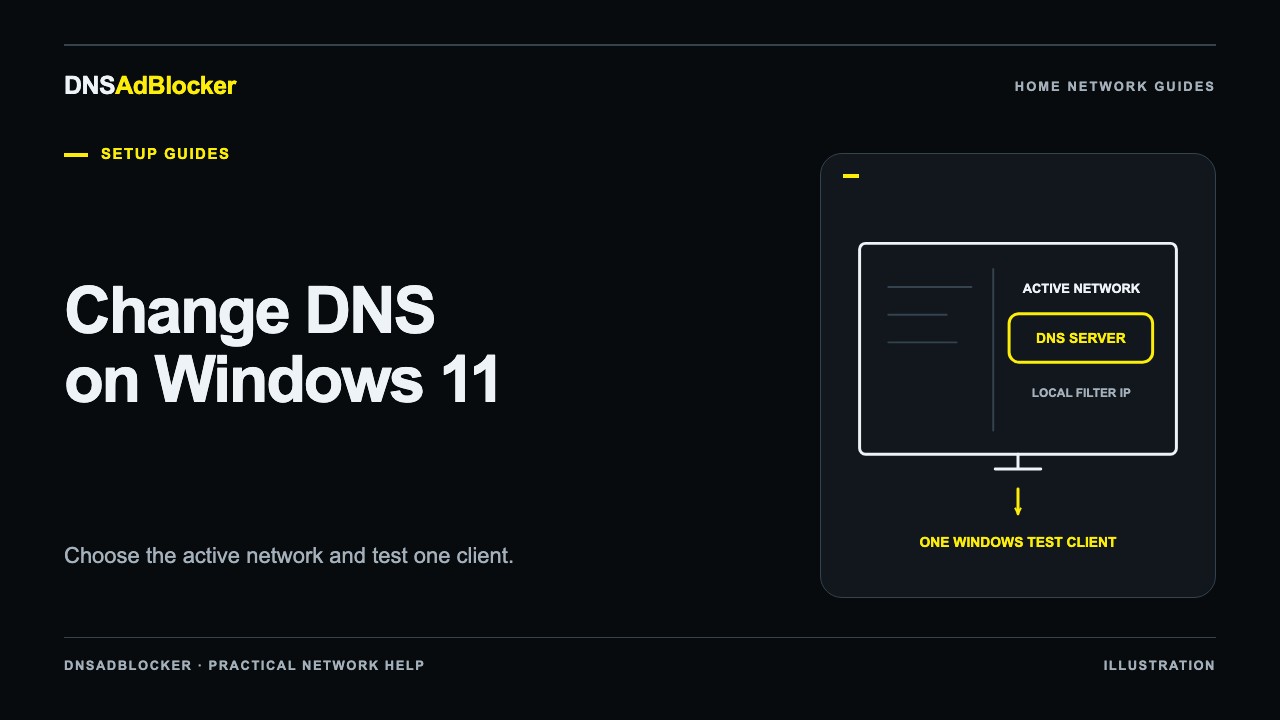
To use a local DNS ad blocker on Windows 11, change DNS server assignment for the connection you actually use, enter the filter's confirmed local IP, and verify requests before changing anything else. Keep the computer's IP assignment on automatic unless your network already requires a static configuration.
This changes one Windows connection. It does not configure the router, every browser, or a VPN. Start on a personal computer connected to the same home network as the filter, and keep a copy of the original DNS settings so you can restore them.
Identify the active adapter and save its settings
Open Settings, then Network & internet. Determine whether the active connection is Wi-Fi or Ethernet. A laptop can have both, as well as VPN and virtual adapters. Editing the Ethernet adapter while using Wi-Fi will not test what you intended.
For Wi-Fi, open the connected network's properties. For a wired connection, open Ethernet. Find DNS server assignment and record whether it is automatic or manual, including every configured IPv4 and IPv6 DNS address and any DNS encryption choices. Windows builds can arrange the properties slightly differently; search Settings for "DNS" if the field is not immediately visible.
You can also inspect the configured addresses in PowerShell without changing them:
Get-DnsClientServerAddress
Microsoft's command reference explains how this command lists DNS servers by interface. Match the interface name to the active connection rather than picking the first row. Save the result privately if it contains work-network details.
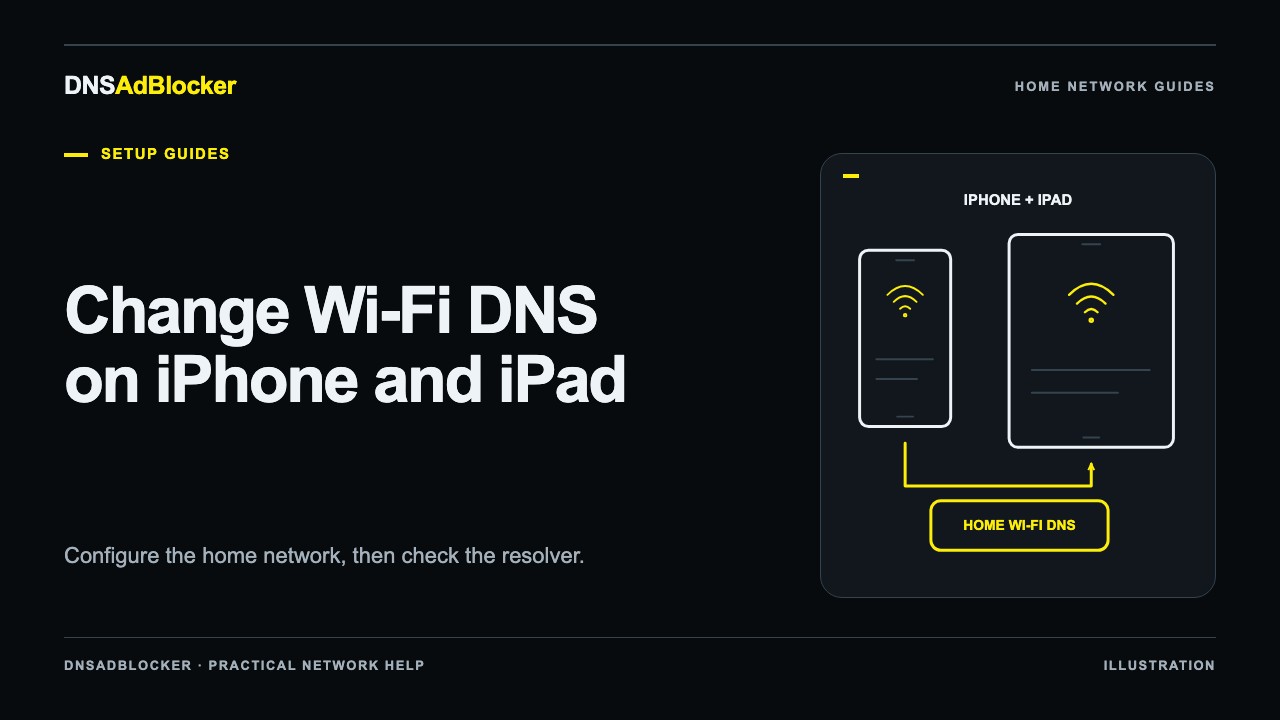
Open the DNS device's local dashboard and confirm its address in the router's connected-client list. Use that real address, not an IP copied from someone else's home network. If you are still deciding between this method and shared configuration, read router DNS versus device DNS first.
Change DNS without changing the computer's IP
Next to DNS server assignment, choose Edit. Change the assignment to Manual, enable IPv4 for this DNS entry, and enter the local filter's confirmed IPv4 address as Preferred DNS. Leave Alternate DNS empty when the interface permits it and you have no second equivalent filtering resolver.
Do not fill an alternate field with an unrelated public DNS server just to complete a pair. A client may use another listed resolver, which would give it a route around the filter. Two boxes containing the same address also do not create a backup server.
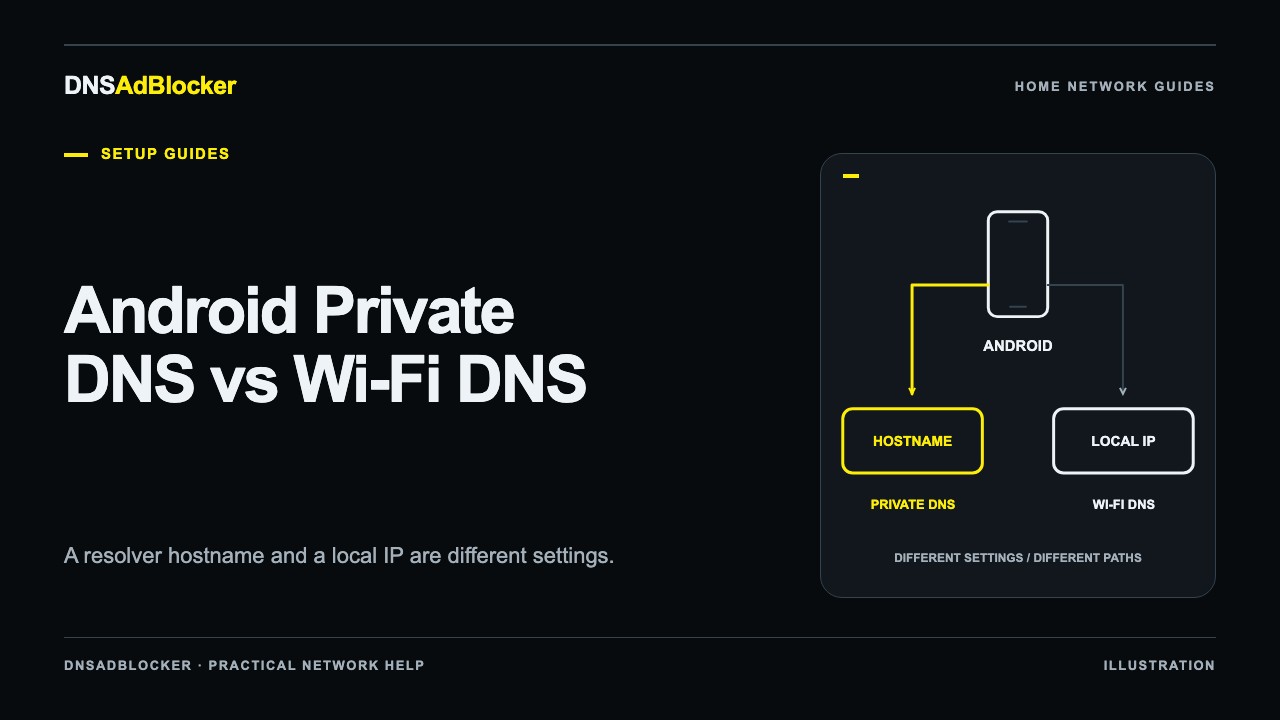
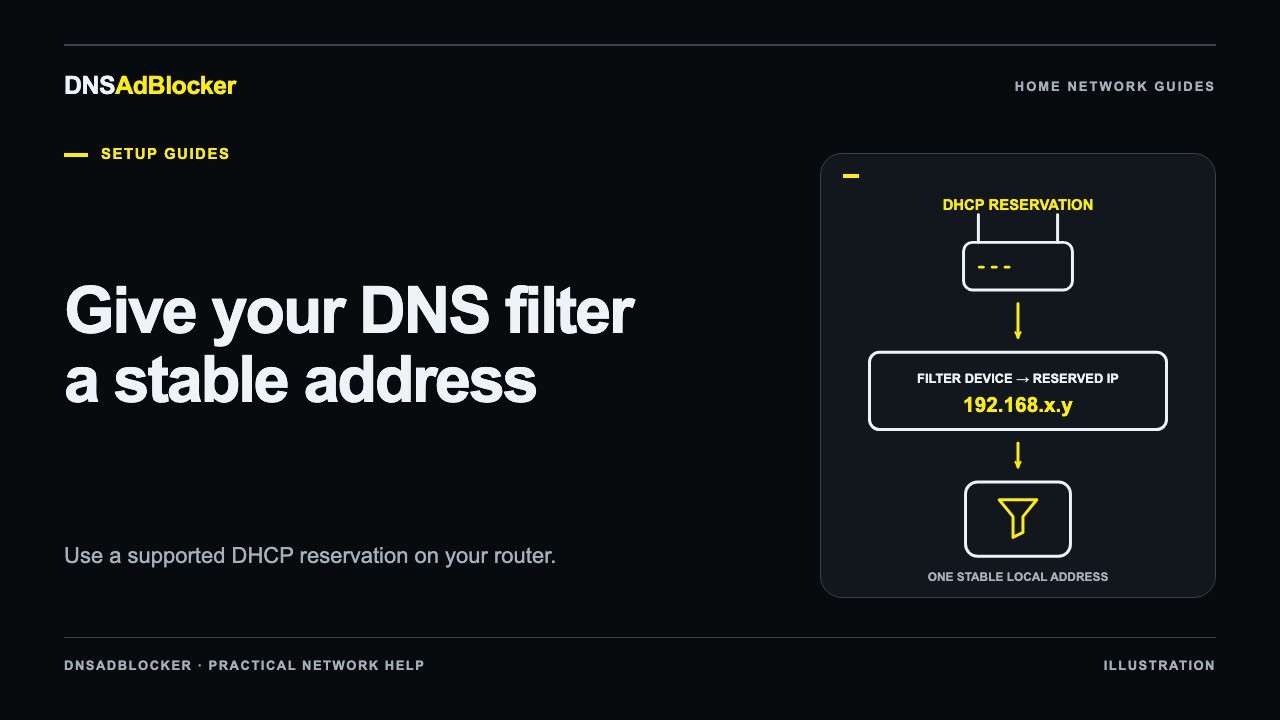
Keep IP assignment unchanged. DNS server assignment and IP assignment are separate tasks. You do not need to invent a laptop IP, gateway, or subnet mask to change DNS on Windows 11. To include an Apple phone in the trial later, follow the separate iPhone and iPad Wi-Fi DNS guide; this Windows setting does not configure it.
Save the DNS change, then reconnect the network if Windows does not immediately use the new settings. If a workplace policy prevents editing, stop and ask the administrator. A home filtering guide should not be used to override a managed computer's network policy.
Check encrypted DNS, IPv6, and VPN choices
A local IPv4 address is an ordinary resolver address. It is not a DNS-over-HTTPS template URL. Do not enter it as a public DoH service, append /dns-query by guesswork, or assume DNSAdBlocker accepts encrypted DNS connections.
If Windows offers a DNS-over-HTTPS setting for this resolver, use the mode supported by the actual server. This local setup uses ordinary DNS on the home network; it does not claim a DoH endpoint. A policy that requires encrypted DNS can make an incompatible local resolver unusable. Microsoft's DoH documentation explains the difference between allowing, prohibiting, and requiring DoH.
Record IPv6 DNS information too. An IPv4-only edit does not establish where every IPv6-capable application sends lookups. Leave IPv6 itself enabled while investigating; disabling a network protocol across the computer is a much broader change than this setup needs.
A VPN can provide DNS through its own adapter, and a browser can use Secure DNS independently. Compare the path that matters to you using the encrypted DNS troubleshooting guide. Keep any change confined to a controlled test and restore the privacy choice afterward if you decide to keep that route.
Verify a normal lookup, then a controlled block
Open a fresh PowerShell or Command Prompt window and run:
ipconfig /all
nslookup example.com
In ipconfig /all, find the active adapter's DNS servers. In nslookup, check the Server and Address fields. A server name of "Unknown" can mean a missing reverse-DNS name; check the address before treating that label as a failure.
example.com is a documentation domain, not a domain we claim the preloaded list blocks. Watch the local dashboard's request counters while making a lookup. This provides a useful correlation, but busy household traffic can move the same counters.
For a blocked-domain test, use a deliberate temporary custom rule for example.com only after checking the normal baseline. Make the lookup again, compare the blocking result and blocked counter, then remove that temporary rule and recheck. Keep it brief because a custom domain rule can also affect subdomains. The complete DNS testing guide explains how to isolate the test and distinguish an explicit resolver query from an application's normal path.
The device dashboard shows counters, not a per-domain query history. An nslookup result also does not prove that every browser request follows the same route. If the lookup works but the browser behaves differently, check the browser's resolver and DNS cache behavior before changing more network settings.
Restore automatic DNS if access fails
Return to the same active connection's DNS server assignment, choose Edit, and select Automatic (DHCP) if that was the original setting. If the connection previously used manual DNS, restore the recorded list instead. Save, reconnect, and test an ordinary website.
Automatic DNS uses the resolver supplied by the current network. If you also changed the router, it can still supply the filter's address; restore that router change separately when necessary. Remove temporary custom rules and restore any browser, VPN, or encryption setting changed during diagnosis.
Sources
- Microsoft: Get-DnsClientServerAddress.
- Microsoft: Set-DnsClientServerAddress, including return to DHCP DNS.
- Microsoft: ipconfig, whose supported systems include Windows 11.
- Microsoft: nslookup, including querying the default DNS server.
- Microsoft: DNS-over-HTTPS client support.
Questions or corrections about this content can be sent to support@dnsadblocker.com.
All postsRelated posts
DNS filtering guides, home network setup notes, and product updates.