Android Private DNS vs Wi-Fi DNS for a Local Ad Blocker
Understand Android Private DNS hostnames and local Wi-Fi DNS addresses, check VPN overrides, test your home filter, and restore the previous phone settings.

Written by
DNSAdBlocker Team
The DNSAdBlocker team explains home DNS filtering, setup, and maintenance using product documentation and referenced platform guidance.
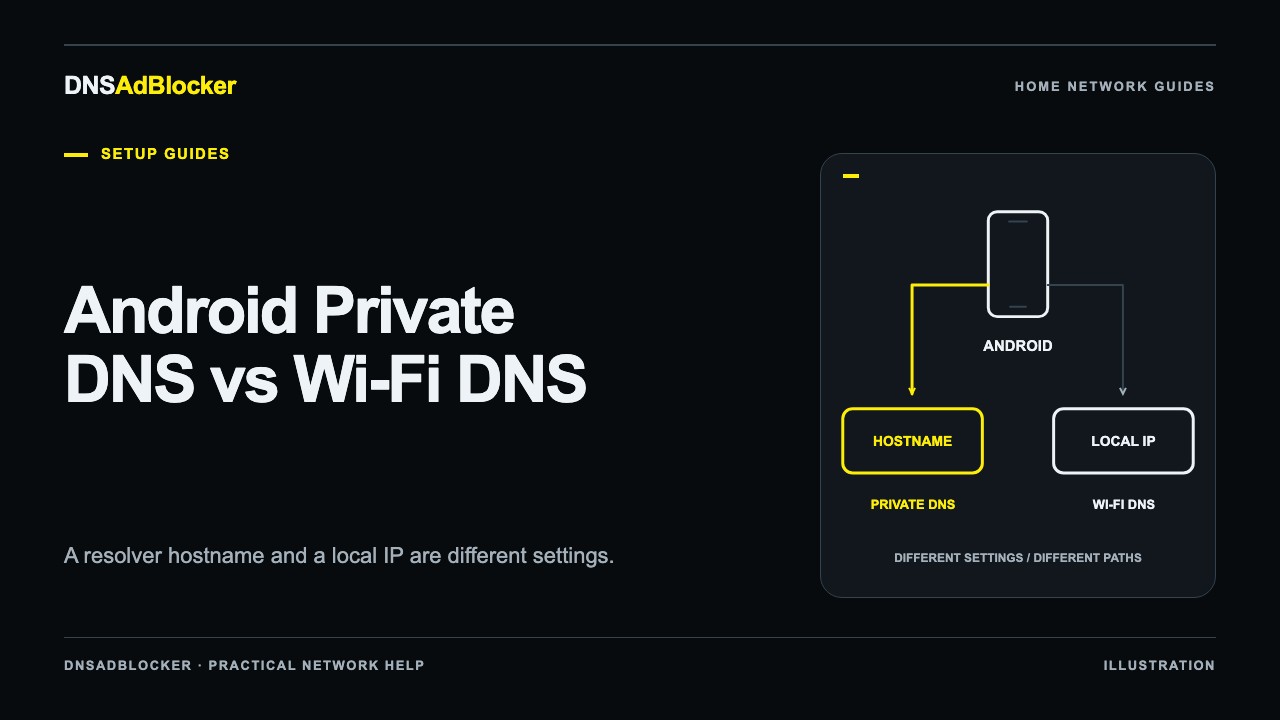
Android's Private DNS provider hostname field is for an encrypted DNS service identified by a hostname. A home DNS filter's local IPv4 address belongs in the Wi-Fi network's DNS configuration or in the router's LAN/DHCP DNS settings. Putting a local IP in the Private DNS hostname field does not turn the box into an encrypted DNS provider.
For DNSAdBlocker, start by checking the phone's existing Private DNS mode, active Wi-Fi settings, and VPN. Then choose a test that fits the request path you want. Google's recommendation is to keep Private DNS enabled, so do not treat turning it off across the phone as a routine first step.
The two DNS settings solve different tasks
| Setting | What it expects | What it changes |
|---|---|---|
| Wi-Fi DNS | DNS server IP addresses, entered manually or supplied by the router | The resolver information for that Wi-Fi network |
| Private DNS provider hostname | A hostname from a compatible encrypted DNS provider | A system Private DNS service that can apply across networks |
| Private DNS Automatic | Android's automatic Private DNS behavior | Encryption use depends on the available resolver and network |
Google's advanced Android network settings guide lists Off, Automatic, and Private DNS provider hostname. The exact menus vary by manufacturer and Android version. Search the phone's Settings for "Private DNS" if Network & internet does not contain it.
Do not enter a local IPv4 address in the hostname field, add an invented domain that points to the box, or copy a public provider's hostname while expecting queries to reach your local filter. This product setup does not provide a DNS-over-TLS or DNS-over-HTTPS endpoint for Android Private DNS.
Record the existing path
Connect to home Wi-Fi and note the connected network name. Open its network details and record IP assignment, IP address, gateway, and DNS addresses if the phone displays them. Save the current Private DNS mode and any configured provider hostname separately.
Check whether a VPN, security app, or work profile is active. A VPN can supply DNS within its tunnel, and a browser may use a resolver of its own. Keep a work-managed profile intact; use a personal unmanaged phone for experiments that would conflict with its policy.
Open the local filter's dashboard from the phone using its verified LAN address. This establishes reachability only. If the phone is on isolated guest Wi-Fi, it may reach the internet while being unable to contact a box on the main LAN.
The router DNS versus device DNS guide helps you choose between a one-phone trial and router distribution. Neither choice automatically overrides a strict external Private DNS provider or every application resolver.
Prefer a DNS change that preserves working IP settings
If the phone accepts DNS from DHCP and your router supports LAN/DHCP DNS configuration, the router can advertise the local filter's address. Reconnect the phone after the change and check the values it receives. A field for the router's WAN DNS may control a different part of the path, so follow the router's model-specific documentation.
For a one-phone trial, look for a Wi-Fi DNS editor in the manufacturer's instructions. Some Android versions expose DNS fields only after IP settings changes from DHCP to Static. That is a broader change than replacing a DNS address: it also makes you responsible for a valid client IP, gateway, and network prefix.
Do not guess those values or copy another person's static configuration. A manually selected phone IP can conflict with another device or a future DHCP lease. If your version requires Static, follow its supported process and coordinate the address with the router's reservations or DHCP exclusions. If you cannot establish the correct values, use router-supported DNS distribution or another test client first.
On platforms that allow a DNS-only edit, enter the filter's confirmed local IP and keep the rest of IP assignment unchanged. Avoid an unrelated public secondary DNS server; the phone can use that other resolver and bypass local rules. The iPhone and iPad Wi-Fi guide shows why another platform's screens are not a substitute for Android-specific instructions.
Choose Private DNS behavior deliberately
If Private DNS is set to a named external provider, that provider can handle the phone's system queries instead of the local home resolver. Decide whether you want that encrypted service or the local filter for the test. Saving the local IP in Wi-Fi settings does not by itself remove the strict provider choice.
If the phone is already on Automatic, keep it there for the first check and observe what happens. Do not assume the word "Automatic" proves either local filtering or a bypass. Availability, manufacturer behavior, VPNs, and application settings affect the result.
If a short diagnostic comparison needs Private DNS or a VPN changed, write down the old value first and change one setting at a time. Restore it after the comparison. The Secure DNS troubleshooting guide explains how to compare request paths without treating privacy settings as faults.
Test home Wi-Fi, then check the mobile-data boundary
Start with a normal lookup or visit to example.com and note the dashboard's allowed and blocked counters. It is a documentation domain, not a preloaded blocked-domain example. If the baseline resolves normally, add a brief custom block for example.com, make a fresh request, then remove that rule and recheck.
DNS caches and browser connections can obscure the change. Use the controlled DNS testing procedure to compare active resolver information, a deliberate lookup, and counter changes. A diagnostic app that sends a query directly to the box proves that explicit query arrived; it does not prove the browser or every app uses the same resolver.
The dashboard provides request counts rather than a per-domain query log. Background traffic can move the counters, and visible advertisements are an unreliable first test because some share domains with wanted content.
When you switch to mobile data, the home box's local address normally cannot be reached through that connection. A Wi-Fi DNS setting therefore does not provide filtering while you are away from that network. Private DNS may still work on mobile data when its provider is reachable, but that is the provider's service, not remote access to DNSAdBlocker.
Restore the phone's previous configuration
Return to the same saved Wi-Fi network and restore the original IP/DNS mode and values. If the network previously used DHCP, restore DHCP; do not leave a temporary static address behind. Restore the saved Private DNS mode or hostname, reconnect Wi-Fi, and test normal browsing.
If you changed the router, restore its previous DNS configuration separately. Remove the temporary custom domain rule and restore any VPN or browser setting changed for the test. Keep the recorded settings until both home Wi-Fi and mobile data behave as expected.
Source
- Google: Manage advanced network settings on your Android phone, including Private DNS modes, its DNS-only protection boundary, and manufacturer differences.
Questions or corrections about this content can be sent to support@dnsadblocker.com.
All postsRelated posts
DNS filtering guides, home network setup notes, and product updates.