No Internet After Changing DNS? Restore Access First
Restore one device to its previous DNS settings, separate lookup failures from connection problems, and check the local filter before applying DNS again.

Written by
DNSAdBlocker Team
The DNSAdBlocker team explains home DNS filtering, setup, and maintenance using product documentation and referenced platform guidance.
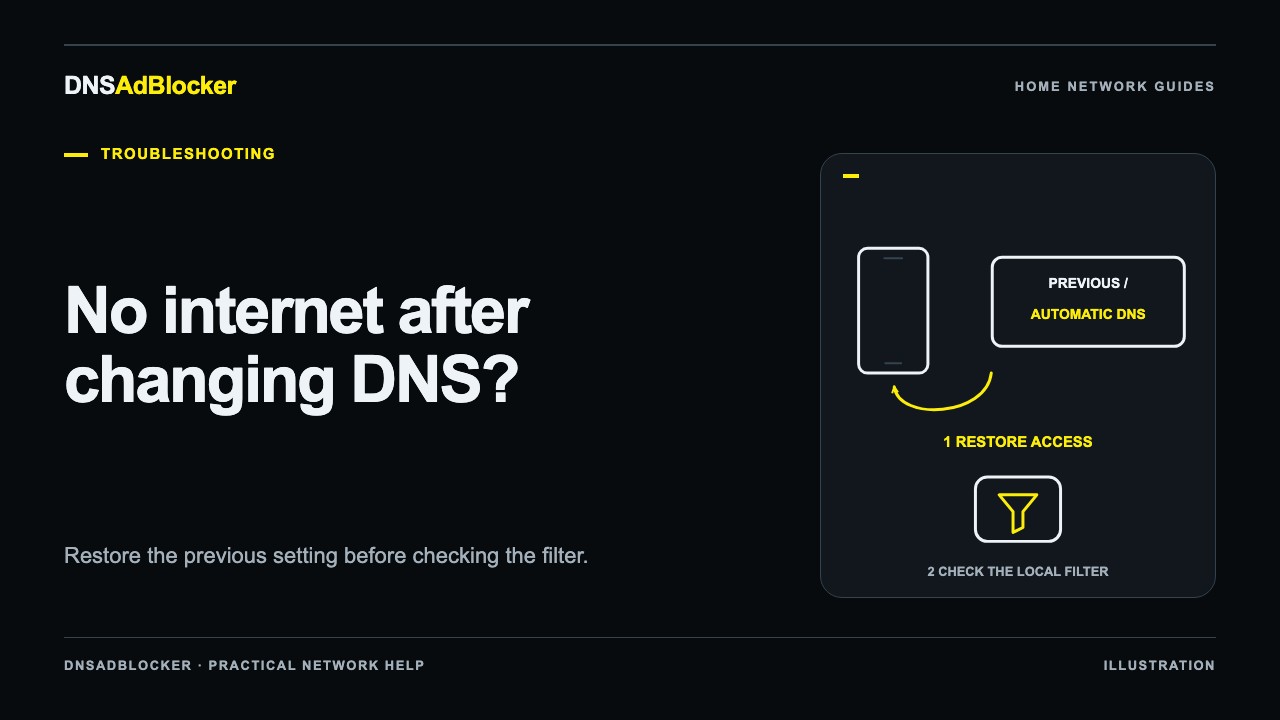
If internet access stops after changing DNS, restore the previous working DNS configuration on one device first. Get that client working before making more changes across the home network. A wrong resolver address can prevent websites from opening even when Wi-Fi and the internet connection are otherwise healthy.
Keep a record of the setting you changed, the old value if available, and whether the change was on the router or the client. Do not reset the router or upload firmware as a first response to a DNS setting problem.
Restore one client's working DNS
On the affected computer or phone, return its active network connection to the DNS setting that worked before the change. If you changed only that client's DNS, restoring automatic DNS can let it use the router's supplied settings again.
There is an important exception: if you changed the router's DHCP DNS to an unreachable filter, “automatic” on the client will inherit that same unreachable resolver. In that case, use your recorded previous working resolver temporarily on that one client, or restore the router's previous DNS setting before renewing the client's network connection. Follow the router's instructions rather than guessing an address.
On Windows, look for DNS server assignment for the active Wi-Fi or Ethernet connection. On macOS, Apple documents System Settings → Network → active service → Details → DNS. Remove only the manual entry you added when restoring the prior automatic configuration; managed profiles can require an administrator. Record any existing entries before editing them.
After saving, reconnect the client if the platform requires it and try a familiar website. If access returns, you have a working recovery path and evidence that the changed resolver path deserves investigation. Keep that client available while you examine the filter.
The router DNS versus device DNS guide explains why changing one client and changing DHCP for the household have different effects.
Separate a lookup failure from a connection failure
Wi-Fi bars show a radio connection, not proof that DNS or internet service works. Use a few checks that answer different questions.
| Check | What it helps establish | What it does not prove |
|---|---|---|
| Open the router's local management address | The client can reach that local interface | The internet service is working |
| Inspect the router's internet/WAN status | Whether the router reports an upstream connection | Every destination is reachable |
| Query a familiar domain using the previous working DNS | Whether that resolver path can answer | The local filter is reachable |
| Query that domain directly through the local filter | Whether the filter can receive and answer | A browser uses the same resolver |
| Compare another client on the same network | Whether the failure is limited to one configuration | Every network segment has identical access |
If a diagnostic tool can reach a numeric IP but domain lookups fail, that points toward name resolution. A failed ping is less decisive because some devices and networks do not answer it. Avoid testing HTTPS by replacing a website's name with an arbitrary IP in the browser; certificates and shared hosting can make that fail for unrelated reasons.
If multiple clients fail even after restoring their previous DNS paths and the router reports an internet outage, investigate the router or internet service. DNS changes cannot repair a disconnected upstream link.
Confirm the filter's actual local address
Check that the filtering device has stable USB power and is connected to the same reachable home network as your test client. Find its present IP in the router's connected-device list. Do not reuse an example address from a guide as though it were the unit's assigned address.
Open the local dashboard by IP. A local hostname can fail to resolve even when the numeric address works, so distinguish a dashboard-name problem from the device being offline. If the device moved to a new router or Wi-Fi network, follow reconnecting after a router change rather than repeatedly entering the previous address.
A guest network may intentionally prevent clients from reaching local devices. Preserve that boundary while diagnosing it. Use a test client on the trusted network with a supported route to the filter; do not turn off guest isolation for the whole network as a general fix.
Test the resolver directly
From a computer, run a lookup addressed to the filter:
nslookup example.com 192.168.1.50
Replace the sample address with the actual filter IP. Note the response and compare dashboard counters before and after. The dashboard tracks allowed and blocked requests, not successful website loads. An “allowed” request count means the request was not blocked by a domain rule; it does not guarantee that an upstream DNS server answered successfully.
If the direct request times out, check the address, client-to-device reachability, and device connectivity. If requests arrive but all return blocking responses, inspect any client ban; pausing domain filtering does not override a client ban. If allowed lookups fail while the dashboard remains reachable, check the filter's internet and upstream resolution path using its supplied support instructions.
When the direct lookup works but normal applications fail, inspect the client's active resolver settings and app overrides. The request-path guide helps keep those cases separate.
Stabilize the address before restoring household coverage
A router can assign a different local address after a lease change. If clients still point to the old address, DNS can fail without any rule change. Create a supported reservation for the device in the router and verify that it is using the reserved address. The DHCP reservation guide explains the checks.
Reapply filtering to one client first. Confirm ordinary lookups, a known blocked test, and the ability to restore the previous setting. Then update the intended household DNS configuration and reconnect clients as required by your router. Keep the recovery notes accessible without needing the affected network.
FAQ
Will a public secondary DNS server fix this safely?
It may make some requests work, but it can also create an unfiltered alternative path. Use a recorded working resolver deliberately for recovery, then correct the local path rather than assuming a secondary server preserves filtering.
Why did automatic DNS fail too?
Automatic DNS usually inherits network-supplied settings. If those settings point to the broken path, automatic mode repeats the problem. Check what the client actually received.
Should I factory-reset the device?
Not before checking power, address, network membership, and the original DNS settings. A reset can remove useful configuration without explaining the failure.
Sources
Documentation reviewed October 19, 2026. Router menus and resolver policies differ; the sample IP is illustrative, and these steps do not claim a test on your router.
Questions or corrections about this content can be sent to support@dnsadblocker.com.
All postsRelated posts
DNS filtering guides, home network setup notes, and product updates.