Give Your Home DNS Server a Stable IP With a DHCP Reservation
Reserve a stable local IP for your home DNS server, compare DHCP reservations with static addresses, check for conflicts, and verify the address after a restart.

Written by
DNSAdBlocker Team
The DNSAdBlocker team explains home DNS filtering, setup, and maintenance using product documentation and referenced platform guidance.
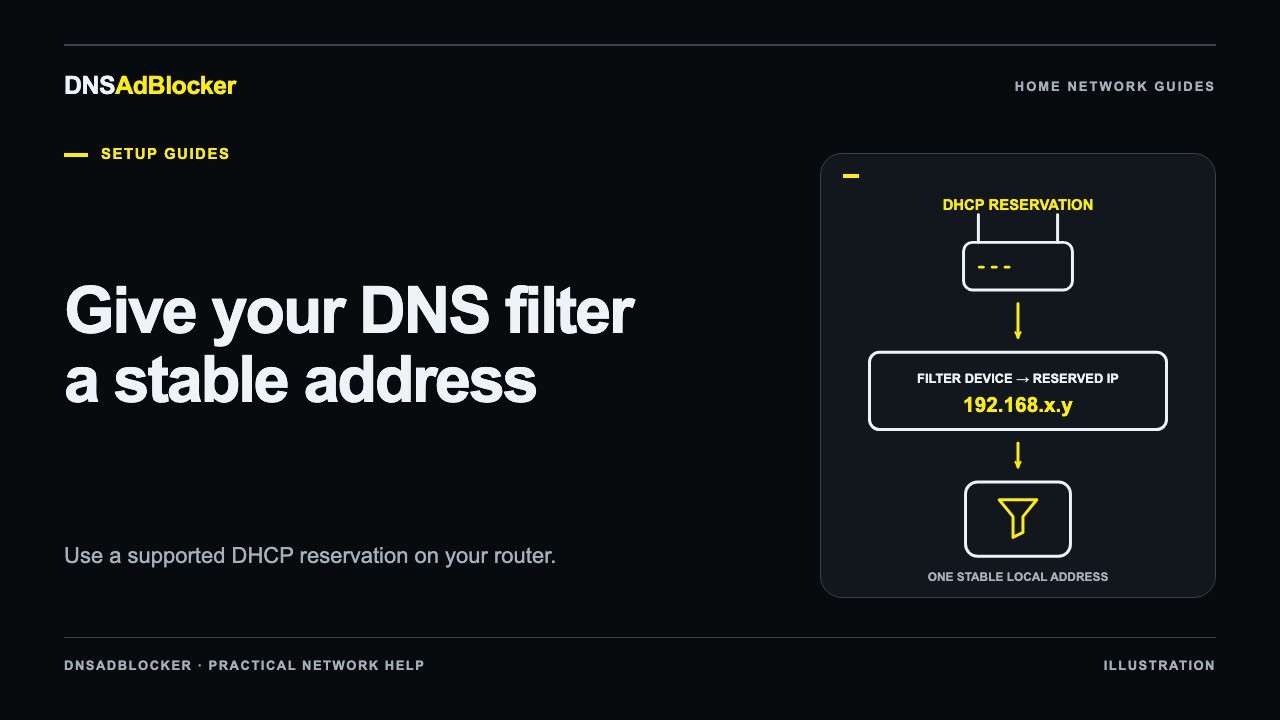
A DHCP reservation tells your router to give a particular device the same local IP address when it asks for one. For a home DNS filter, this keeps the address stored on phones, computers, or the router from pointing to the wrong place after a lease changes.
Start by reserving the DNS device's existing address if your router supports that choice. Confirm the reservation after a restart before you point the household at it. A stable IP helps clients find the DNS server; it does not keep an unpowered or disconnected server available.
Why the address needs to stay predictable
Most home devices ask the router's DHCP server for their network settings. The lease includes an address for a period of time. A device may receive the same address repeatedly, but seeing it stay unchanged for several days is not a reservation.
If the filter moves to another address while clients continue asking the old one for DNS answers, new website connections may fail. Other activity can appear to work for a while because applications have cached addresses or open connections. This can make the fault look intermittent.
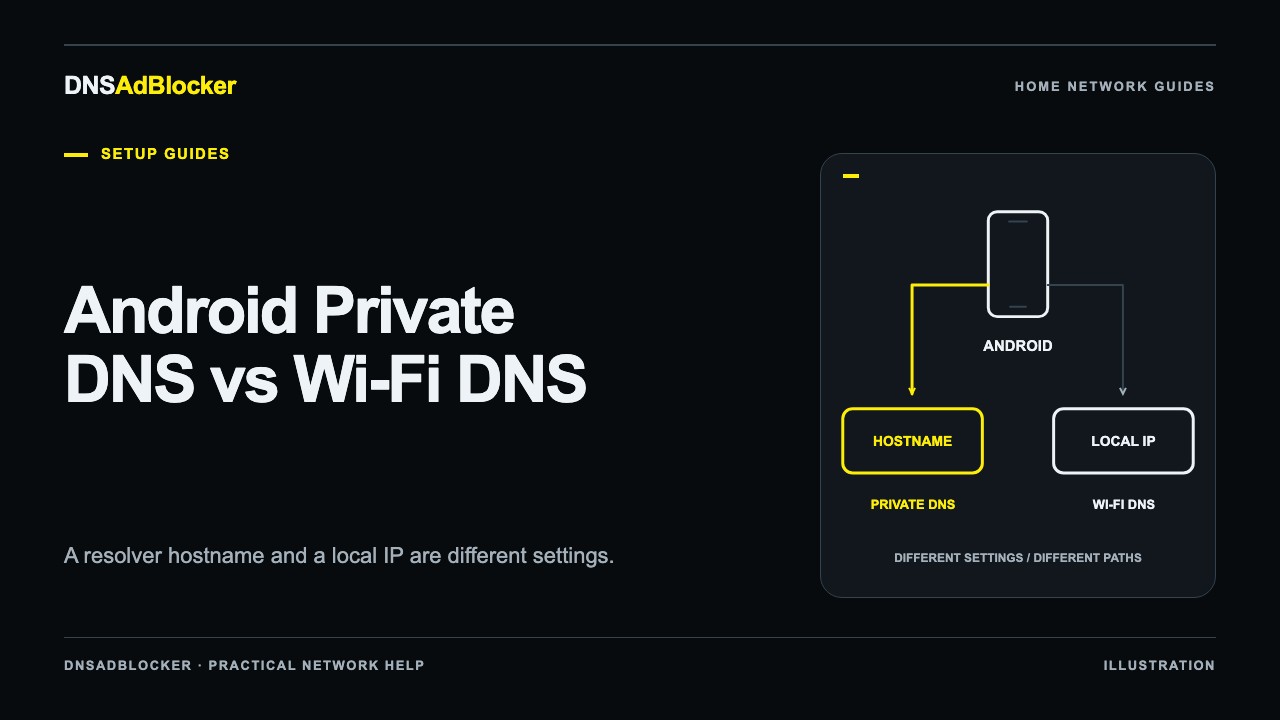
The router DNS versus device DNS guide explains the two places that may store the filter's address. Both depend on that address continuing to reach the right box. Reserve it before making a shared router DNS change, rather than repairing every client after an avoidable address change.
Reservation and static IP are different
| Method | Where the address is controlled | What you need to manage |
|---|---|---|
| DHCP reservation | The router's DHCP server | Correct device identity, an allowed reserved address, and one authoritative DHCP configuration |
| Manually assigned static IP | The DNS device itself | IP, subnet, gateway, DNS/upstream details, and protection against DHCP conflicts |
A reservation keeps the device using DHCP. The router recognizes its network identifier, commonly the Wi-Fi MAC address, and supplies the reserved address. A static IP tells the device to use an address directly, so it may not ask the router for that address at all.
For a preconfigured product, use a router reservation unless the supplied device instructions document static-IP support. Do not assume an advanced field exists in the local dashboard. Changing a router's reservation does not require changing firmware or uploading a new blocklist.
Find the correct device and address range
Open the router's administration page using the manufacturer's instructions. Find its connected clients, DHCP leases, or device list. Identify the DNS box using its current address and Wi-Fi MAC address, then compare the address with the one that opens its local dashboard. A friendly device name alone can be ambiguous.
Record these details privately:
- The DNS device's current local IP and Wi-Fi MAC address.
- The router's LAN address and subnet.
- The DHCP pool and any existing reservations.
- The current DNS settings on your test client.
An address must belong to the appropriate local subnet and must not be the router's address, a network/broadcast address, or an address already used by another device. Router products differ on whether a reservation must sit inside the DHCP pool or outside it. Follow your router's rule rather than the broad advice that every reservation should be outside the pool.
With a manually configured static IP, coordinate the DHCP pool or exclusions so the router cannot lease that address to another client. An address that does not respond to a ping is not proof that nobody owns it: a device can be asleep, disconnected, or configured to ignore ping.
Add the reservation in your router
Look for names such as Address Reservation, DHCP Reservation, Static Lease, or Fixed IP. These labels describe a similar task, but the menu location and allowed addresses depend on the model and firmware. TP-Link's address reservation instructions are an example of a manufacturer-specific process, not a universal path for every router.
Select the DNS device from the lease list if the router offers that option. Otherwise enter its verified network identifier and your chosen allowed IP. Give the entry a useful name, save it, and check whether the router requires an additional apply action.
If you use several access points, determine which device actually runs DHCP. A mesh satellite is often only an access point; adding an entry on a different box will not change leases issued by the main router. Do not enable a second DHCP server just to expose a reservation menu.
Verify after the device reconnects
Keep the DNS device powered through a stable USB supply. Restart or reconnect it using the supplied instructions so it requests network settings again. Then open the router's live lease table and confirm that the actual address matches the reserved one.
Open the local dashboard at that IP. Confirm that it is the intended device and that its controls and counters load. A saved reservation entry alone proves only that the router stored a setting. If the address changed, update the test client's DNS address before attempting lookups.
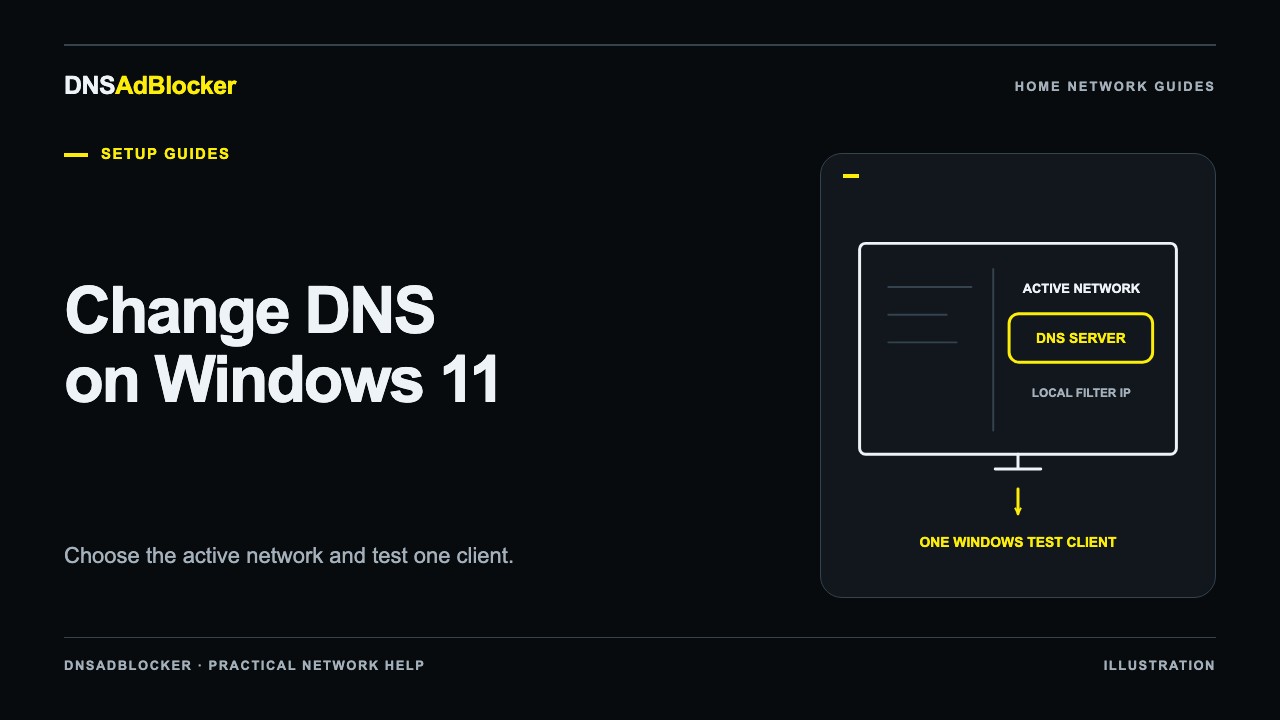
Use one test computer before changing the router's shared DNS distribution. The Windows 11 DNS setup guide shows how to edit DNS independently of the computer's IP assignment. Confirm that normal lookups reach the filter and that essential sites still open. Once this works, you can distribute the address more widely.
If the address does not stay reserved
Compare the reservation's MAC address with the live lease, not with a label belonging to another network adapter. Check for a manually assigned IP on the device, another DHCP server, or a reservation that was saved but not enabled. Rejoin the intended home network if the box connected to a different Wi-Fi network.
If clients lose access during this work, restore their previous DNS configuration first. Our DNS connectivity recovery guide gives a recovery sequence that does not depend on the filter being available.
Replacing the router or changing its LAN subnet can invalidate the old reservation. A setting on the old router does not transfer automatically to the new one, even when the Wi-Fi name stays the same. Follow reconnect your DNS filter after a router change, find its new address, and make a new reservation before reusing client DNS settings.
Sources
- TP-Link: Configure Address Reservation provides a concrete router example; use the documentation for your own model and firmware.
- IETF RFC 2131: Dynamic Host Configuration Protocol describes DHCP address allocation and leases.
Questions or corrections about this content can be sent to support@dnsadblocker.com.
All postsRelated posts
DNS filtering guides, home network setup notes, and product updates.