How to Update a Home DNS Blocklist and Check the Result
Follow the eligible-order download and local blocklist upload process, check rule information and sample domains, and know what to do if an update fails.
Written by
DNSAdBlocker Team
The DNSAdBlocker team explains home DNS filtering, setup, and maintenance using product documentation and referenced platform guidance.
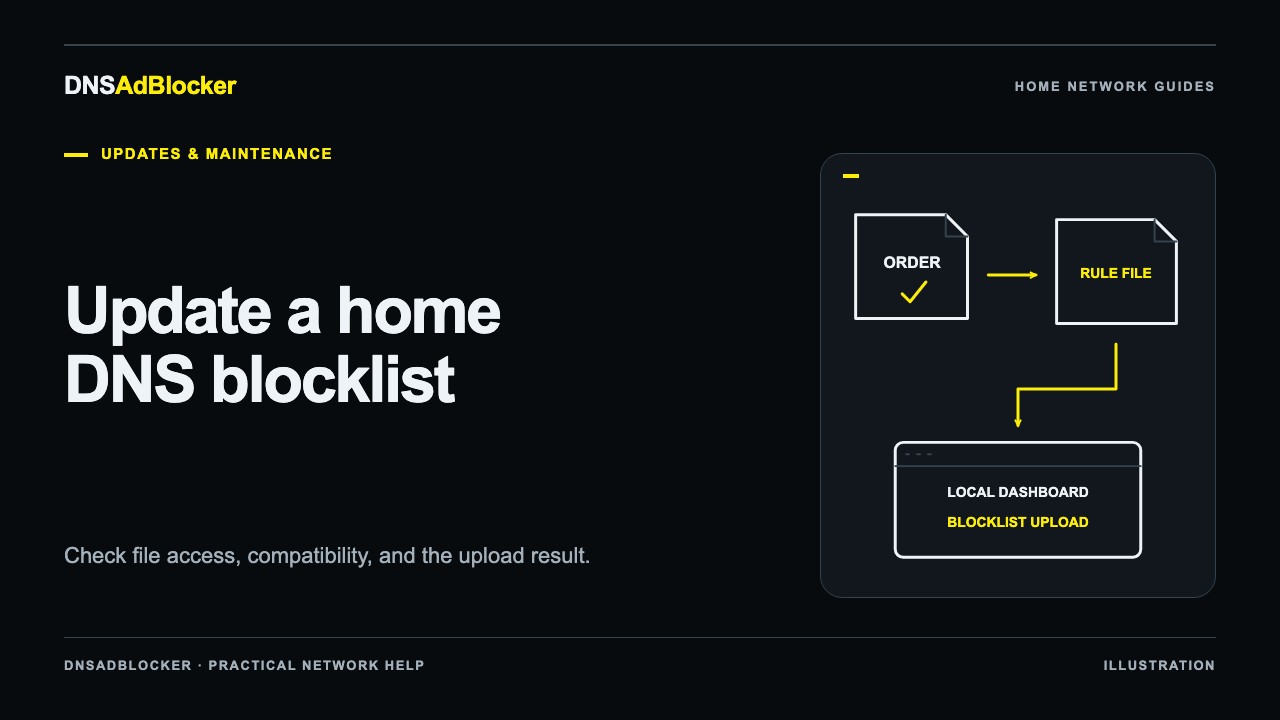
To update a DNSAdBlocker rule list, download the compatible blocklist.bin file through an eligible completed order, then upload it using Blocklist Upload in the device's local dashboard. Afterward, check the loaded-rule information and repeat a few controlled domain lookups. Firmware Upload is a separate operation.
This process requires a published compatible rule file. At this article's October 19, 2026 review, the first seller rule file had not been published. The steps below explain the intended download and import workflow when a release is available; they do not report a completed live download or a tested physical-device import.
Check the order and file before you begin
The website supplies rule access through a qualifying hardware or annual rule-update order. Payment must be confirmed, the order must be marked completed, and it must still be within one year of its payment date. A paid order waiting for completion does not yet qualify for downloads.
Open your orders using the account associated with the purchase, or use the private order-access route supplied for a guest order. Find the order's Rule file downloads section. Check the access period against the order you intended to use, rather than assuming every purchase shares one account-wide expiry.
An active access period and a published file are separate requirements. If the release is unavailable, do not substitute an unrelated file found on the web. If your access has ended, read what expiry changes before buying another year. New hardware already includes its first year.
Before downloading, have these details ready:
- The supplied unit's local dashboard address and device credentials.
- Stable USB power and a browser on a network that can reach the device.
- Your original router or test-device DNS settings, in case connectivity needs restoring.
- Any compatibility or release instructions supplied with the rule file.
Write down the dashboard's current loaded-rule count and a small set of test domains. A count records the starting point; it does not tell you which domains a new release adds or removes.
Download the compatible rule file
When a file is available and the order qualifies, use Download rules file in the order view. The downloaded filename is blocklist.bin. Keep the downloaded binary unchanged so it remains the file intended for the device.
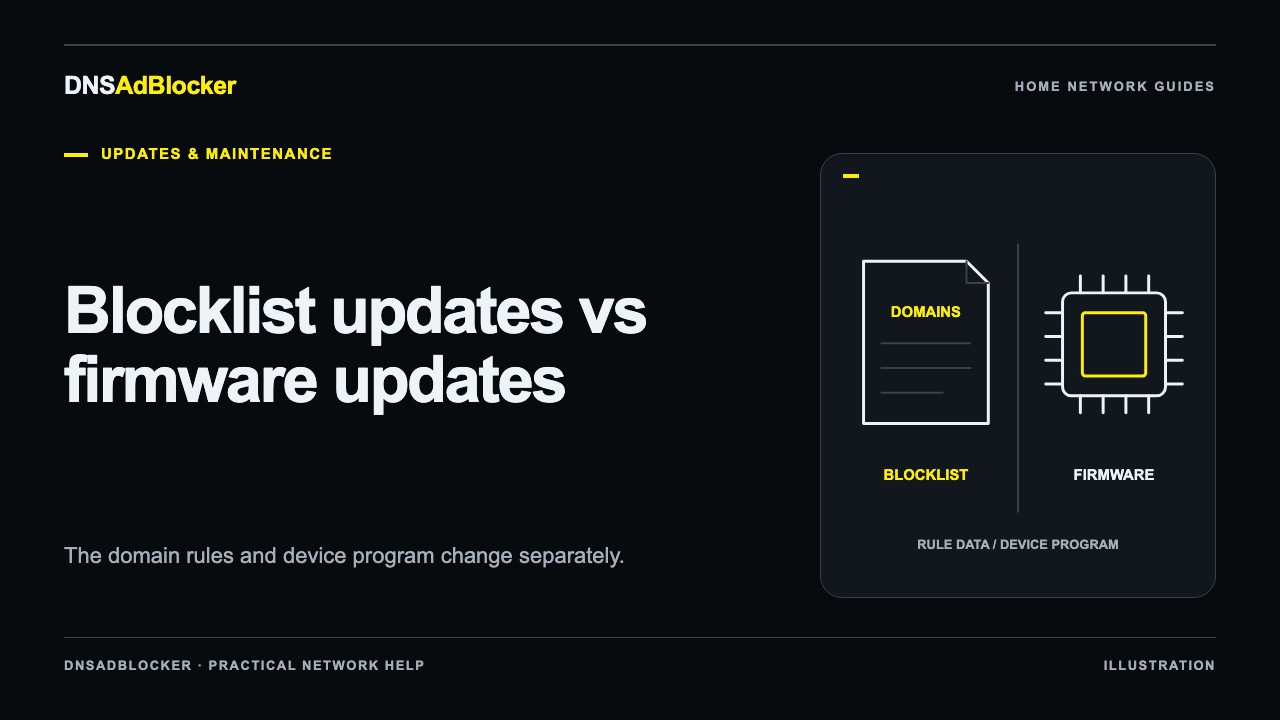
Do not rename a text hosts list or a firmware binary to this filename. A filename alone is not proof of format or compatibility. Our blocklist versus firmware explanation describes why both kinds of download can end in .bin while needing different upload controls.
If the download fails, check whether the problem is order eligibility or file availability. An expired or otherwise ineligible order can be denied even if a release exists. A qualifying order can encounter temporary unavailability when no valid release can be served. Repeatedly uploading a browser error page will not resolve either issue.
Keep the order reference for support. Do not share its private download URL publicly or paste it into a screenshot. The link carries access to the file and should be treated as private purchase information.
Upload through the local dashboard
Use the dashboard reached through the device's local network address, rather than the DNSAdBlocker website account page. The product guide explains that separation and the credentials used for local controls.
- Open the local dashboard from a phone or computer on your trusted home network.
- Locate Blocklist Upload and select the compatible
blocklist.binfile you downloaded. - Confirm the selected control is for the blocklist, then start the upload. Supply the device credentials if requested.
- Keep the device powered and let the operation finish. Avoid starting another upload or changing Wi-Fi during the transfer.
- Reopen or refresh the dashboard as the supplied instructions require, then inspect the loaded-rule information.
Rule replacement can interrupt filtering. A failed or interrupted replacement can also leave the device without its previous main list. This procedure does not include an automatic rollback or a dashboard export-and-restore feature. Choose a time when you can check the result and temporarily restore normal DNS if necessary.
Verify the result with more than a count
First, check that the dashboard reports loaded rules and no upload error. Compare any supplied release details with the information available for the file. Do not infer a release date from its download time or invent a version when the dashboard does not show one.
Next, use a known allowed domain and a domain explicitly expected to be blocked by that release. The second choice matters: a random advertising domain may not be part of the list, and an already broken domain is a poor test.
| Check | Useful evidence | What it does not prove |
|---|---|---|
| Loaded-rule information | The device reports a populated main list | Every intended domain is present |
| Allowed-domain lookup | Ordinary resolution still works in the test | Every household app works |
| Expected blocked-domain lookup | That request receives a filtering response | Every advertisement is removed |
| Dashboard counter change | The device observed relevant DNS activity | A particular ad disappeared |
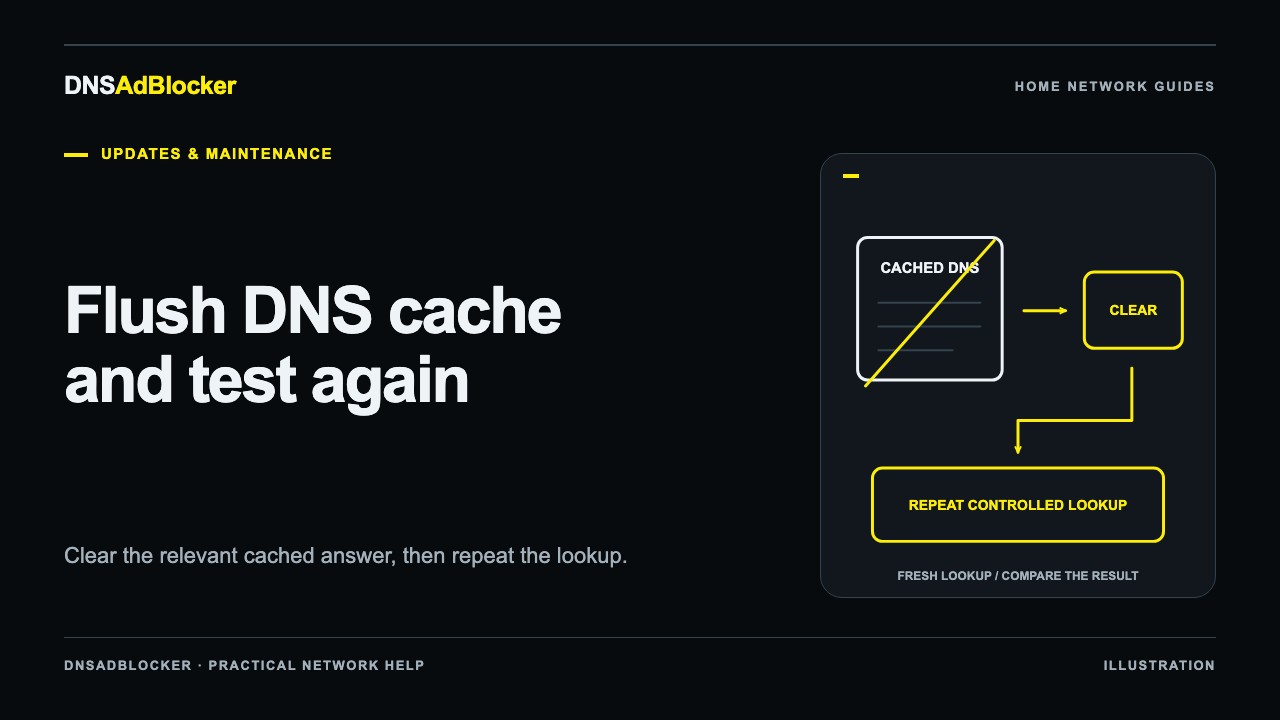
Use the same test device and action before and after the update. Background requests can move aggregate counters, and existing connections can continue without another DNS lookup. Follow the filtering test guide for a repeatable check. If an old answer appears to persist, clear the relevant cache using the DNS-cache guide, then test again.
Finally, open the everyday sites and apps recorded before the update. Working domain lookups and usable household services are both part of a useful result.
If the upload or checks fail
Restore the previous or automatic DNS settings on the test device if you need connectivity while investigating. Check power, local dashboard reachability, the exact filename, and whether you selected the blocklist control. Do not try the same file in Firmware Upload.
If the main list is missing or the upload reported failure, contact support for a compatible file and the supported recovery procedure. Re-upload only when those instructions establish that it is the correct action. Keep any previously supplied known-good file you already possess, but do not assume you can retrieve the device's old list from its dashboard.
Send the order reference, device model or supplied style, rule filename, visible error, and loaded-rule count. Remove passwords and private update links. State whether ordinary DNS works after restoring your earlier settings; that helps distinguish device recovery from an unrelated internet outage.
Can I use the remote update URL instead?
If your eligible order provides a private rule-file URL, the local dashboard supports it under Remote auto-update. A chosen interval schedules checks, and Fetch now requests a file immediately. Keep this URL separate from firmware downloads and website login pages.
A scheduled check does not mean new content exists each time. Manual download and upload also provide a clearer opportunity to inspect a file and verify a change. Follow the instructions supplied for your unit before relying on periodic retrieval.
Sources reviewed
Reviewed October 19, 2026: DNSAdBlocker's product guide, purchase and access terms, and service terms. These describe the delivery route and order conditions. Actual release availability and a successful import must be checked against the published file and supplied hardware.
Questions or corrections about this content can be sent to support@dnsadblocker.com.
All postsRelated posts
DNS filtering guides, home network setup notes, and product updates.