Is Secure DNS Bypassing Your Local Ad Blocker?
Check whether browser Secure DNS, Android Private DNS, or a VPN uses a separate resolver, then compare privacy and local filtering before changing settings.

Written by
DNSAdBlocker Team
The DNSAdBlocker team explains home DNS filtering, setup, and maintenance using product documentation and referenced platform guidance.
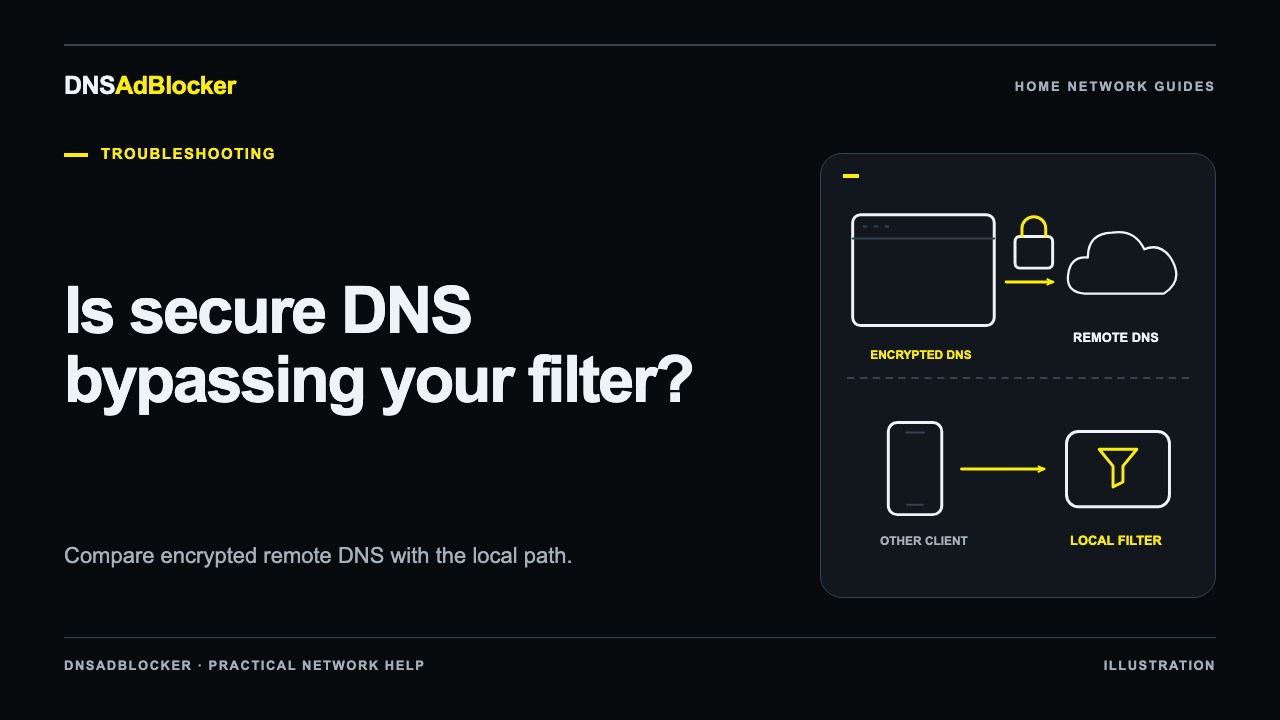
Secure DNS can bypass a local ad blocker when it sends lookups to a different resolver from the one your home network supplies. The deciding question is where the DNS request goes. Encryption alone does not tell you whether filtering applies.
A browser can send DNS over HTTPS to a remote provider while another application on the same computer uses the local filter. Android Private DNS and a VPN can introduce other resolver paths. Check one device and one application at a time, keeping a record of the original settings so you can restore them.
What Secure DNS changes
DNS turns a hostname into information a device can use to connect. Traditional DNS commonly uses port 53. DNS over HTTPS, or DoH, carries DNS exchanges over an encrypted HTTPS connection. Mozilla's MDN explanation describes how this protects those exchanges from observation or modification along that connection.
The encrypted resolver still receives the DNS request. Choosing a remote provider therefore changes who handles your lookups as well as how they travel. A home filtering device cannot apply its own domain rules to a query that goes directly to that remote provider.
There are several settings to distinguish:
| Setting | What to inspect | Possible effect on local filtering |
|---|---|---|
| Browser Secure DNS or DoH | Selected provider and mode | Browser lookups may use the provider instead of system DNS |
| Android Private DNS | Automatic mode or a provider hostname | A specified provider may replace the Wi-Fi resolver path |
| VPN DNS | Provider documentation and active connection settings | Lookups may go through the tunnel or follow a split configuration |
| Router or device DNS | Resolver addresses supplied to the client | Applies when the application uses that configured path |
Do not assume every “automatic” setting behaves the same way. Chrome documents an automatic mode with fallback behavior and a custom-provider mode with different fallback behavior. Mozilla's Firefox networking documentation also distinguishes DoH modes and fallback policies. Those details are a reason to inspect the actual setting rather than infer it from the browser name.
Establish a local baseline
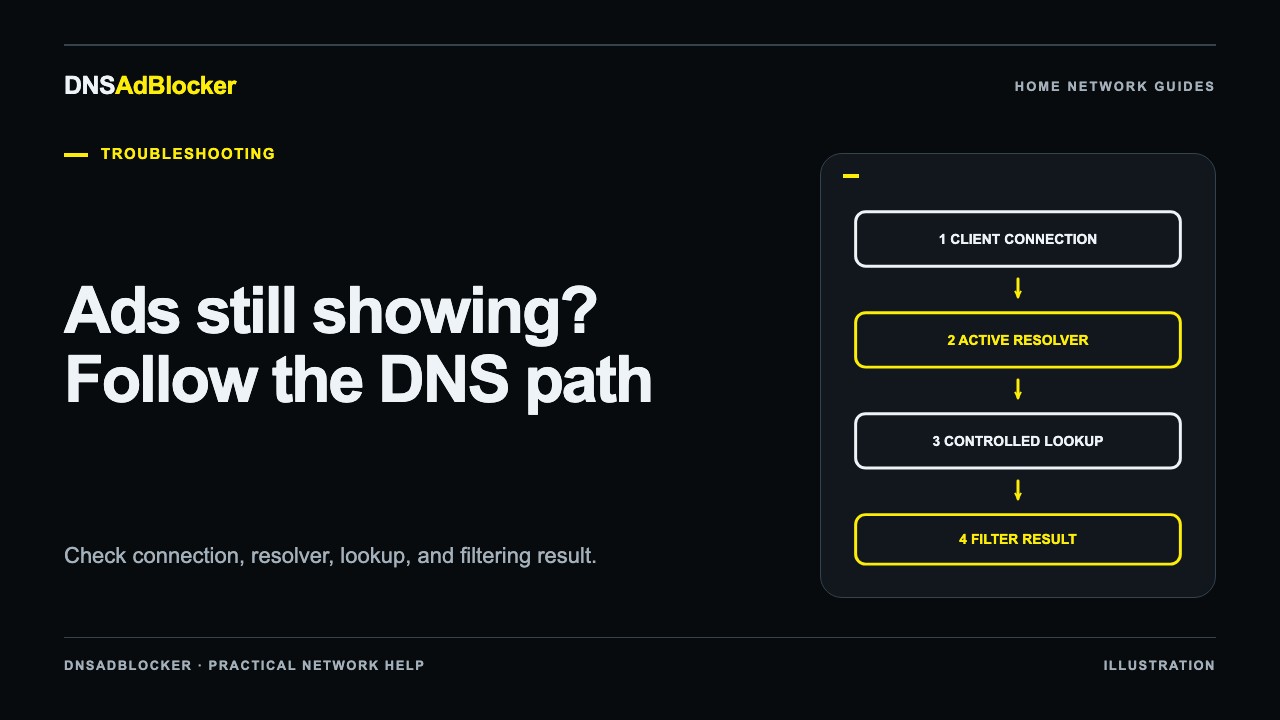
Before touching privacy settings, confirm that the local filter works when addressed directly. Open its dashboard, record the request totals, and make a controlled lookup to its actual LAN address. The DNS filtering test guide covers the allowed-domain and known-blocked-domain comparison.
An explicit command-line lookup can use the filter successfully while the browser still uses remote DoH. That is not a contradiction: you tested two different paths. Write down which tool or application produced each result.
Next, repeat the affected browser action and watch for a change in dashboard counts. Counts can include background household traffic; the interface does not show a per-domain query history. Treat this as one part of the comparison, not definitive attribution of a particular page request.
If even the explicit lookup does not reach the device, return to the general request-path troubleshooting guide. Encrypted DNS is only one possible explanation.
Inspect the browser, phone, and VPN separately
In Chrome, search Settings for “Secure DNS” and record the selected provider and mode. The location and available controls can vary by platform and management policy. Google's Chrome help page explains automatic and custom-provider behavior. Do not change Safe Browsing or unrelated security controls to test DNS routing.
For Firefox, inspect its DNS over HTTPS settings and selected provider. Follow the help for your installed version rather than changing advanced preferences copied from an old forum post. The important evidence is the chosen mode, resolver, and whether the test changes when the browser uses the intended local DNS path.
On Android, Google documents Settings → Network & internet → Private DNS, with Off, Automatic, and Private DNS provider hostname options; manufacturer menus may differ. Google recommends keeping Private DNS enabled where supported. Read Android Private DNS versus Wi-Fi DNS before deciding how that setting fits your home setup.
A VPN may supply its own DNS servers or enforce encrypted DNS. Read its DNS and local-network documentation. On a work-managed device, ask the administrator rather than overriding a required configuration. A VPN application's protection indicator alone does not reveal which DNS resolver answered a specific browser query.
Compare one change and restore it
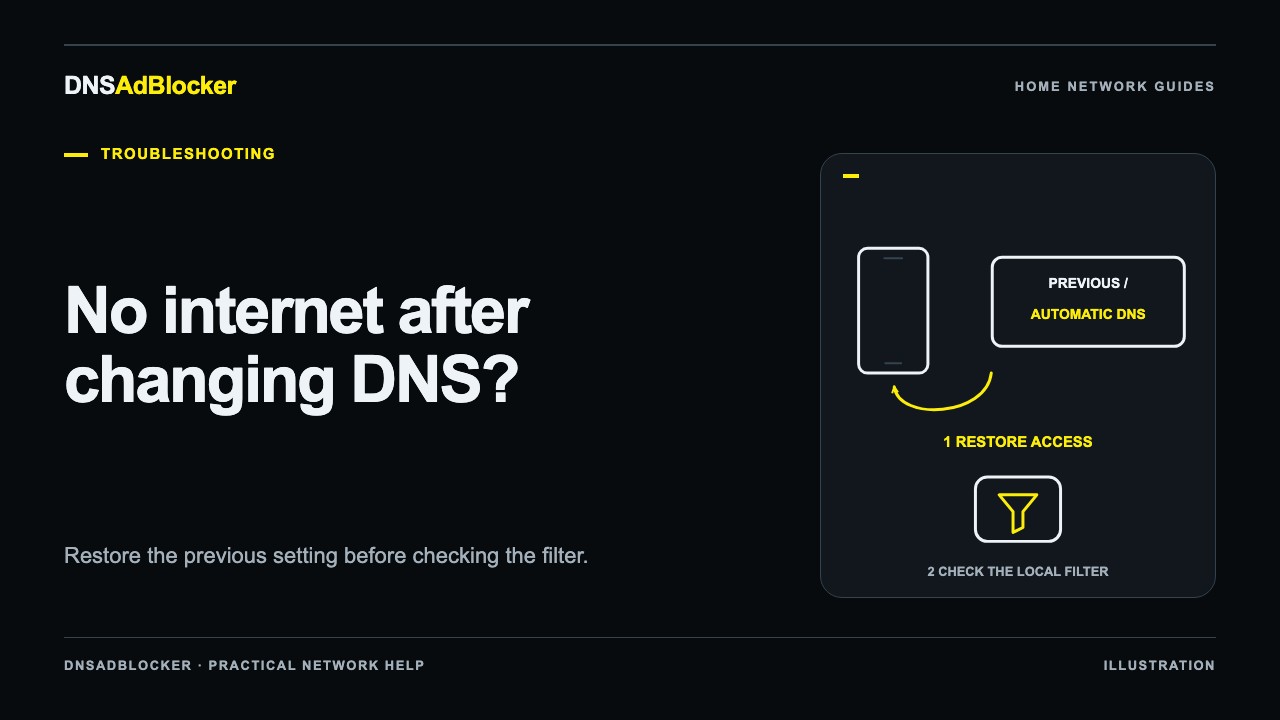
If you choose to test the system-DNS path, first capture the original provider, mode, and any custom hostname. Temporarily select the supported setting that lets that one application use the intended local resolver. Reload the test in a fresh session after accounting for DNS caching. Then restore the original setting and repeat the comparison.
Use a trusted external resolver test as additional evidence. Such a test may report an upstream resolver or a provider's network rather than your local device, because the local filter forwards allowed requests. It may also probe only the browser that opened it. Compare its result with the active settings and dashboard counters; do not treat one “DNS leak” label as proof that every application bypasses filtering.
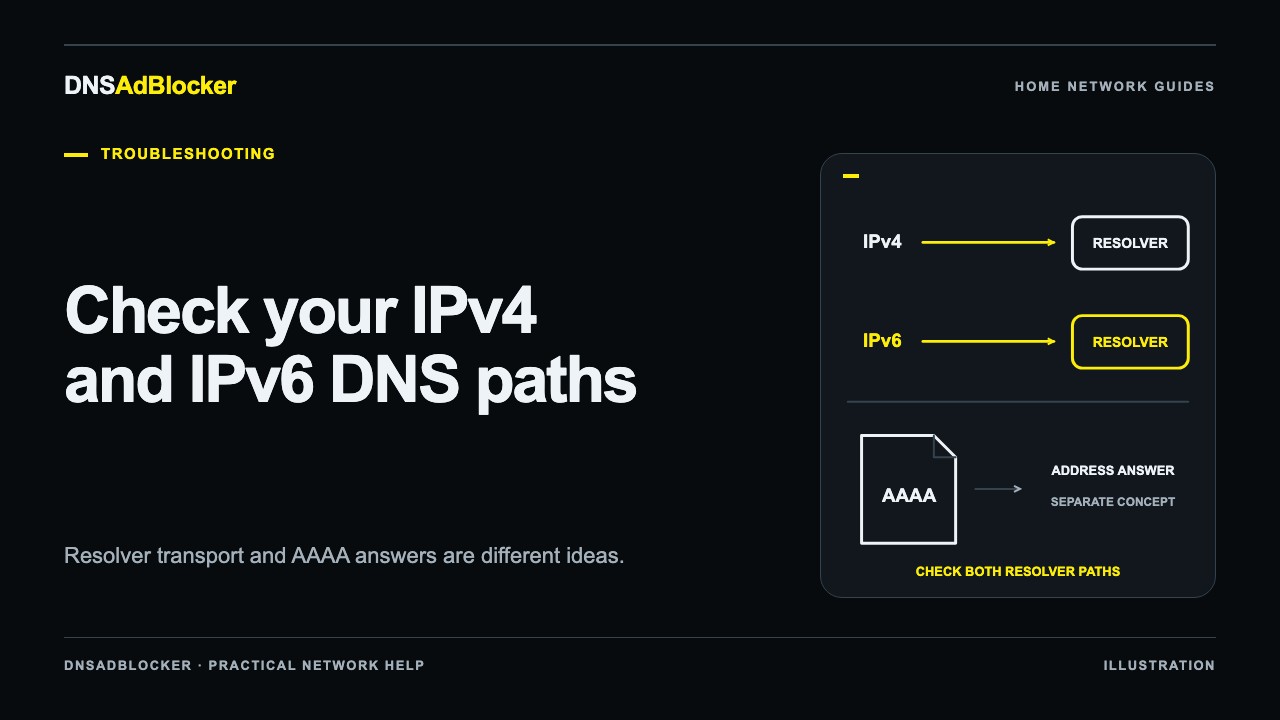
If both IPv4 and IPv6 resolver addresses are present, the IPv6 resolver guide explains how to investigate them without confusing a website's IPv6 address with the DNS transport path.
Choose the tradeoff deliberately
Keeping a chosen remote encrypted resolver may mean that local filtering does not cover that application's lookups. Choosing local DNS can restore your local rule policy, but the client-to-filter connection may use ordinary unencrypted LAN DNS. Do not assume this device offers a browser-compatible encrypted DNS endpoint.
Neither choice makes all tracking disappear. The DNS filtering and tracking guide separates domain blocking from cookies, account identity, and other tracking methods. Keep HTTPS and other browser protections enabled whichever DNS path you choose.
FAQ
Does DoH always bypass a local filter?
It bypasses that filter when its queries go directly to a separate resolver. A product that explicitly supports an encrypted filtering endpoint can work differently. Check the endpoint and supported configuration rather than the encryption label.
Can I keep a work VPN and force home DNS?
That depends on the VPN and its policy. Some configurations do not permit that combination. Preserve required work settings and use a separate personal test device if needed.
Is turning off Secure DNS the permanent fix?
It is a routing choice with privacy implications, not a universal repair. First prove that resolver selection caused the behavior, then choose the configuration that fits your needs.
Sources
- Google: Chrome Secure DNS behavior
- Google: Android Private DNS settings
- MDN: DNS over HTTPS
- Mozilla: Firefox DNS over HTTPS implementation and fallback
Official documentation reviewed October 19, 2026. Browser and VPN interfaces can change; no specific VPN or household configuration was performance-tested for this guide.
Questions or corrections about this content can be sent to support@dnsadblocker.com.
All postsRelated posts
DNS filtering guides, home network setup notes, and product updates.