Can You Block Ads on a Smart TV With DNS?
Check what DNS filtering may change on a smart TV, how to test one set safely, and why home-screen ads, app ads, and video ads need different expectations.

Written by
DNSAdBlocker Team
The DNSAdBlocker team explains home DNS filtering, setup, and maintenance using product documentation and referenced platform guidance.
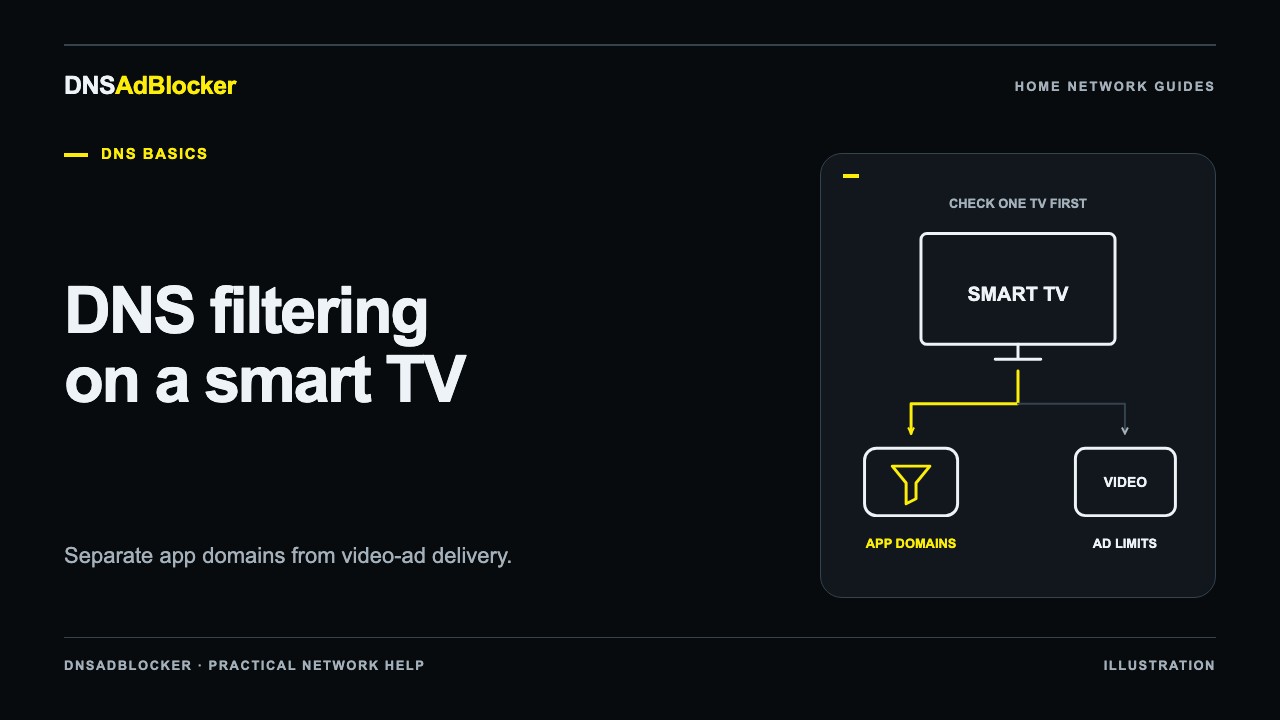
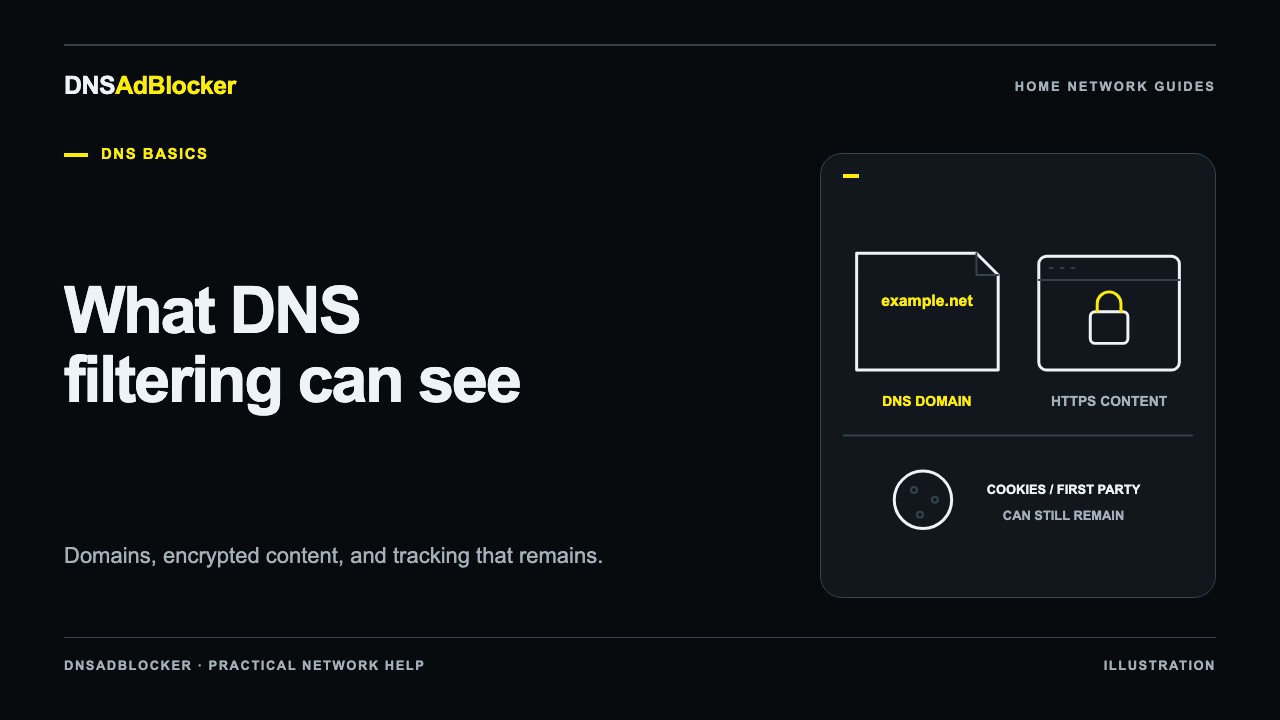
DNS filtering may block some smart TV advertising or tracking requests when they use separate listed domains and the TV sends those lookups through the filter. It cannot guarantee an ad-free home screen or ad-free video apps. The result depends on the TV model, app, DNS configuration, and the domains involved.
Treat the television as a device to test, rather than assuming that a router setting proves coverage. A short test on one set is easier to reverse than a household-wide change made just before someone wants to watch a film.
First identify the kind of advertising
“Ads on my TV” can describe several different things. They do not all follow the same network path.
| What you see or want to reduce | Where DNS may help | Why it may remain |
|---|---|---|
| Home-screen banners or recommendations | A separate listed domain may supply some material | The launcher may use an essential service or cached content |
| Ads in an app's menus | Listed third-party advertising domains may be blocked | The app may serve them from the same domain as other functions |
| Ads before or during video | Separate listed delivery domains may be blocked | Advertising and wanted video can share delivery infrastructure and names |
| Background telemetry | Listed collection domains may be blocked | Some collection can use essential first-party domains or another resolver path |
A change to one row does not prove a change to the others. A missing banner is not evidence that all telemetry stopped, and fewer DNS requests do not show that video advertising was removed.
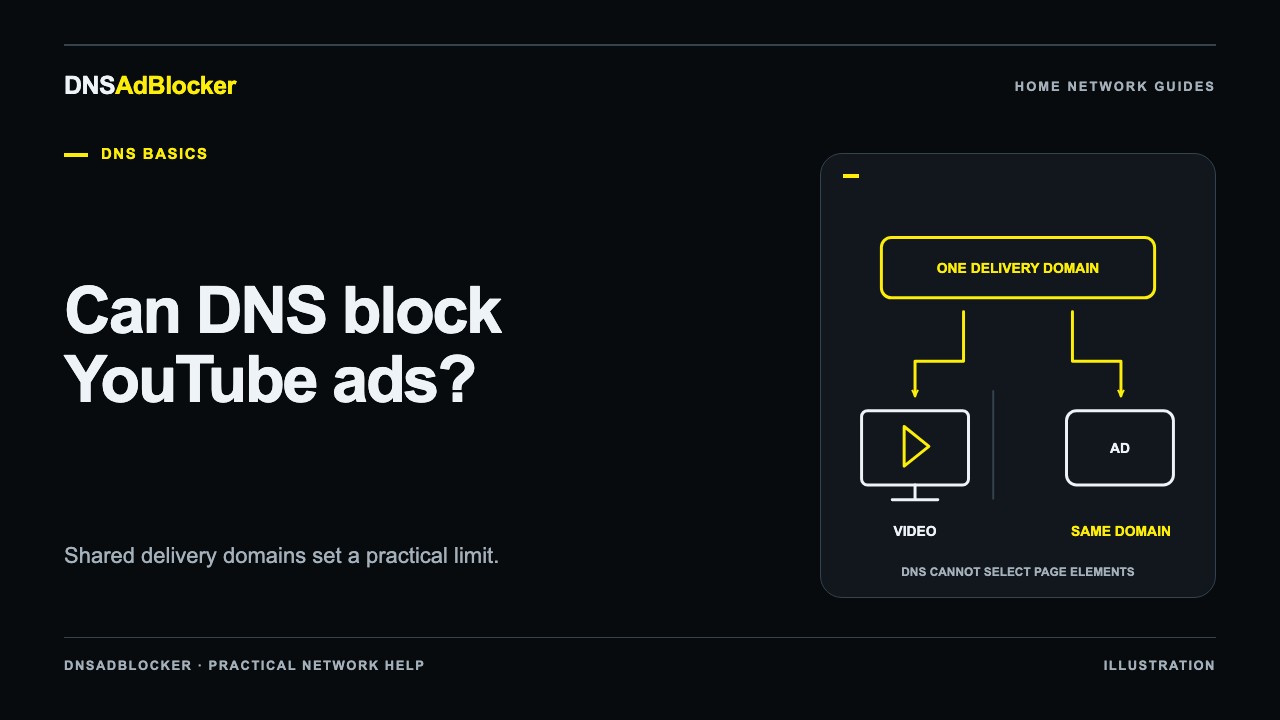
For YouTube in particular, read why DNS cannot reliably block YouTube ads before buying hardware or applying someone else's domain list. Shared-domain delivery prevents the selective decision you would need.
Also check the television's own privacy and recommendation settings. For example, Google TV documents an Apps only mode that hides personalized recommendations. Such a setting changes a platform feature; it does not establish that every ad or background request is removed. Keep those goals separate when judging a result.
Check whether the TV can use your chosen DNS
Television menus vary by model and software version. Some expose a manual DNS field. Others rely on settings supplied by the router. A setting may be attached to the active Wi-Fi or wired connection, so changing one connection does not prove the other uses it.
Before making a change:
- Identify the exact TV or streaming-device model and consult its current network documentation.
- Record whether addressing and DNS are automatic or manual. Save the previous values if any are entered.
- Confirm the filtering device's stable local IP address and that the TV's network can reach it.
- Check whether the menu allows DNS to change independently. If it requires manual IP, gateway, or subnet details too, understand those fields before proceeding.
Do not guess a gateway or copy another household's address. A wrong network setting can prevent the TV from reaching anything, which is a different problem from an overbroad filtering rule.
If the TV has no suitable DNS control, investigate the router's LAN/DHCP settings. A router's WAN DNS page is not always the same as the DNS information supplied to clients. Our router compatibility checklist covers that distinction. Guest-network isolation and IPv6 resolver announcements may also affect the route.
Test one TV with a recovery route ready
Use a quiet moment when interrupting the set will not matter. Note one repeatable task before changing anything: opening an app, signing in, starting a selected programme, or displaying the home screen. A single viewing session with no video ad is not a reliable test because ad delivery itself can vary.
- Connect the DNS filtering device according to its supplied instructions and confirm it is available on the home network.
- Direct the TV's DNS to it if the TV supports that change. Otherwise use a narrowly scoped router option if available, or test the router change with a clear plan to restore it.
- Reconnect the TV's network connection using the manufacturer's guidance so it can pick up the intended settings.
- Repeat the same ordinary tasks. Check app sign-in, playback, seeking, subtitles, and any feature you regularly use.
- Look for DNS activity at the filter while the TV is active. If the router forwards queries for clients, the dashboard may show the router rather than the TV separately.
For the Home DNS Ad Blocker, the dashboard shows blocked and allowed request counts. It does not offer a per-domain query log or identify which on-screen advertisement each request represents. Use the product guide to understand those controls before interpreting a number.
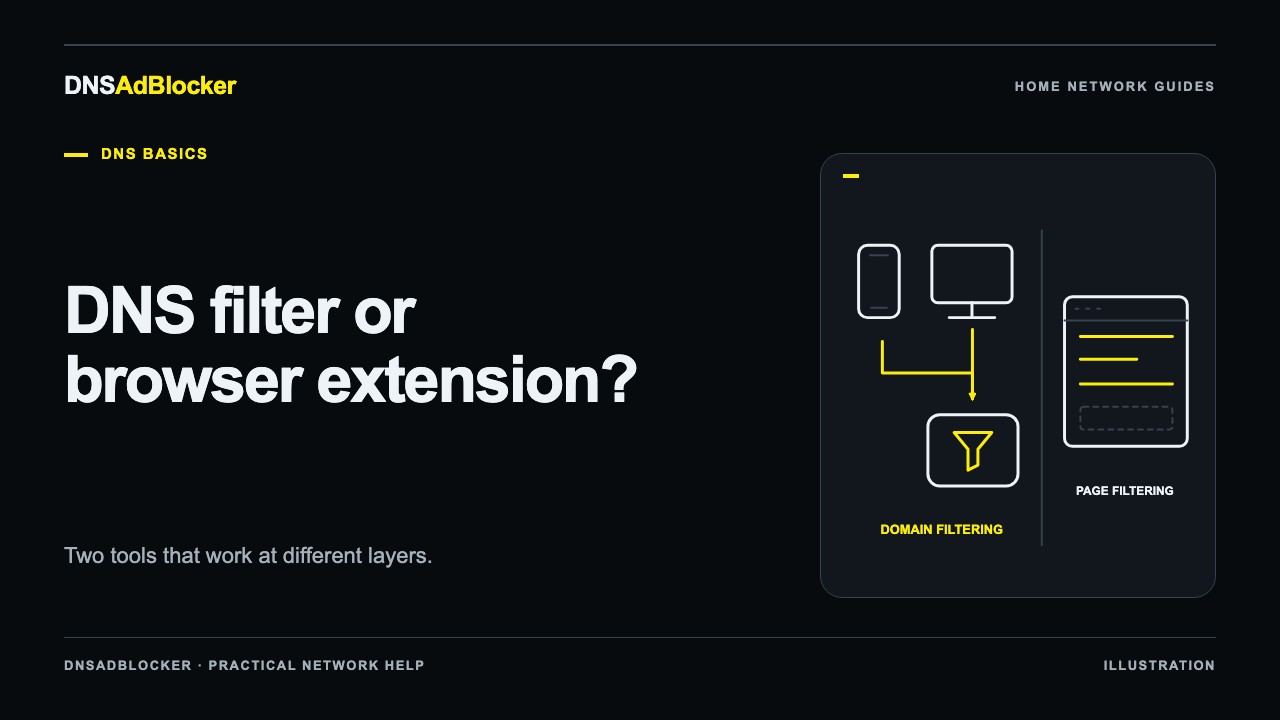
The router DNS versus device DNS guide can help you decide whether to keep the test limited to one client or extend filtering more widely.
If an app stops working
A blocked domain may support both advertising and a wanted app feature. Start by repeating the exact failed task with filtering briefly paused, then resume it and compare. Keep other settings unchanged during this comparison. If the task fails in both states, an app or service outage may be involved instead.
If pausing repeatedly resolves the problem, investigate the dependency before adding or deleting rules. Our guide to a site breaking after DNS filtering explains that process; the same isolation principle helps with TV apps, even when a television offers fewer diagnostic tools than a browser.
Removing a custom block only removes that custom entry. On this product, it is not a general allowlist override for a name that remains in the preloaded list. For a problem you cannot resolve through supported controls, restore the TV's previous DNS setting and contact support with the app, model, and reproducible symptom.
To undo the experiment, restore the saved DNS values or return the relevant setting to automatic if that was the starting point. Reconnect as instructed by the manufacturer and repeat the original task. Avoid a factory reset as the first response to a DNS change; it can erase unrelated settings without identifying the cause.
Sources
- MDN: DNS, explaining what a domain lookup does.
- Google TV Help: hide personalized recommendations, documenting a platform setting distinct from network filtering.
- YouTube Help: Premium benefits, including supported viewing platforms and ad-free viewing exceptions.
- IETF RFC 9076: DNS Privacy Considerations, on DNS visibility and resolver behavior.
Questions or corrections about this content can be sent to support@dnsadblocker.com.
All postsRelated posts
DNS filtering guides, home network setup notes, and product updates.