DNS Ad Blocker vs Browser Extension: Do You Need Both?
Compare DNS ad blocking with browser extensions across websites, apps, and TVs, then test both layers without confusing blocked requests with ads removed.

Written by
DNSAdBlocker Team
The DNSAdBlocker team explains home DNS filtering, setup, and maintenance using product documentation and referenced platform guidance.

A DNS ad blocker filters domain lookups. A browser extension can work on web requests and page content inside a supported browser. You may benefit from both if you want household coverage for configured devices as well as cleaner pages in your browser. If you only need to change one browser's experience, a suitable extension may be enough.
The choice starts with where the unwanted material appears: a web page, a phone app, a television, or several shared devices. The tools have different reach and different information to work with.
Compare the two by the job they can do
When a client asks for the address of a listed advertising domain, a DNS filter can refuse its normal resolution. That is a useful early decision, but it concerns the whole name. Our DNS ad-blocking introduction explains the request path in more detail.
A browser extension operates inside the browser that hosts it. Depending on the browser, permissions, and extension design, it may filter requests by URL or other details, and hide or modify elements in a page. MDN documents request interception and content scripts as separate extension capabilities. An individual blocker does not necessarily use every available capability.
| Need or environment | DNS filtering | Browser extension |
|---|---|---|
| Block a separate listed advertising domain | Yes, when the client uses the filter | Often possible within the supported browser |
| Hide an empty ad container on a page | No page-layout control | Possible with suitable cosmetic rules |
| Filter native phone-app requests | Possible for listed domains using its DNS path | A normal browser extension does not cover the separate app |
| Filter smart TV lookups | Possible if the TV follows the configured resolver | Desktop extensions do not run inside ordinary TV apps |
| Cover several home clients | Possible through suitable router or client configuration | Install and maintain it in each supported browser |
| Inspect a full web request URL | DNS sees the hostname in the lookup | Supported extension APIs may expose more request details |
| Selectively block content sharing an essential domain | Limited by whole-domain decisions | May have more selective rules; results vary |
Neither column guarantees that every ad disappears. Browser vendors and sites can change behavior, and domain lists cannot reliably distinguish all shared-domain advertising.
Why DNS can leave a blank space
Suppose a news page reserves a box for an advertisement, then requests an ad from a separate listed domain. DNS filtering can prevent that request from reaching the normal destination. The page still contains the code and styling that reserved the box.
The empty space is therefore consistent with a successful DNS block. The filter did its domain-level job; it has no instruction channel for editing the page layout.
A browser extension with an appropriate cosmetic rule may hide that container. Cosmetic filtering can make a page look cleaner, but hiding a visible box is not proof that all associated network activity stopped. Request filtering and cosmetic filtering answer different questions, even when the same extension provides both.
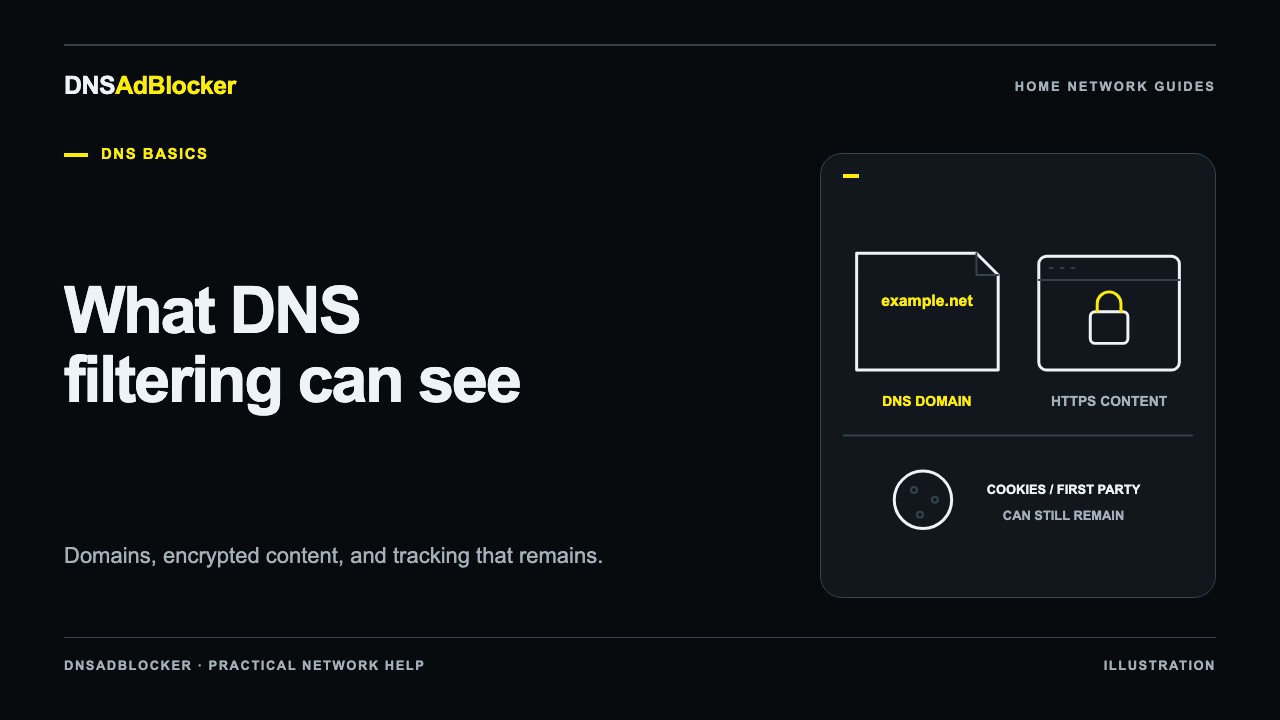
The same distinction applies to privacy. Removing a banner is not equivalent to preventing every kind of tracking. Read what DNS filtering can and cannot do about tracking before treating a visual result as a privacy measurement.
Which arrangement fits your household?
One computer, mostly browser use: start with the browser's privacy settings and a reputable, compatible blocker if that meets your needs. Check its permissions and publisher, and use its documented site controls when a page breaks. Running extra hardware is a separate decision about broader coverage and local controls.
Several people and a mixture of apps: a home DNS layer can reduce listed requests from configured clients without requiring each app to support extensions. You still need to direct DNS traffic through it and account for guest networks, VPNs, or applications using another resolver.
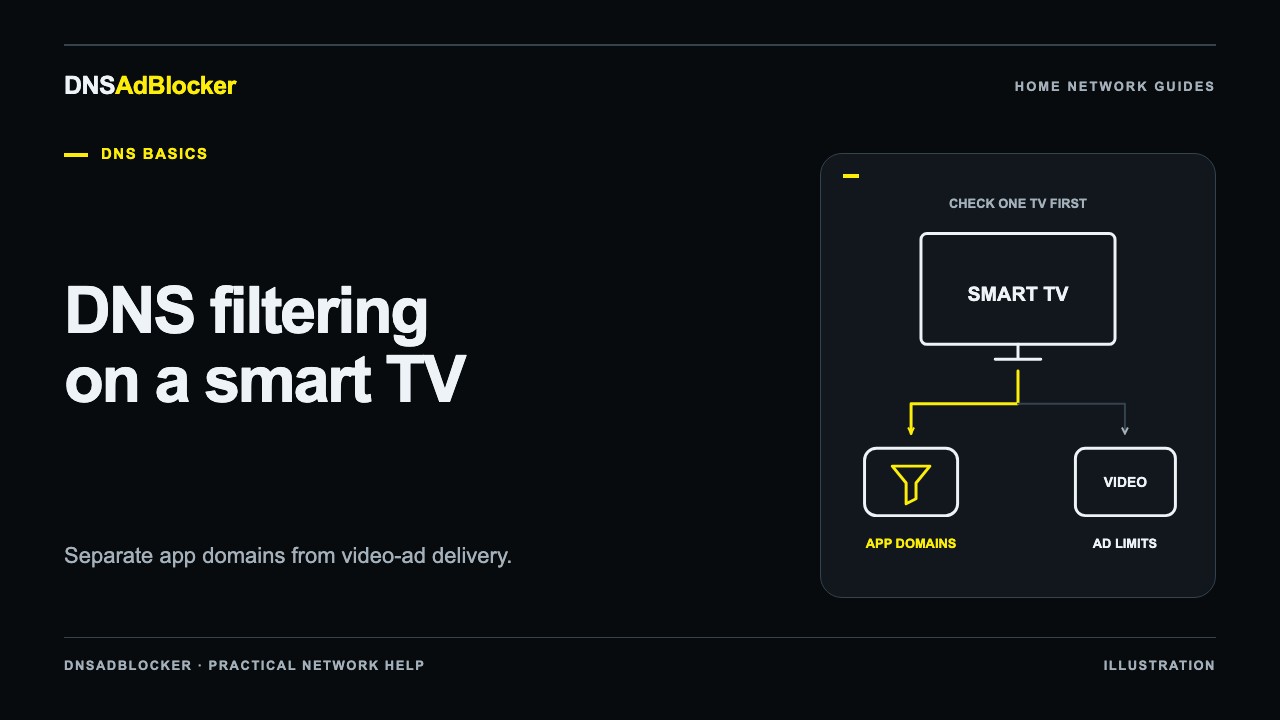
A television or shared device: DNS can be useful where browser extensions are unavailable, but expectations should follow the domains and app involved. You cannot carry a result from a desktop browser over to the same service's TV app.
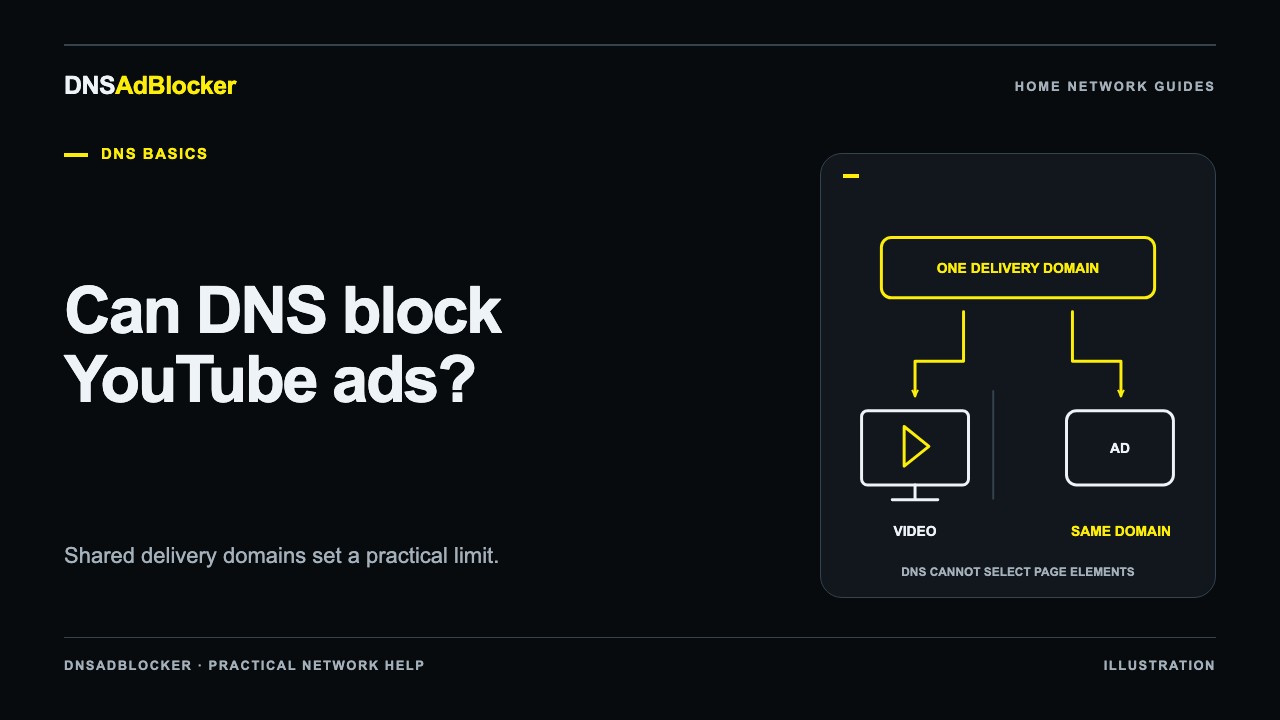
YouTube video ads are the main concern: a DNS device is not a reliable answer to that specific problem. Our YouTube DNS limits guide explains why shared delivery names make selective blocking difficult. Choose any browser solution or service-provided option on its own current merits.
Combining both tools makes sense when you have needs in more than one environment. It is less useful if you cannot tell which tool caused a failure or have no practical way to maintain the setup.
Test the layers separately, then together
Changing one thing at a time helps you learn what each layer contributes. Keep a record of the starting DNS and extension settings, and choose an ordinary allowed task as well as the blocking test.
- Verify DNS coverage first. Use the filter's documented test for a known listed domain and an allowed control domain. Confirm the intended client actually uses the resolver. A browser with an external Secure DNS provider can follow a different route.
- Observe the browser layer. With DNS filtering in a known state, compare a repeatable page before and after enabling the extension's relevant controls. Restore any temporary pause when the check ends.
- Try the combined setup. Check normal sign-in, images, navigation, video, and checkout where relevant. A page that appears clean but cannot complete its main task needs investigation.
- Check another environment separately. An app or TV needs its own coverage check; the browser result does not establish it.
Use the DNS testing walkthrough for a more detailed sequence. Caches can preserve earlier answers, so a reload alone may not make a before-and-after comparison conclusive. Follow the test's reconnection or cache guidance instead of repeatedly adding rules.
Read the numbers without double-counting
If an extension stops a request before a DNS lookup happens, the DNS filter may never count it. If the client has a cached DNS answer, a later connection may not trigger another lookup. An app can also retry the same blocked name many times.
For these reasons, adding an extension's blocked count to a DNS dashboard's total does not produce a meaningful number of ads removed. The Home DNS Ad Blocker's counters describe blocked and allowed DNS requests. They are useful activity indicators, not advertising or privacy scores.
Aim for the practical outcome: fewer unwanted connections where supported, readable pages, working apps, and a setup you can diagnose. The product guide describes the home device's local controls if that household layer fits your needs.
Sources
- MDN: DNS, defining domain resolution.
- MDN: WebExtensions webRequest API, documenting request-level browser capabilities.
- MDN: content scripts, explaining how permitted extension scripts can read and change page content.
- Google Chrome Help: safety and security settings, including custom Secure DNS providers and resolver behavior.
Questions or corrections about this content can be sent to support@dnsadblocker.com.
All postsRelated posts
DNS filtering guides, home network setup notes, and product updates.