A Website Stopped Working After DNS Blocking: Find the Cause
Find whether a broken website is caused by DNS filtering, identify the failing dependency, and recover access without assuming a general allowlist exists.

Written by
DNSAdBlocker Team
The DNSAdBlocker team explains home DNS filtering, setup, and maintenance using product documentation and referenced platform guidance.
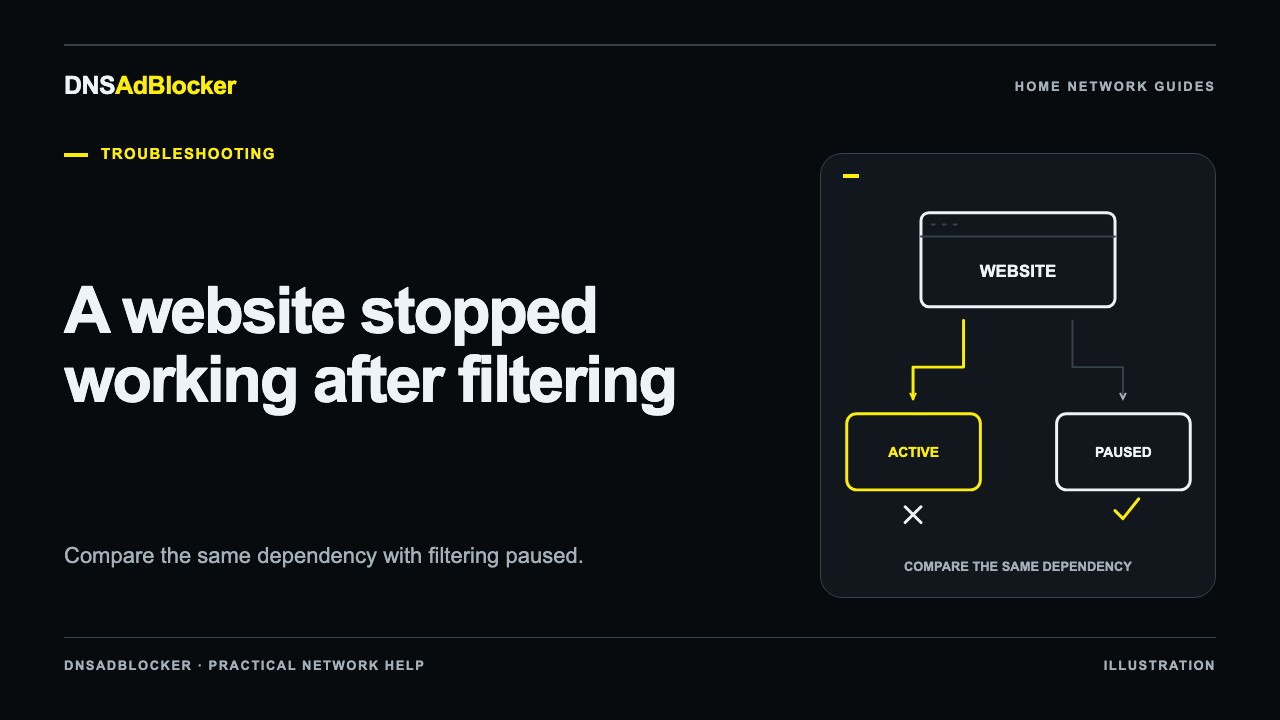
If a website stops working after you enable DNS blocking, pause filtering briefly and repeat the same action before changing any rules. A page that fails once may have a service problem, browser problem, or connection problem unrelated to DNS.
The useful evidence is a repeatable difference: the same dependency fails through the filter while blocking is active and works when filtering is paused. Once you can reproduce that difference, narrow it to one hostname and choose a recovery step the device actually supports.
Compare the exact action with filtering paused
Write down what failed. “The site is broken” could mean the page is blank, the sign-in button does nothing, a video does not start, or checkout cannot complete. Include the error text, time, browser, and affected device. Avoid repeating purchases or other actions that might create duplicate transactions.
Open the local dashboard and choose a short pause interval. The interface supports timed pauses, including five minutes. Then repeat the same harmless action on the same client. Keep the browser's DNS provider, network connection, and VPN setting unchanged during this comparison.
Cached answers and existing connections can hide the change. Use a fresh page load and, where needed, a targeted lookup after clearing the relevant DNS cache. Follow the same sequence with filtering resumed. Do not count a different browser on cellular data as the same test; it changes several variables at once.
| Result | What it tells you |
|---|---|
| Fails with filtering active and paused | DNS domain blocking has not been established as the cause |
| Repeatedly works only while paused | A blocked dependency is worth investigating |
| Results vary in both states | Check cache, service availability, and request differences |
| All lookups from one client fail even while paused | Check connectivity and any client ban separately |
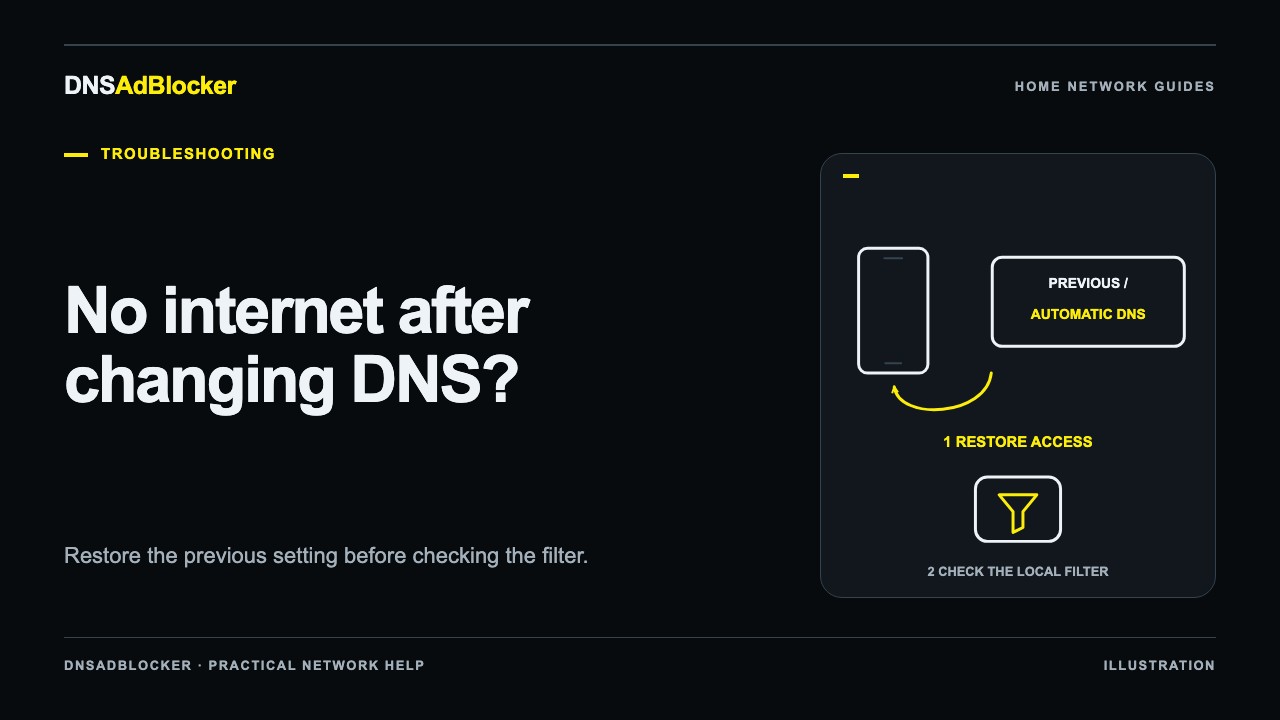
Pausing domain filtering does not override a client ban. If the client was deliberately banned in the dashboard, address that setting separately. For broader failures, use restore access after changing DNS.
Find the failing hostname outside the dashboard
The DNSAdBlocker dashboard provides blocked and allowed request counts, including counts for observed clients. It does not show a per-domain request history. A rising blocked total cannot tell you which hostname a sign-in form needs.
For a browser-based site, use the browser's developer tools. Chrome's Network panel guide explains how to record resource requests and inspect them:
- Open the affected page and the Network panel.
- Clear the current request list, then repeat the failing action once.
- Look at failed requests and record the hostname and error, not just the page's main domain.
- Repeat with filtering paused and compare that same request.
A service may load scripts, images, sign-in components, or APIs from several domains. A DNS error such as a name-resolution failure is a stronger lead than a generic JavaScript error. An HTTP error response, such as 403 or 500, means a server answered that request; it is not by itself evidence of a DNS block. An extension can also cancel a request before DNS is relevant.
Do not send a complete network recording to support without reviewing it. Request URLs, headers, and exported HAR files can contain account tokens or personal data. Usually the hostname, visible error, time, and result of the pause comparison are a better starting point.
Test one dependency at a time
Use a targeted lookup against the local filter for the hostname you identified. For example:
nslookup example.com 192.168.1.50
Replace both the example hostname and LAN address with the actual dependency and device address. Repeat while filtering is active and paused. Microsoft's nslookup reference documents the server argument.
The controlled filter test helps distinguish an expected blocking response from a timeout or an upstream resolution failure. Record the response rather than assuming every empty or failed lookup means “blocked.”
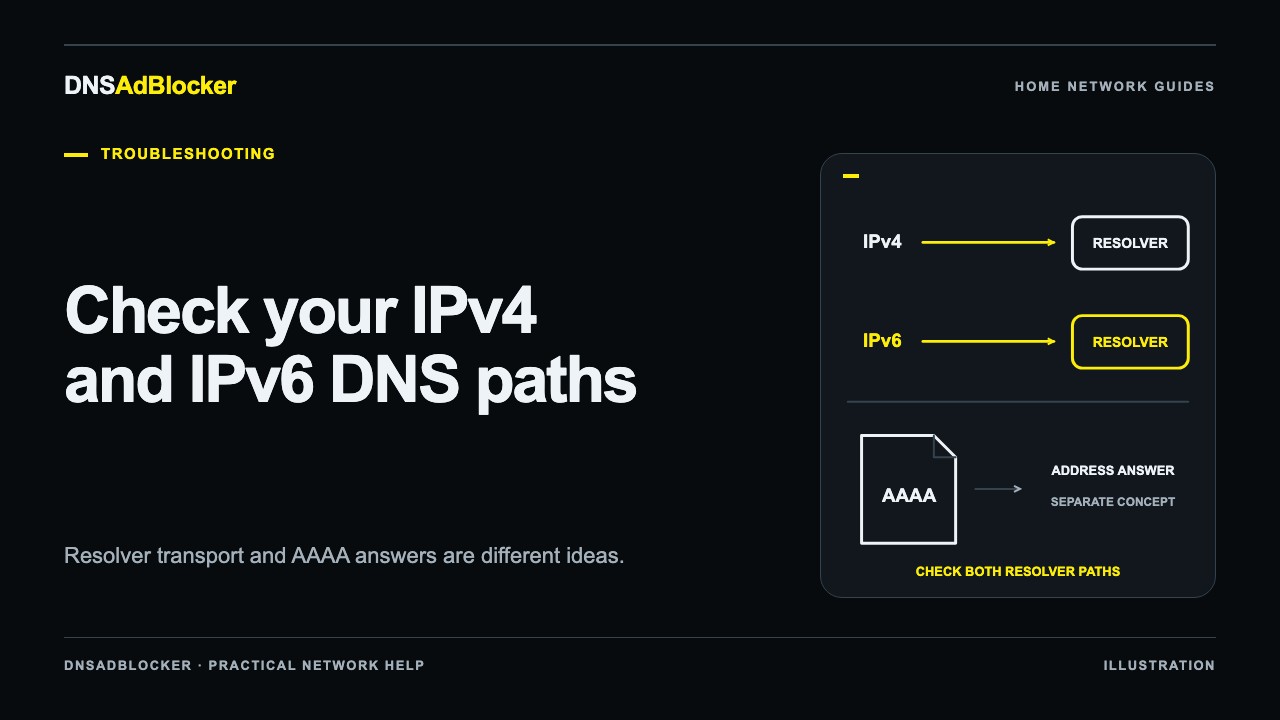
If the dependency resolves in both states, return to the browser error and its active DNS path. The browser may use a different resolver from the command-line test. The request-path troubleshooting guide covers that distinction.
Undo a custom rule carefully
If the problem began after you added a custom blocked domain, inspect that list first. The filter can match parent-domain suffixes, so a broad entry can affect several subdomains. Remove the custom entry responsible for the behavior, resume filtering, and repeat the same test.
Removing a custom entry is not a general allowlist exception. If the domain also appears in the preloaded blocklist, removing it from your custom list will not override the preloaded rule. The custom blocked-domain guide explains this boundary and how to keep changes narrow.
Do not add a wanted domain to the custom blocked list in an attempt to allow it. Do not upload a random text allowlist or firmware image as a shortcut; those are different inputs with different consequences.
Recover access when the preloaded list is involved
If you have established that a preloaded rule affects a necessary dependency, keep the hostname and comparison results for support. Ask for a compatible corrected rule file or the documented recovery procedure for your unit. The dashboard does not promise an override for every preloaded domain or automatic rollback of a list upload.
For an urgent task, a short, deliberate pause may restore access while you investigate. If you temporarily restore a known working DNS configuration on one client, record that the client is outside local filtering during that period and restore its intended setting afterward. Avoid leaving the whole household on an indefinite pause because one site needs attention.
Finish by resuming filtering, testing the repaired action, and checking another ordinary site. Keep only the rule change that addressed the identified dependency.
FAQ
Should I allow every domain the website contacts?
No. A page can contact optional advertising and analytics services as well as essential dependencies. Test the failing function and its specific hostname. Broad exceptions can remove much more filtering than intended, and this device does not provide a general allowlist for preloaded entries.
Why does the homepage work while sign-in fails?
The sign-in flow may use another hostname, but that is a hypothesis until the network requests and pause comparison support it. Account, cookie, extension, and service errors can produce similar symptoms.
Does pausing guarantee the website will work?
No. It only changes domain-list filtering. It does not repair a service outage, a banned client, a broken connection, or another application's DNS configuration.
Sources
Documentation reviewed October 19, 2026. No website dependency is presented here as a confirmed false positive on your installed rule list.
Questions or corrections about this content can be sent to support@dnsadblocker.com.
All postsRelated posts
DNS filtering guides, home network setup notes, and product updates.