Hardware Ad Blocker Buying Checklist: What to Verify Before Ordering
Check your router, Wi-Fi, power, hardware style, package contents, and update terms before choosing a DNS ad blocker for the devices in your home.
Written by
DNSAdBlocker Team
The DNSAdBlocker team explains home DNS filtering, setup, and maintenance using product documentation and referenced platform guidance.
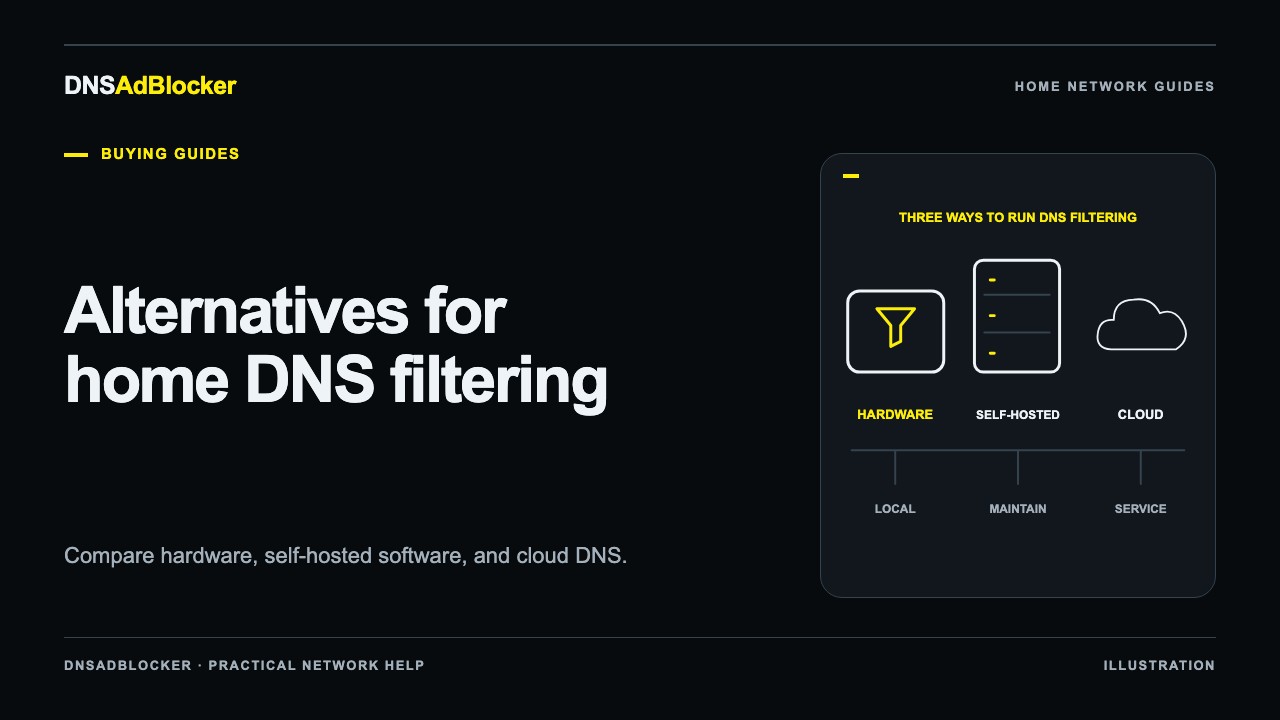
A hardware ad blocker is a sensible purchase when you want a separate device to handle DNS filtering and can configure the devices that should use it. Before ordering, confirm how you will set DNS, where the hardware will get power and Wi-Fi, and who will maintain it. A preinstalled box reduces installation work; it still needs a place in your network.
For DNSAdBlocker's Home DNS Ad Blocker, the physical requirements are USB power and 2.4 GHz Wi-Fi. Its local English dashboard provides request statistics, custom blocked domains, and update controls. Use the checks below to decide whether that arrangement matches your home.
Start with the devices you actually want to filter
Write down your main targets: perhaps a laptop, two phones, and a television. Beside each one, record whether it stays at home and whether you can change its Wi-Fi DNS settings. This makes the coverage question concrete.
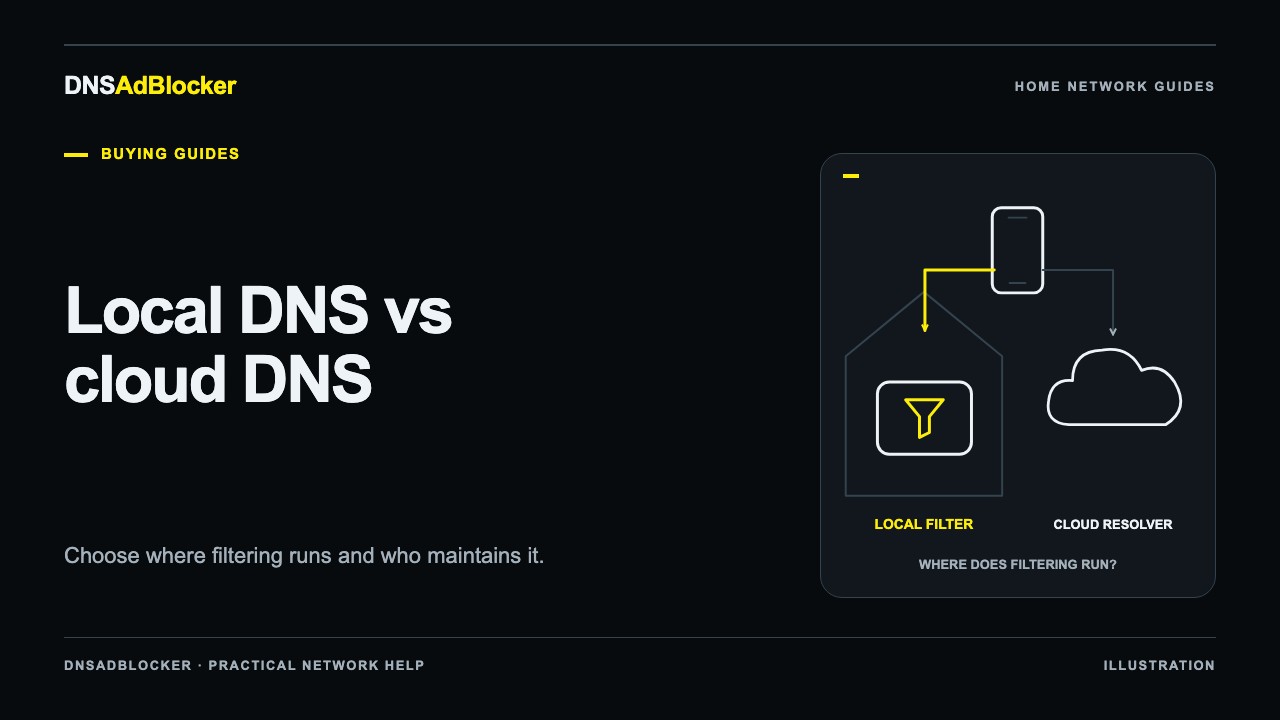
One filtering device can serve several clients that use it for DNS. You do not need one unit per phone. Conversely, buying a second unit does not make a phone on mobile data use your home filter. That phone needs a resolver arrangement it can reach from its current network.
Also record the result you expect. Blocking a separate tracking domain is a suitable DNS task. Removing empty page spaces or selectively removing video advertisements served with wanted content is a different requirement. If you are still choosing a type of system, compare the deployment choices in our guide to Pi-hole alternatives before choosing hardware.
Check your router before choosing a pack
Find your router's model, hardware revision, and firmware version. Then open its administration interface or official manual and look for LAN, DHCP, or DNS settings. You need a supported way for the intended clients to send requests to the filter's local address.
Labels vary. A DNS field under Internet or WAN settings may control the router's own upstream resolver rather than the address it gives clients. Some routers can forward requests to a local server; others provide a separate DHCP DNS setting. The router compatibility checklist explains what to ask when the interface is unclear.
| Before ordering | A useful answer | What to investigate if unclear |
|---|---|---|
| Can I choose a local DNS server? | The manual identifies a supported local-address setting | Ask router support about the exact model and firmware |
| Can the filter keep the same address? | The router supports a DHCP reservation or another documented stable-address method | Find the address-management instructions |
| Can my target devices reach that address? | They share a reachable home network | Check guest isolation, separate subnets, and mesh configuration |
| Can I restore normal DNS? | I have recorded the original setting | Save it before making changes |
A stable address deserves its own check. If a router gives the filter a different address later, clients may keep asking the old one. Our DHCP reservation guide covers that part of ownership.
Plan power and placement
USB powers this product; it does not carry the household's browsing traffic. The device joins home Wi-Fi, and configured clients send DNS requests over the network.
Choose a location with reliable 2.4 GHz coverage and a power source that remains available when you want filtering to work. A TV USB port that turns off with the screen, for example, may be a poor choice if other household devices depend on the filter. Check the TV's documented USB behavior rather than assuming it stays powered.
A dual-band router can provide 2.4 GHz service, but the network must actually make it available to the device. A 5 GHz-only network does not satisfy this product's Wi-Fi requirement. Your phone can use another band if both devices can communicate through the router; sharing a band is less important than sharing a reachable network.
Leave room to reach the device and its USB connection if you need to reconnect it or change its placement. The current unit has a black case; check the supplied device photographs when planning where to put it.
Confirm the hardware and check what arrives
Every DNSAdBlocker hardware pack currently supplies the same device: a black case with no screen. There is no colour or style selection. Choose the number of units for your separate installations.
The current hardware offer uses these pack totals:
| Pack | Total price |
|---|---|
| One unit | US$19.00 |
| Two units | US$34.90 |
| Three units | US$49.90 |
The two- and three-unit amounts are totals for the pack. Pick the pack for the number of separate installations you need, rather than counting household phones and computers. The same black-case, screen-free hardware is supplied in all three packs.
Before paying, read the selected listing for package contents, connector details, and any supplied cable or power adapter. "USB powered" alone does not identify the accessories in a package. Check delivery estimates and the published return and warranty terms separately from the shipping charge. DNSAdBlocker's hardware offer includes free worldwide shipping; that does not specify an arrival date.
Treat explanatory illustrations as diagrams. Use photographs of the actual supplied variant to judge its physical appearance, and ask about details a diagram cannot establish. An illustration cannot confirm a connector, enclosure finish, or accessory bundle.
Understand the maintenance you are buying
The product has approximately 100,000 preloaded rules. That number describes the starting list, rather than a count of advertisements it will remove. Different services use different domains, and a list can also block a dependency a wanted feature needs.
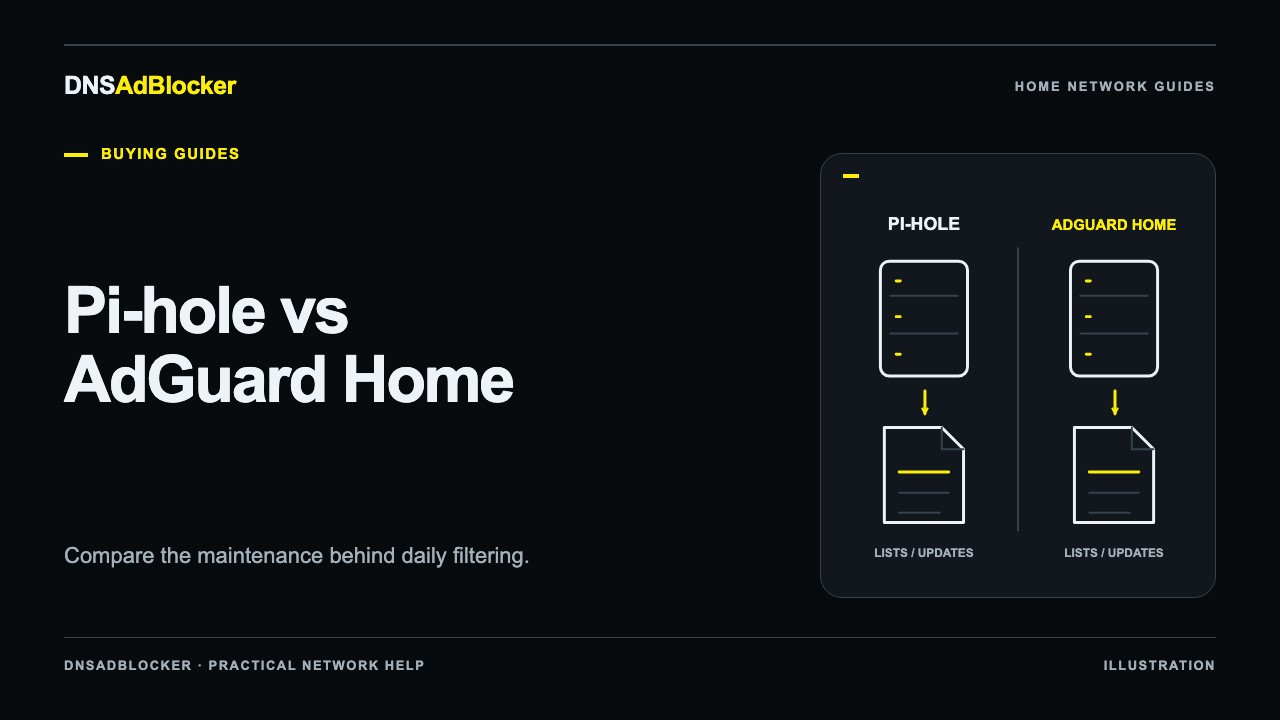
Hardware includes the first year of rule-file download access. New hardware buyers do not need to purchase that same first year again. Read the offer's access terms and the available release information before planning an update. A downloadable rule file refreshes the filtering data; a firmware file changes the program running on the device. Our blocklist versus firmware guide explains the distinction.
Future annual rule access is a separate purchase with its own one-year period from payment, subject to the qualifying completed-order terms. It does not renew automatically or stack onto the end of an older period. Avoid buying another period early in the expectation that it extends your included year.
The final ownership check
Name one person who can open the local dashboard, find the device's address, and restore the previous DNS settings if needed. That is a more useful readiness check than a promise that a box is "set and forget."
The product guide explains the setup path. Once you have checked the network and chosen a pack size, review the current offer on the Home DNS Ad Blocker listing.
Buying questions
Does the device include a screen?
No. The current device has a black enclosure and no screen. Use its local English dashboard in a browser on your home network to view request statistics and manage the available controls.
Does a website account remotely manage the device?
Your website account handles orders and rule-download access. The local dashboard manages the device on your home network. Keep those two tasks separate when deciding who in the household will maintain it.
What should I ask support before ordering?
Send the router model and firmware version, identify the devices you want covered, and describe any guest network or VPN involved. Ask about package contents and destination-specific delivery terms if the listing does not answer them.
Sources
- DNSAdBlocker product guide and current hardware offer.
- TP-Link: using a Pi-hole DNS server on supported routers, an example of model-specific DHCP DNS configuration.
- Pi-hole prerequisites, including the need for a stable server address.
Questions or corrections about this content can be sent to support@dnsadblocker.com.
All postsRelated posts
DNS filtering guides, home network setup notes, and product updates.