What Is DNS Ad Blocking, and How Does It Work?
Learn how DNS ad blocking filters domain requests, which home devices can use it, and why video ads and empty page spaces can remain after setup.

Written by
DNSAdBlocker Team
The DNSAdBlocker team explains home DNS filtering, setup, and maintenance using product documentation and referenced platform guidance.
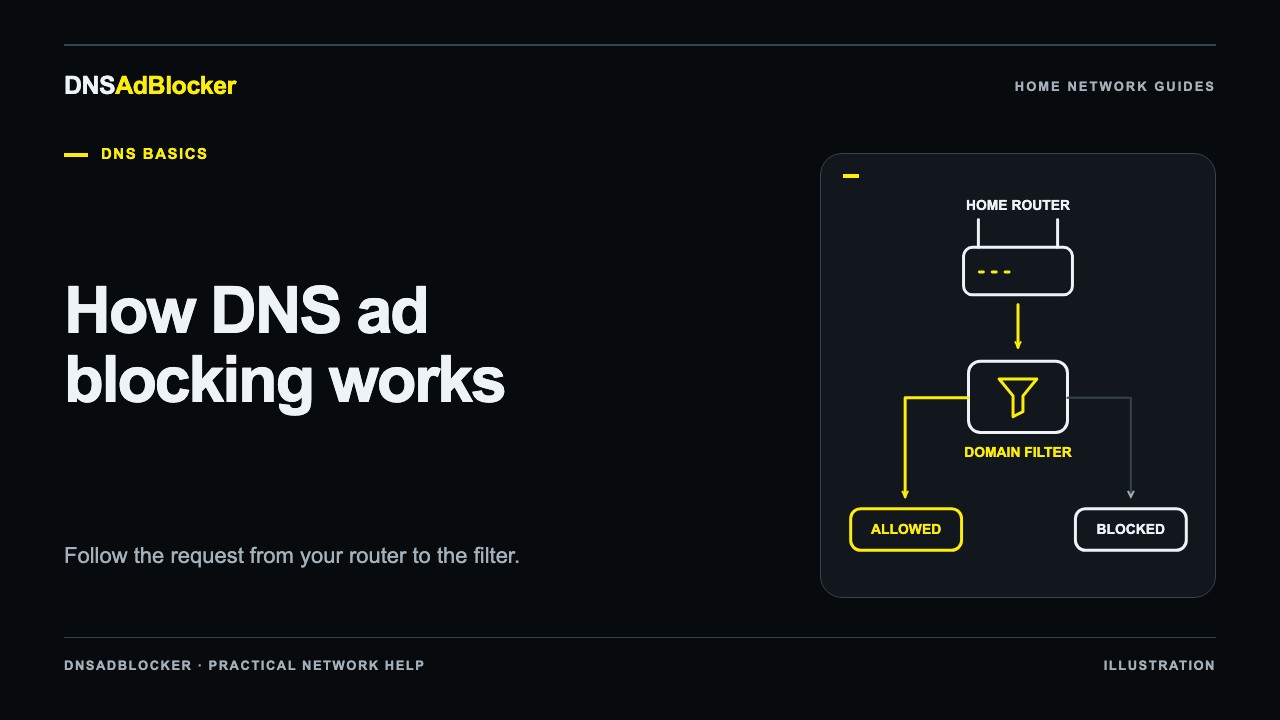
DNS ad blocking checks the domain names your devices ask to reach and refuses requests for names on a blocking list. It can reduce connections to separate advertising and tracking services across configured home devices. It cannot inspect a web page, erase its empty ad boxes, or reliably separate an advertisement from a video served by the same domain.
The useful question is therefore: which requests will pass through the filter, and what can it decide about them? Once those two things are clear, the setup choices make much more sense.
Follow one request from a phone
When you open a website, your phone usually needs an IP address for its domain name. DNS, the Domain Name System, supplies that name-to-address lookup. A page may then request other domains for images, fonts, analytics, or advertising. Each additional lookup gives a DNS filter another decision to make.
Here is a simplified example, using illustrative domain names:
- Your phone asks its configured DNS resolver for
news.example.com. - The filter checks that name against its rules. If it is allowed, the resolver obtains an answer, using a cache or an upstream DNS service as appropriate.
- The phone uses the answer to connect to the website.
- The page asks for
ads.example.net. If that domain is listed, the filter returns a blocking response instead of a usable destination address. - The advertising connection cannot proceed through that lookup. The rest of the page may continue loading from allowed domains.
Blocking responses vary between implementations. A filter might return an address that leads nowhere or an answer indicating that no address is available. The important result is that a listed name does not resolve to its normal destination through that filter.
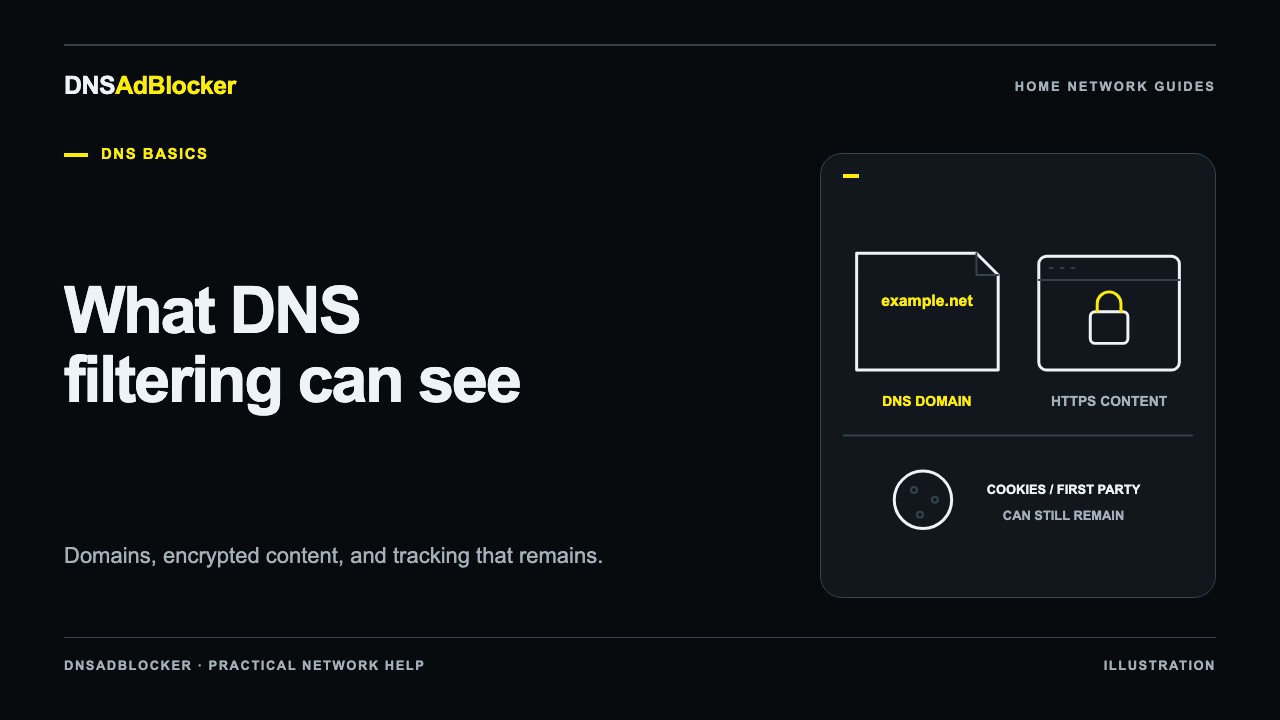
This happens before the connection to the named service. The DNS filter is not reading the article or deciding which rectangle on the screen contains an ad. Our DNS filtering and tracking guide explains what domain lookups reveal and what remains outside the filter's view.
Which devices can share the filtering?
A local DNS device can serve several devices on the same reachable home network. Phones, computers, tablets, and some televisions can use it if their DNS requests are directed to it. You do not necessarily need a separate filtering unit for each screen.
Coverage comes from configuration. Connecting the filter to power and Wi-Fi does not make every other device start using it.
There are two common arrangements:
| Arrangement | How requests reach the filter | What to check |
|---|---|---|
| Router-provided DNS | The router tells clients to use the filter, or forwards their requests to it | LAN/DHCP controls, router forwarding behavior, IPv6 settings |
| Individual-device DNS | A phone, computer, or TV is configured directly | Whether that device and its apps follow the selected resolver |
A guest network may not be able to reach a filtering device on the main network. A browser using a different encrypted DNS provider, a VPN with its own resolver, or an app with its own DNS behavior can also take another path. A phone on cellular data is outside the ordinary home-network arrangement.
Start with one device. The router DNS versus device DNS comparison helps you choose where to make the change before extending it to a household.
Why some ads and blank spaces remain
DNS rules operate on names, not individual page elements. That creates several predictable limits.
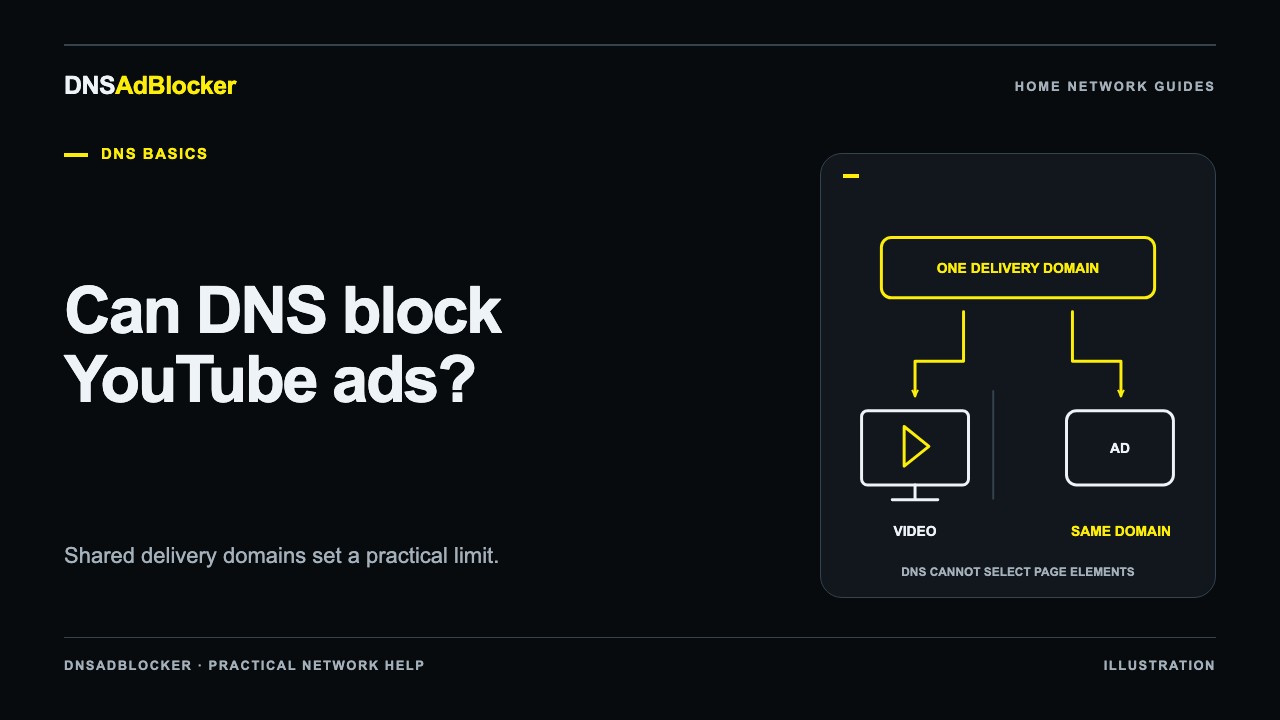
An ad can share a domain with wanted content. Blocking that domain may break the content as well. Video and in-feed advertising are common reasons to avoid an “all ads removed” promise.
A page can reserve space for an ad. Even when the advertising request fails, the layout may keep its empty box. DNS cannot rewrite the page's HTML or CSS to close the gap.
The rule list may not include a domain. A filtering list is maintained information, not an automatic understanding of everything on the internet. New services, changed domains, and deliberate evasion can affect coverage.
Some requests may bypass the filter. Before adding more rules, check the request path. A larger list cannot affect a lookup sent to a different resolver.
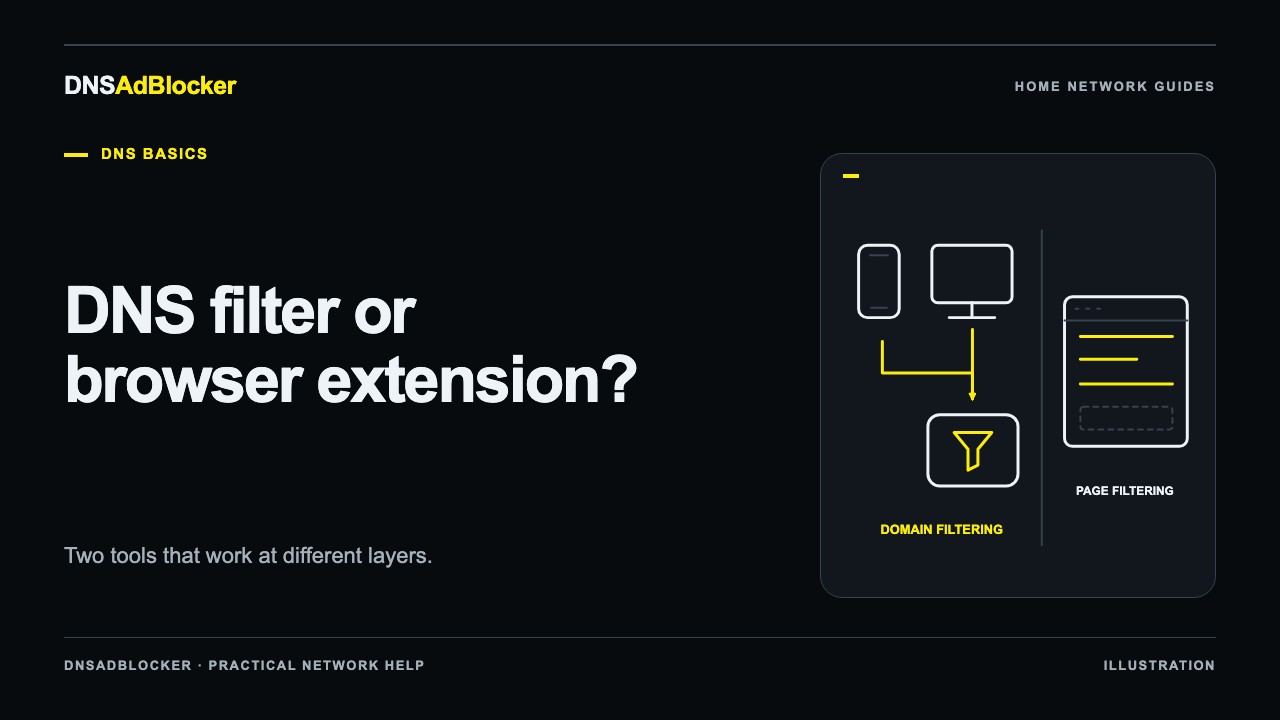
These are reasons to choose tools by where they work. A browser extension can filter and adjust page content inside a supported browser, while DNS filtering can reach configured apps and devices that cannot run that extension. Neither tool is a guarantee that every advertisement disappears.
Local filtering device or public DNS address?
A public DNS address belongs to a resolver operated by a service provider. Some public services filter advertising domains; others focus on ordinary resolution or different categories. Merely changing to a well-known DNS address does not establish that ads will be blocked. Check the provider's stated policy and choose its filtering service deliberately.
A local filtering device runs the filtering step on your home network. Depending on the product, it may offer local controls and request statistics. Allowed lookups may still be forwarded to an external upstream resolver. “Local filtering” does not automatically mean every DNS operation stays inside the house or that the upstream connection is encrypted.
For DNSAdBlocker, the local English dashboard offers blocked and allowed request counts, custom domain blocks, and pause controls. Those counts describe DNS requests, not the number of ads removed. Its website account and the local device dashboard have separate jobs.
Choose a public service if its policy and management options fit your needs. Consider a local device if you want the supported home-network controls and are comfortable maintaining its power, Wi-Fi connection, and DNS configuration. The home-network filtering alternatives guide compares those routes without assuming one suits every household.
A sensible first setup
Write down your current DNS settings and how to restore them. Give a local filtering device a stable LAN address, configure one client, and verify both a known allowed lookup and a known listed domain using the filter's supplied instructions. Then try the tasks that matter: sign-in, shopping, video playback, or a game connection.
If you are using our hardware, follow the product setup guide for its connection requirements. Expand coverage after that first client works. A small, understood change is easier to diagnose than changing a router, several phones, and a browser's privacy settings at the same time.
Sources
- MDN: DNS and domain-name lookups.
- IETF RFC 9076: DNS Privacy Considerations, including resolver roles and visibility.
- Pi-hole documentation: DNS blocking response modes, illustrating how DNS refusal differs from page editing.
- AdGuard DNS: public service overview, including filtering and non-filtering service choices.
Questions or corrections about this content can be sent to support@dnsadblocker.com.
All postsRelated posts
DNS filtering guides, home network setup notes, and product updates.